
Lenovo ThinkPad T430s Trackpad Replacement

Matthew Hill and 2 other contributors
Last updated on May 24, 2023
Views: 1.7K
View statistics:
- Past 24 Hours:
- 2
- Past 7 Days:
- 27
- Past 30 Days:
- 101
- All Time:
- 1,740
Comments: 5
5 comments on steps.
Completed: 1 2
1 person has marked this guide "completed." Will you be next?
2 people have marked this guide "completed." Including you — great job!
Favorites: 0 1
No one has favorited (and subscribed to) this guide. Will you be the first?
1 person has favorited (and subscribed to) this guide — and that's you!
Inconsistent Images
Updating the images on this guide to be more consistent with the prerequisites would increase its awesomeness.
Scenic Route
This guide's procedure isn't the most efficient way to get the job done, but still may be useful in some circumstances.
Introduction
Go to step 1 ↓This is a replacement guide for the built-in trackpad and mouse keys on the Lenovo ThinkPad T430s. The keyboard and the trackpad are the two user inputs that are necessary to interact with a laptop. A faulty keyboard or mouse may not respond to user input. However, a faulty mouse and/or keyboard can also be stuck inputting the same value over and over. This guide requires that the motherboard is taken from the laptop case. Ensure that the battery is fully removed before doing any work on the internal wiring.
What you need
Tools
-
Spudger4.9


-
-
-
Flip your ThinkPad on its back.
-
In the bottom left corner of your ThinkPad, slide the lever to the left. Hold the lever there.
-
Use your other hand to lift the battery up by prying the notch to the left of the lever.
-
Tilt the battery up and remove it from the ThinkPad.
 Ask FixBot
-
-
-
-
-
With the Phillips #0 screwdriver, loosen the two 30 mm screws holding down the RAM stick plate.
-
Pry up the plate and set it aside.
-
-
-
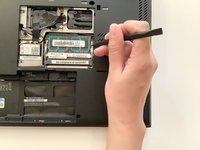
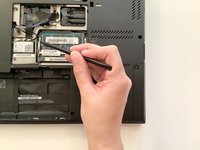
Use the pointy end of the spudger to bend the bars holding the RAM stick in place.
-
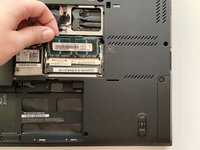
Lift the RAM stick up and out of the stick holder.
-
-
-
-
-
-
Flip your ThinkPad over so the back faces up.
-
With the Phillips #0 screwdriver, remove the seven 5 mm screws on the outer edge of the case.
-
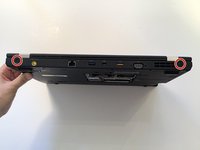
Remove the two 7 mm screws in the upper corners of the case.
-
Remove the five 5 mm screws in the battery compartment.
-
-
-
In the RAM compartment, pry the black, white, and grey wires up from the Wi-Fi card with the pointy end of the spudger.
-
Remove the 3 mm screw holding down the Wi-Fi card with the Phillips #0 screwdriver.
-
Pull out the Wi-Fi card.
-
Remove the 6 mm and 3 mm screws in the RAM stick compartment.
-
-
-
Flip the ThinkPad right side up and open the lid.
-
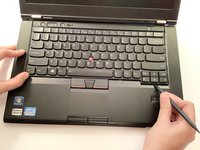
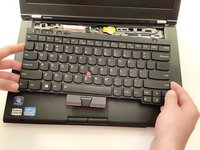
Wedge the flat end of the spudger between the keyboard and the palm rest. Push the keyboard away from you until it pops out.
-
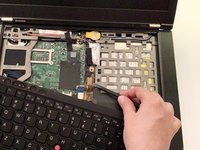
Lift the keyboard from the palm rest to expose the ribbon connecting the keyboard to the motherboard.
-
Pry the keyboard ribbon up from the motherboard with the flat end of the spudger.
-
Set the keyboard aside.
-
-
-
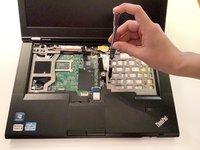
Remove the two 5 mm screws from the case covering the disk drive.
-
Thread the wires that come from the RAM compartment up through the hole in the motherboard. Unwind them from the computer case.
-
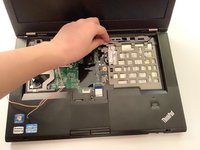
Wedge the flat end of the spudger in between the palm rest and the bottom case. Unsnap the edges of the palm rest and case until they disconnect.
-
Lift the palm rest up from the motherboard.
-
-
-
Pull the red, blue, and white wires in the left corner away from the motherboard.
-
Peel the snap securing the ribbon with the pointy end of the spudger.
-
Pull the ribbon back towards you.
-
-
-
Rotate the ThinkPad so the back side faces you.
-
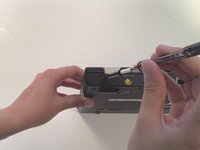
With the Phillips #1 screwdriver, unscrew the two 7 mm screws from the corners.
-
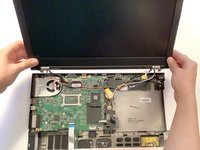
Lift the screen and pull it out of the hinges. Set the screen down behind the rest of the ThinkPad.
-
-
-
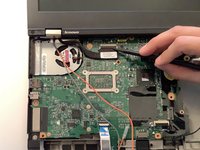
With the pointy end of the spudger, lift the plastic snap holding down the SN4 LVDS cable. Pull the cable out of the clasp towards you.
-
Pry the SN4 LED cable out of where it connects to the motherboard.
-
Set the display aside.
-
-
-
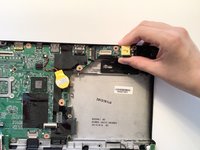
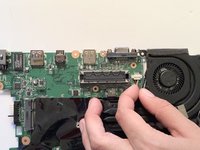
With the pointy end of the spudger, lift the plastic snap securing the ribbon at the front of the ThinkPad.
-
Pull the ribbon out of the clasp towards you.
-
-
-
-
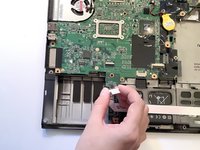
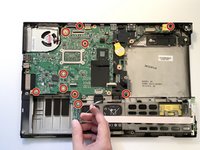
Unscrew the 9 mm screw, five 5 mm screws, and four 3 mm screws on the motherboard using a Phillips #0 screwdriver.
-
When you remove the screws, the small motherboard stick in the top right corner will pop out of the case. Pull it out.
-
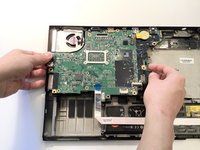
Lift the motherboard out of the case.
-
-
-
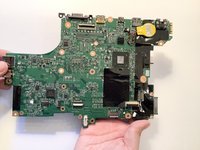
Flip the motherboard over so the back faces up.
-
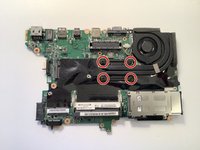
Loosen the four screws securing the heat sink to the motherboard. The silver metal rectangle on the front of the motherboard will fall off. Set it aside.
-
Lift the fan and heat sink away from the motherboard.
-
-
-
-
-
Return to the case and place it so the keyboard is facing down.
-
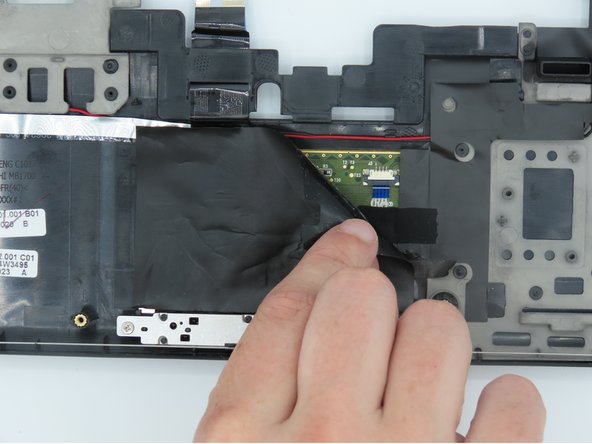
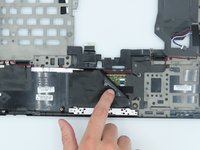
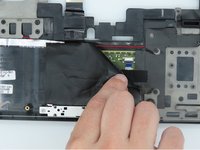
Peel the protective coating back from the trackpad.
-
Remove the coating and set it aside.
-
-
-
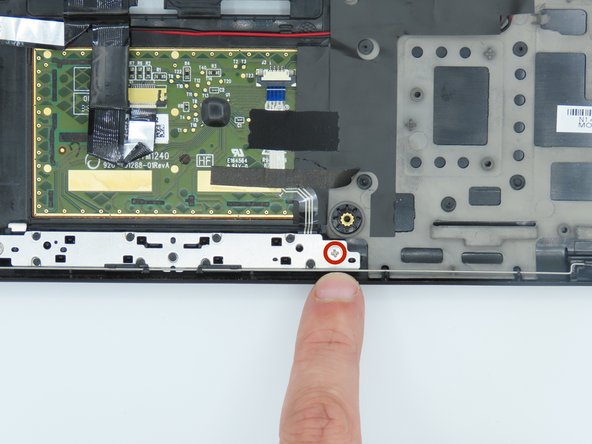
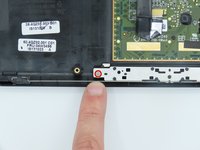
Remove the two silver 30 mm screws from the bottom left and right of the trackpad using a Phillips #0 screwdriver.
-
-
-
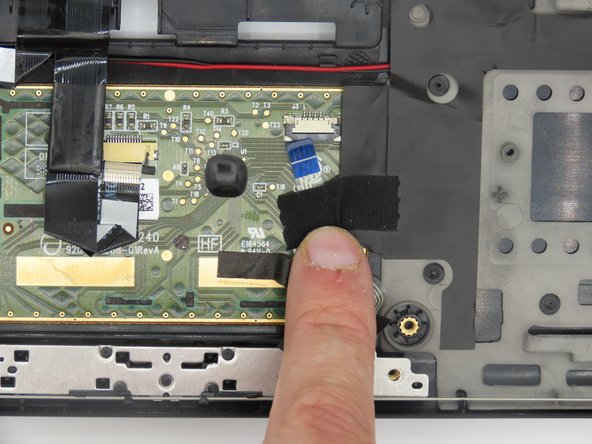
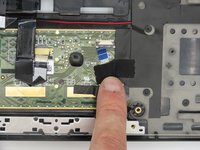
Remove the right-side cable tape.
-
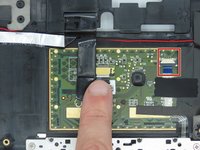
To disconnect the cable, use the tip of a spudger or your fingernail to flip up the small locking flap.
-
Remove the right-side cable.
-
-
-
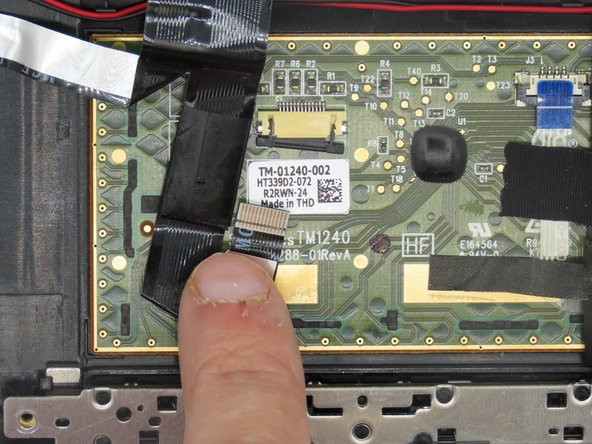
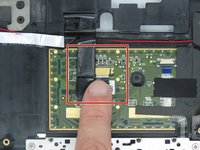
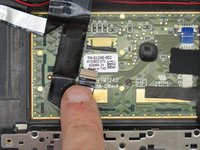
Place pressure under the left cable connector.
-
To disconnect the cable, use the tip of a spudger or your fingernail to flip up the small locking flap.
-
Gently detach the left pin connection.
-
-
-
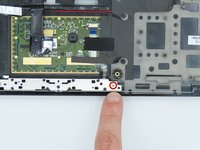
Remove the tape holding the mouse keys.
-
Remove the mouse buttons that are attached to the trackpad.
-
Remove the disconnected trackpad.
-
-






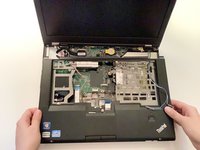


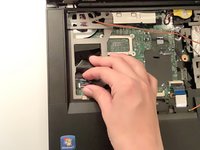
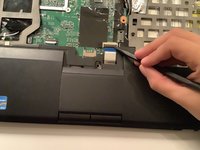
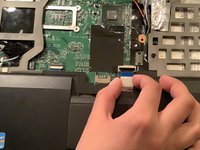




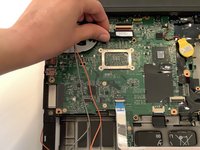
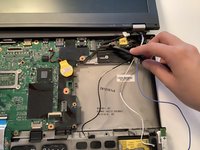


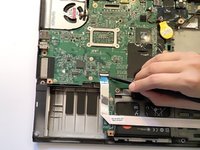
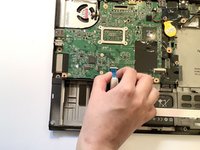









To reassemble your device, follow these instructions in reverse order.
Cancel: I did not complete this guide.
One other person completed this guide.
Team

University of Kentucky, Team 1-11, Kaufmann Spring 2023 Member of University of Kentucky, Team 1-11, Kaufmann Spring 2023
UKY-KAUFMANN-S23S1G11
5 Members
60 Guides authored
