Free Shipping on Domestic Orders $75+

Lenovo ThinkPad T410s Keyboard Replacement

Views: 4.5K

View statistics:

Past 24 Hours:
3
Past 7 Days:
34
Past 30 Days:
131
All Time:
4,466
Comments: 2

2 comments on steps.

Completed: 2

2 people have marked this guide "completed." Will you be next?

Favorites: 1

1 person has favorited (and subscribed to) this guide. Will you be next?

Time Required: 2 minutes
Difficulty: Easy
Better Introduction

Improve this guide by completing or revising its introduction.

Lenovo ThinkPad T410s Keyboard Replacement

Introduction

Go to step 1 ↓

This guide will instruct you on how to replace the keyboard on your Lenovo ThinkPad T410s.

What you need

Parts

Tools

    1. Lenovo ThinkPad T410s Keyboard Replacement, Battery: step 1, image 1 of 1
      • Flip the laptop over.

      • Push and hold the locking switch to the left.

      • Pull the battery out with your other hand.

      Ask FixBot

      Add Comment

    1. Lenovo ThinkPad T410s Keyboard Replacement, RAM: step 2, image 1 of 2 Lenovo ThinkPad T410s Keyboard Replacement, RAM: step 2, image 2 of 2
      • Remove the single Phillips #0 screw grin the back panel.

      • Pull the back panel off.

      Ask FixBot

      Add Comment

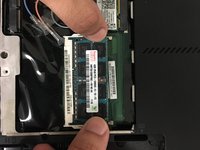
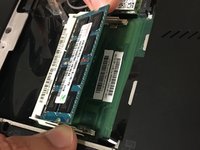
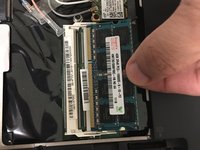
    2. Lenovo ThinkPad T410s Keyboard Replacement: step 3, image 1 of 3 Lenovo ThinkPad T410s Keyboard Replacement: step 3, image 2 of 3 Lenovo ThinkPad T410s Keyboard Replacement: step 3, image 3 of 3
      • Pull the metal prongs at the side of the RAM away from each other.

      • The RAM will pop out of its socket when done correctly.

      • Pull the RAM out.

      Ask FixBot

      Add Comment

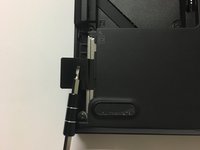
    1. Lenovo ThinkPad T410s Keyboard Replacement, Hard Drive: step 4, image 1 of 2 Lenovo ThinkPad T410s Keyboard Replacement, Hard Drive: step 4, image 2 of 2
      • Remove the single Phillips #0 screw that secures the hard drive cover.

      Ask FixBot

      Add Comment

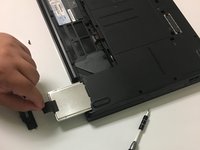
    2. Lenovo ThinkPad T410s Keyboard Replacement: step 5, image 1 of 2 Lenovo ThinkPad T410s Keyboard Replacement: step 5, image 2 of 2
      • Flip the black plastic tab out.

      Ask FixBot

      Add Comment

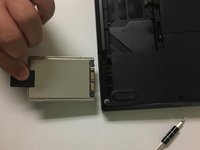
    3. Lenovo ThinkPad T410s Keyboard Replacement: step 6, image 1 of 2 Lenovo ThinkPad T410s Keyboard Replacement: step 6, image 2 of 2
      • Pull the hard drive out.

      Ask FixBot

      Add Comment

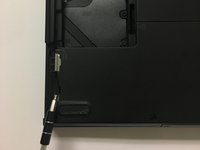
    1. Lenovo ThinkPad T410s Keyboard Replacement, Keyboard: step 7, image 1 of 1
      • Remove the Flathead 2.5mm screw.

      • Flip the laptop over.

      Ask FixBot

      Add Comment

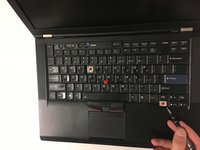
    2. Lenovo ThinkPad T410s Keyboard Replacement: step 8, image 1 of 2 Lenovo ThinkPad T410s Keyboard Replacement: step 8, image 2 of 2
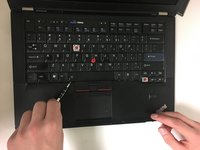
      • Wedge the flat end of a spudger, or plastic opening tool, under the end of the keyboard and pry up.

      Ask FixBot

      Add Comment

    3. Lenovo ThinkPad T410s Keyboard Replacement: step 9, image 1 of 2 Lenovo ThinkPad T410s Keyboard Replacement: step 9, image 2 of 2
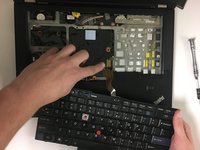
      • Slide the keyboard out of the way until you can see what's underneath it.

      • The keyboard is still attached with a ribbon cable so don't try to fully remove it.

      Ask FixBot

      Add Comment

    4. Lenovo ThinkPad T410s Keyboard Replacement: step 10, image 1 of 1
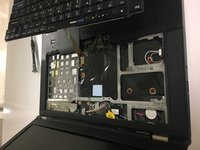
      • Use the flat end of a spudger to unplug the keyboard connector from the laptop.

      • Pull the keyboard out.

      Ask FixBot

      Add Comment

Conclusion

To reassemble your device, follow these instructions in reverse order.

Cancel: I did not complete this guide.

2 other people completed this guide.

0 Guide Comments

Add Comment

View Statistics:

Past 24 Hours: 3

Past 7 Days: 34

Past 30 Days: 131

All Time: 4,466