Free Shipping on Domestic Orders $75+

Lenovo ThinkPad T14 Gen 7 Fan Replacement

What you need

    1. Lenovo ThinkPad T14 Gen 7 Fan Replacement, Prepare your laptop for disassembly: step 1, image 1 of 2 Lenovo ThinkPad T14 Gen 7 Fan Replacement, Prepare your laptop for disassembly: step 1, image 2 of 2
      • For your safety, discharge your battery below 25% before disassembling your laptop. A charged battery may catch fire if damaged. If your battery is swollen, take appropriate precautions.

      • Completely shut down your laptop (don't just put it in sleep mode) and disconnect all cables.

      Ask FixBot

      Add Comment

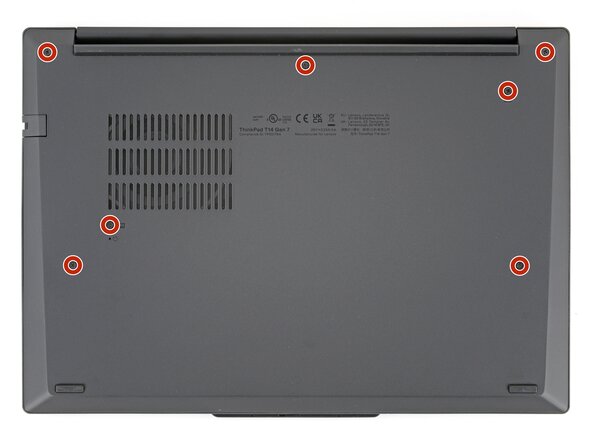
    1. Lenovo ThinkPad T14 Gen 7 Fan Replacement, Loosen the base cover screws: step 2, image 1 of 2 Lenovo ThinkPad T14 Gen 7 Fan Replacement, Loosen the base cover screws: step 2, image 2 of 2
      • Use a Phillips screwdriver to fully loosen the seven captive screws securing the base cover.

      Ask FixBot

      Add Comment

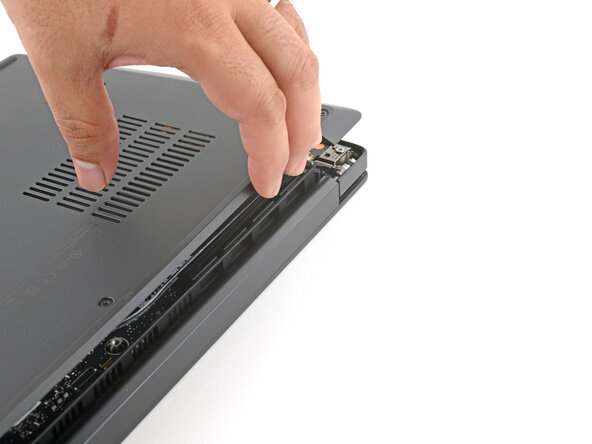
    2. Lenovo ThinkPad T14 Gen 7 Fan Replacement, Remove the base cover: step 3, image 1 of 3 Lenovo ThinkPad T14 Gen 7 Fan Replacement, Remove the base cover: step 3, image 2 of 3 Lenovo ThinkPad T14 Gen 7 Fan Replacement, Remove the base cover: step 3, image 3 of 3
      • The base cover is still lightly clipped to the laptop.

      • Use your fingers to grab and lift the top-right corner of the base cover near the hinge.

      • Repeat at the top-left corner.

      Ask FixBot

      Add Comment

    3. Lenovo ThinkPad T14 Gen 7 Fan Replacement: step 4, image 1 of 3 Lenovo ThinkPad T14 Gen 7 Fan Replacement: step 4, image 2 of 3 Lenovo ThinkPad T14 Gen 7 Fan Replacement: step 4, image 3 of 3
      • Slowly lift the hinge edge of the base cover until the remaining clips release.

      • Remove the base cover.

      • During reassembly, align the base cover's bottom edge tabs with the laptop, then lay the cover in place. Press around the perimeter to clip the base cover to the laptop.

      Ask FixBot

      Add Comment

    1. Lenovo ThinkPad T14 Gen 7 Fan Replacement, Disconnect the battery: step 5, image 1 of 3 Lenovo ThinkPad T14 Gen 7 Fan Replacement, Disconnect the battery: step 5, image 2 of 3 Lenovo ThinkPad T14 Gen 7 Fan Replacement, Disconnect the battery: step 5, image 3 of 3
      • Use your fingers to squeeze the two latches on either side of the battery connector.

      • While squeezing the latches, lift the top edge of the battery up.

      Ask FixBot

      Add Comment

    2. Lenovo ThinkPad T14 Gen 7 Fan Replacement, Remove the battery: step 6, image 1 of 2 Lenovo ThinkPad T14 Gen 7 Fan Replacement, Remove the battery: step 6, image 2 of 2
      • Remove the battery.

      Ask FixBot

      Add Comment

    1. Lenovo ThinkPad T14 Gen 7 Fan Replacement, Detach the fan: step 7, image 1 of 3 Lenovo ThinkPad T14 Gen 7 Fan Replacement, Detach the fan: step 7, image 2 of 3 Lenovo ThinkPad T14 Gen 7 Fan Replacement, Detach the fan: step 7, image 3 of 3
      • Use tweezers or your fingernails to gently push the fan connector out of its socket to disconnect it.

      Ask FixBot

      Add Comment

    2. Lenovo ThinkPad T14 Gen 7 Fan Replacement: step 8, image 1 of 1
      • Use a Phillips screwdriver to loosen the three captive screws securing the fan.

      Ask FixBot

      Add Comment

    3. Lenovo ThinkPad T14 Gen 7 Fan Replacement, Remove the fan: step 9, image 1 of 2 Lenovo ThinkPad T14 Gen 7 Fan Replacement, Remove the fan: step 9, image 2 of 2
      • Lift and remove the fan.

      Ask FixBot

      Add Comment

Conclusion

To reassemble your device, follow these instructions in reverse order.

Take your e-waste to an R2 or e-Stewards certified recycler.

Repair didn’t go as planned? Try some basic troubleshooting, or ask our Answers community for help.

Cancel: I did not complete this guide.

Arthur Shi

Member since: 01/03/18

346,302 Reputation

923 Guides authored

0 Guide Comments

Add Comment

View Statistics:

Past 24 Hours: 7

Past 7 Days: 18

Past 30 Days: 86

All Time: 940