Introduction
Hello everyone, in this guide Ill be showing you how to open the laptop in order to change the thermal paste, as well as to possibly upgrade the RAM or the SSD inside.
What you need
-
-
-
Unscrew all screws from the bottom and unplug the battery.
-
Carefully lift up the touchpad panel and unplug it.
-
Next, carefully lift up the keyboard and unplug it.
 Ask FixBot
-
-
-
Remove the screws that hold the speaker panel.
-
Unplug any cables that get in the way of removing it.
-
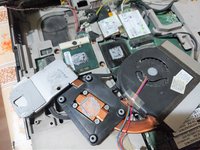
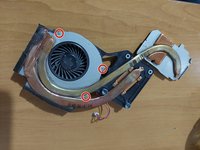
Unscrew the screws holding the CPU heatsink and fan. Disconnect the fan cable.
-
You can carefully use a plastic prying tool to help yourself remove the heatsink, if it is stuck.
-
-
-
-
Clean the old thermal paste both from the cooler and the CPU. It is best to use isopropyl alcohol and cotton swabs or paper towel, but be careful not to go too hard on the CPU.
-
You can remove the few screws and carefully open the fan enclosure to clean it further.
-
-
-
Dont use too much thermal paste, just enough to cover some portion of the pad. If you have a spreader, use it. The thermal paste will apply evenly after you tighten the heatsink.
-
Last, put the heatsink back carefully and tighten the screws in order to ensure even pressure. Dont forget to plug in the fan cable.
-
-
-
Once you have opened the laptop, it is a good idea to upgrade the RAM or the SSD if you want.
-
It is also recommended to use compressed air to remove any dust in the laptop and the fan.
-
-




To reassemble your device, follow these instructions in reverse order.
Cancel: I did not complete this guide.
3 other people completed this guide.

