Free Shipping on Domestic Orders $75+

Lenovo ThinkPad P50s Base Cover Replacement

Views: 453

View statistics:

Past 24 Hours:
3
Past 7 Days:
24
Past 30 Days:
80
All Time:
453
Comments: 1

1 comment on steps.

Completed: 0

No one has marked this guide "completed." Will you be the first?

Favorites: 0

No one has favorited (and subscribed to) this guide. Will you be the first?

Time Required: 10 - 15 minutes
Difficulty: Easy
Lenovo ThinkPad P50s Base Cover Replacement

Introduction

Go to step 1 ↓

The base cover protects components inside the Lenovo ThinkPad P50s such as the Hard Drive, Motherboard, Thermal Fan, etc.. If you need to access any internal components, or if your base cover is damaged and needs replacing, follow this guide.

Before you begin, disable the built-in battery and remove the micro SIM card if your device has one. Here is a link with instructions on how to do so on page 123. Make sure the laptop is off and disconnect the AC power adapter.

What you need

Tools

    1. Lenovo ThinkPad P50s Base Cover Replacement, Battery: step 1, image 1 of 2 Lenovo ThinkPad P50s Base Cover Replacement, Battery: step 1, image 2 of 2
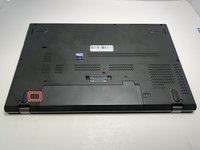
      • Flip the device over so the bottom is facing you.

      Ask FixBot

      Add Comment

    2. Lenovo ThinkPad P50s Base Cover Replacement: step 2, image 1 of 2 Lenovo ThinkPad P50s Base Cover Replacement: step 2, image 2 of 2
      • Use your thumb to slide the right lock switch button outward.

      Ask FixBot

      Add Comment

    3. Lenovo ThinkPad P50s Base Cover Replacement: step 3, image 1 of 3 Lenovo ThinkPad P50s Base Cover Replacement: step 3, image 2 of 3 Lenovo ThinkPad P50s Base Cover Replacement: step 3, image 3 of 3
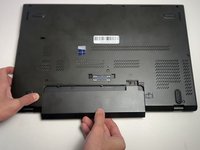
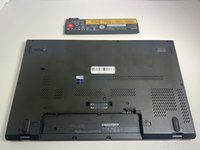
      • With your thumb slide the left lock switch button outward while sliding the battery out with your other hand.

      • When replacing the battery, make sure that the connectors are aligned properly.

      • You may hear a click when the battery is fully seated and the lock engages.

      Ask FixBot

      Add Comment

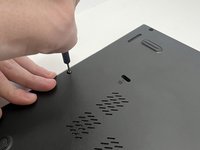
    1. Lenovo ThinkPad P50s Base Cover Replacement, Base Cover: step 4, image 1 of 2 Lenovo ThinkPad P50s Base Cover Replacement, Base Cover: step 4, image 2 of 2
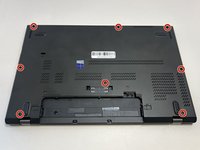
      • Use a Phillips #00 screwdriver to unscrew the eight 2 mm captive screws.

      • These screws should not be removed entirely; you will be able to take off the base cover once they are loosened.

      Ask FixBot

      Add Comment

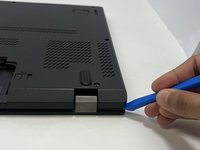
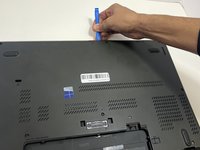
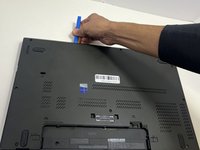
    2. Lenovo ThinkPad P50s Base Cover Replacement: step 5, image 1 of 3 Lenovo ThinkPad P50s Base Cover Replacement: step 5, image 2 of 3 Lenovo ThinkPad P50s Base Cover Replacement: step 5, image 3 of 3
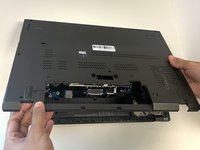
      • With the plastic opening tool, pry up the base cover.

      • Slide the opening tool around the edge of the laptop to release the snap tabs.

      • You may need to use opening picks to hold the tabs apart, as the base is securely attached and tends to snap back into place.

      Ask FixBot

      Add Comment

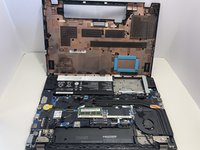
    3. Lenovo ThinkPad P50s Base Cover Replacement: step 6, image 1 of 2 Lenovo ThinkPad P50s Base Cover Replacement: step 6, image 2 of 2
      • Lift the base cover off the laptop.

      Ask FixBot

      Add Comment

Conclusion

To reassemble your device, follow these instructions in reverse order.

Cancel: I did not complete this guide.

Jaylan

Member since: 09/09/24

645 Reputation

4 Guides authored

0 Guide Comments

Add Comment

View Statistics:

Past 24 Hours: 3

Past 7 Days: 24

Past 30 Days: 80

All Time: 453