Introduction
A cracked, flickering, or completely unresponsive laptop screen can make even basic tasks impossible. Fortunately, replacing a damaged display is often more straightforward than it seems. This guide will walk you through the essential steps to safely remove and replace your laptop screen using simple and straightforward steps.
What you need
-
-
-
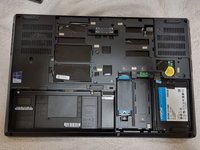
Slide the battery latch to the left to unlock it and remove the battery.
 Ask FixBot
-
-
-
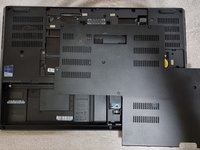
Loosen the six 12.6 mm captive screws that secure the lower case with the Phillips #00 screwdriver.
-
Pull up the notch with your fingernail or a spudger.
-
-
-
-
-
-
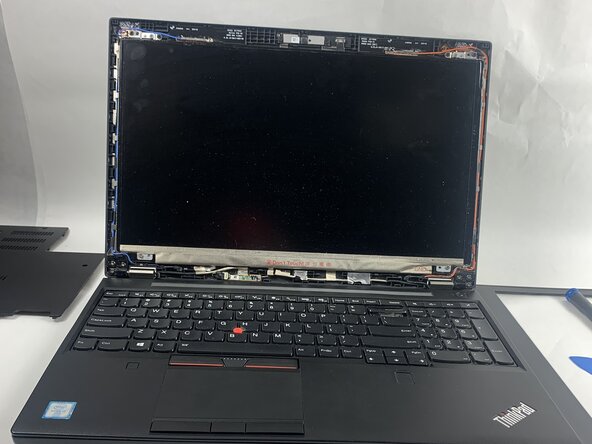
Use an iFixit opening pick to carefully remove the plastic bezel from the front of the display.
-
-
-
Remove the four 2.5 mm screws located along the corners with a Phillips #00 screwdriver.
-
-
-
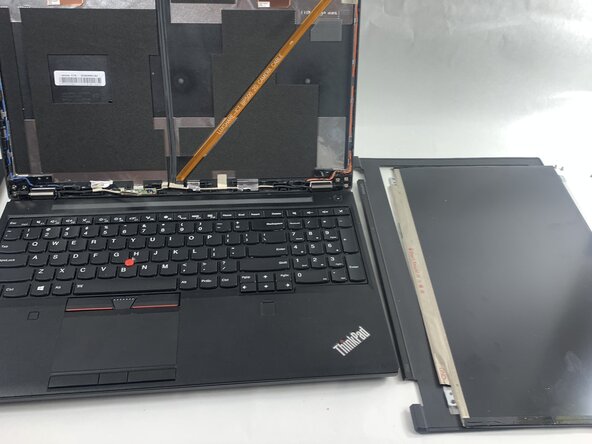
Carefully tilt the screen forward and lay it face down on the keyboard, making sure not to strain or damage the cable still attached to it.
-
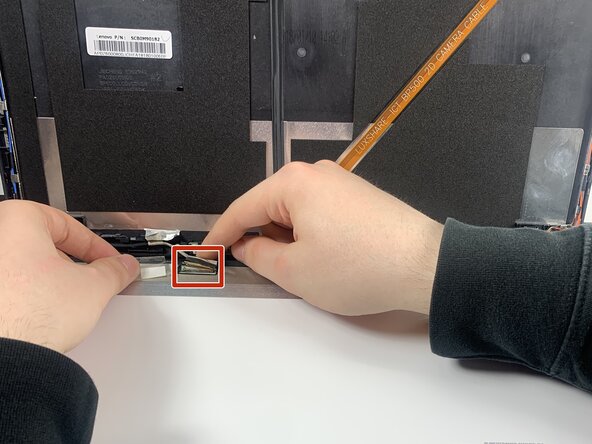
Gently push the tip of a spudger under the metal buckle to unclip it, then swing it over the socket.
-
Hold the buckle and cable together and gently pull the connector straight out of its socket.
-
-






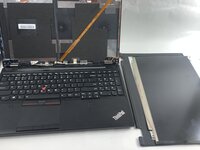
To reassemble your device, follow the above steps in reverse order.
Take your e-waste to an R2 or e-Stewards certified recycler.
Repair didn’t go as planned? Try some basic troubleshooting or ask our Answers community for help.

Team

UMass Dartmouth, Team 3-1, Botvin Spring 2025 Member of UMass Dartmouth, Team 3-1, Botvin Spring 2025
UMASSD-BOTVIN-S25S3G1
3 Members
60 Guides authored
