Introduction
If your device is no longer holding a charge like it used to, replacing the battery can give your laptop a new lease on life. This guide will walk you through the process of safely and effectively replacing your laptop battery using simple and straightforward steps.
What you need
-
-
-
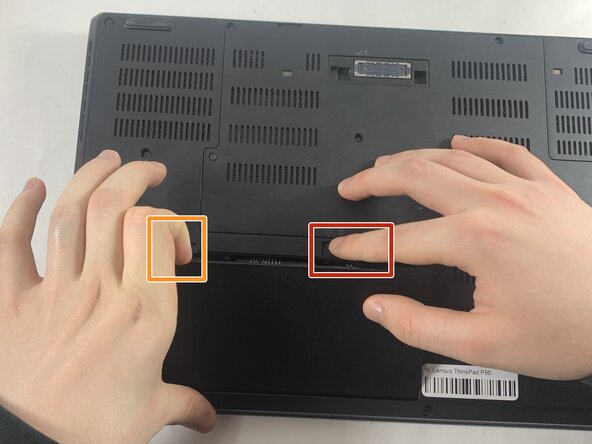
Slide the battery latch to the left, toward the unlocked symbol, and hold it there.
-
While holding the battery latch in the unlocked position, pry up on the indent on the upper-left side of the battery to lift and disconnect the battery.
 Ask FixBot
-
-
-



To reassemble your device, follow the above steps in reverse order.
For optimal performance, after completing this guide, calibrate your newly installed battery.
Take your e-waste to an R2 or e-Stewards certified recycler.
Repair didn’t go as planned? Try some basic troubleshooting or ask our Answers community for help.

Team

UMass Dartmouth, Team 3-1, Botvin Spring 2025 Member of UMass Dartmouth, Team 3-1, Botvin Spring 2025
UMASSD-BOTVIN-S25S3G1
3 Members
60 Guides authored
