Introduction
Use this guide to replace a faulty CD Drive in the Lenovo Thinkpad L440.
The CD Drive is responsible for allowing you to be able to watch CDs, and listen to music. You are also able to write back to a disc, i.e. transfer images and music to a disc, etc.
Before using this guide, check our troubleshooting page. In some cases, a faulty CD Drive can be caused by outdated software. In this case, the CD Drive will not have to be replaced.
Signs of a faulty CD Drive included a scratching noise or hum, error messages, inability to read discs, or an inability to eject discs.
What you need
-
-
Open the laptop to access the power button.
-
Hold the power button in the top right until the computer powers off.
-
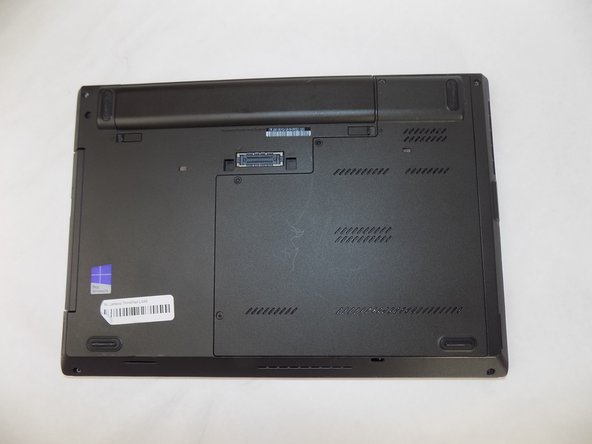
Turn the computer over so that the bottom of the computer is facing up
 Ask FixBot
-
-
-
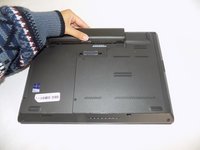
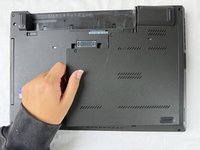
On the left side under the raised surface, move the tab to the left towards the unlocked symbol. Repeat this on the right side and move the tab to the right towards the unlocked symbol.
-
-
-
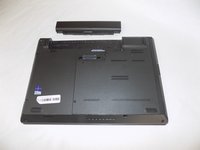
From the top of the laptop, slide the raised surface away from the rest of the laptop and out of its slot to remove the battery from the computer.
-
-
-
-
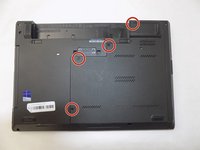
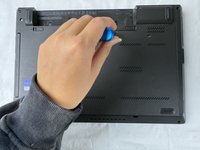
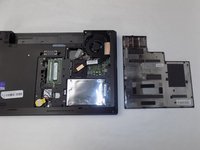
Loosen the four retainer screws on the bottom of the laptop using a Phillips #0 screwdriver.
-
-
-
Remove the 6 mm CD drive set screw using a Phillips #00 screwdriver.
-
-
-
Rotate the laptop so that the CD drive is facing you.
-
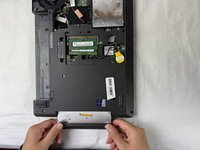
Grasp the CD drive with your fingers and pull straight outwards.
-










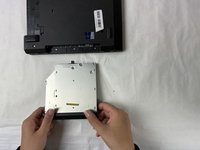
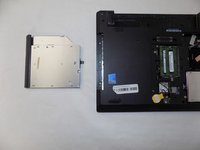
To reassemble your device, follow these instructions in reverse order. Test the new CD Drive by inserting a disc.

Team

UMass Dartmouth, Team 2-6, Konn Fall 2024 Member of UMass Dartmouth, Team 2-6, Konn Fall 2024
UMASSD-KONN-F24S2G6
4 Members
5 Guides authored
