Introduction
This guide demonstrates how remove and replace the CMOS battery of a Lenovo ThinkPad L390.
What you need
-
-
-
Power off your laptop and disconnect the charger and any peripheries before beginning disassembly.
-
Unscrew the nine 5 mm Phillips #00 screws that secure the lower case.
 Ask FixBot
-
-
-
Insert an opening tool in the gap between the lower case and the chassis.
-
Pry around the entire perimeter of the lower case until it fully releases.
-
Lift the lower case up and off.
-
-
-
-
-
-
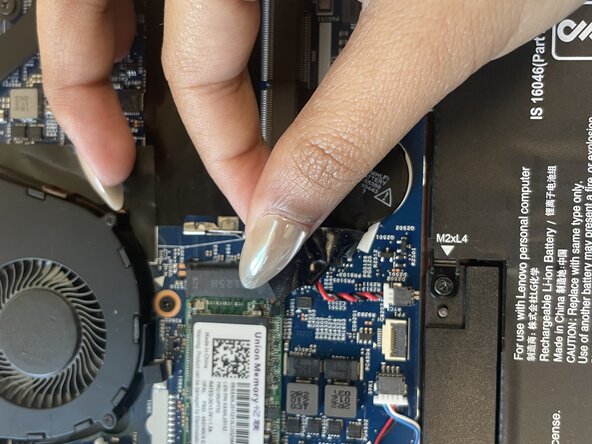
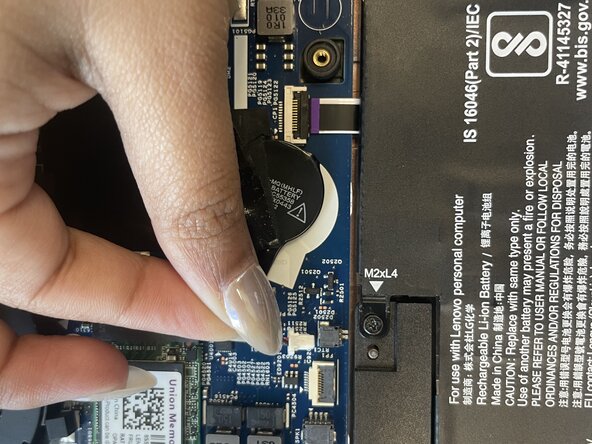
Pull the white CMOS battery connector directly out of its socket.
-
Lift the battery up and off of the motherboard.
-


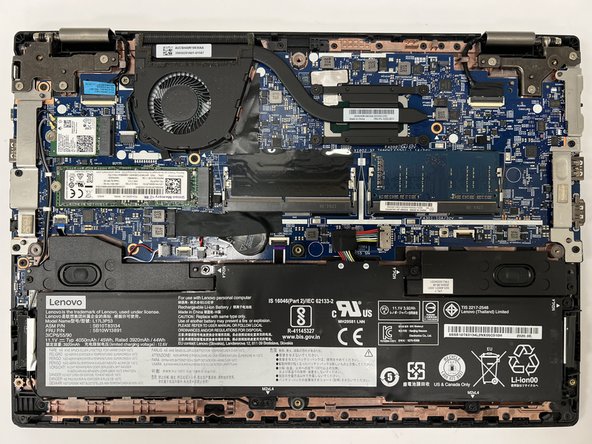


To reassemble your device, follow the above steps in reverse order.
Take your e-waste to an R2 or e-Stewards certified recycler.
Repair didn’t go as planned? Try some basic troubleshooting or ask our Answers community for help.
Cancel: I did not complete this guide.
One other person completed this guide.

Team

Austin Community College, Team 22-2, Watkins Summer 2025 Member of Austin Community College, Team 22-2, Watkins Summer 2025
AUSTINCC-WATKINS-SU25S22G2
3 Members
63 Guides authored
