Introduction
This guide will help you to change your storage drive for Lenovo ThinkPad E470 in an easy and safe way.
Storage drives is used for sorting and retrieving data. Due to personal use or work requirement people needs more storage and faster read and write speed for their computer, change to a larger SSD will be a faster and cheaper choice than connect to a portable hard drive all day. We will show people how to restore the SSD to working order.
The hard drive could be replaced with any SATA hard drive with 2.5" wide, 7m high.
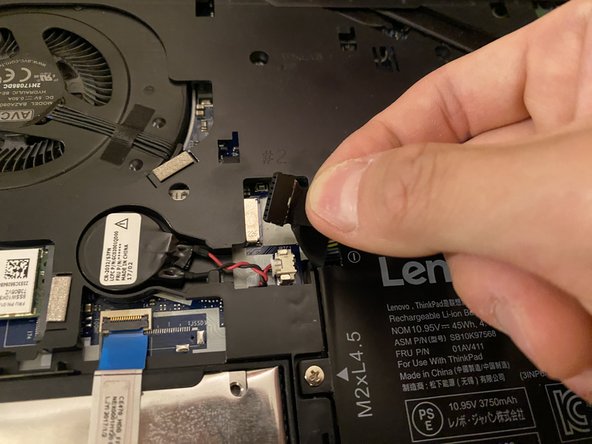
Before starting, you need to disconnect all power sources while operating and must follow the guide to disable the built-in battery.
Back up your hard drive is highly recommended before replace.
What you need
-
-
-
Restart the computer and press F1 button rapidly to enter BIOS.
-
Select “Config,” then select “Power,” and press Enter.
-
Select “Disable Build-in Battery” and press "Enter."
-
-
-
Place the laptop upside down to access the back panel.
-
Loosen the three screws on the back panel using a Phillips #00 screwdriver.
-
Remove the back panel.
-
-

 Ask FixBot




To reassemble your device, follow these instructions in reverse order. Remember to push back the lid on the SATA connector.
Cancel: I did not complete this guide.
3 other people completed this guide.

Team

York University, Team A-10, Allen Summer 2023 Member of York University, Team A-10, Allen Summer 2023
YORK-ALLEN-SU23SAG10
1 Member
12 Guides authored
