Introduction
Does your Lenovo ThinkPad E570 laptop have a “no good device” error message, run excessively slow, have active apps often freeze/crash, or does the drive become read-only? If so, it is time to replace the solid state drive (SSD). Making sure your SSD is up-to-date and working fine will enhance your device’s ability to run apps and make sure optimum running speed is used.
Power down your laptop and disconnect from any external power sources before beginning this guide.
What you need
-
-
-
Turn the laptop over so that the bottom is facing upwards.
 Ask FixBot
-
-
-
-
Unscrew two captive 5 mm screws from the back panel of the laptop using a Phillips #00 screwdriver.
-
Carefully remove the back panel.
-
-
-
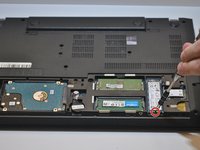
Remove the single 5 mm screw using a Phillips #00 screwdriver.
-
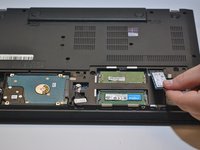
Lift off the SSD carefully.
-
-


To reassemble your device, follow these instructions in reverse order.
Cancel: I did not complete this guide.
2 other people completed this guide.

Team

Western Carolina University, Team 1-1, Virtue Fall 2021 Member of Western Carolina University, Team 1-1, Virtue Fall 2021
WCU-VIRTUE-F21S1G1
4 Members
60 Guides authored
