
Lenovo ThinkPad E570 Fan Replacement

KyleH and 6 other contributors
Last updated on Jul 1, 2024
Views: 1.3K
View statistics:
- Past 24 Hours:
- 3
- Past 7 Days:
- 30
- Past 30 Days:
- 103
- All Time:
- 1,296
Comments: 0
No one has left comments on this guide. Will you be first?
Go to guide commentsCompleted: 0 1
No one has marked this guide "completed." Will you be the first?
1 person has marked this guide "completed." It's you — great job!
Favorites: 0 1
No one has favorited (and subscribed to) this guide. Will you be the first?
1 person has favorited (and subscribed to) this guide — and that's you!
Introduction
Go to step 1 ↓Is your Lenovo ThinkPad E570 overheating, giving fan-related error codes, or simply not working? These all may be attributed to a faulty cooling fan. This guide will walk you step-by-step through how to replace the cooling fan located inside of your computer.
The fan within your Lenovo Thinkpad circulates cool air throughout the entire laptop, cooling all of its internal components, thus allowing the computer to work at maximum efficiency. If your fan is very dirty or broken, your computer will not work as it should.
Before using this guide, attempt to diagnose your issue to know if this guide will fix your problem. A few methods of fan-related problem diagnoses are:
- Listen for loud, whirring noises coming from your laptop
- Place your hand on the side of the computer where warm air is exhausted. If there is persistent, high-velocity hot air being exhausted, your fan may be faulty or need cleaning
- If NO noise or air is being exhausted, your cooling fan is not working and will need replacing.
If your diagnosis has led you to a faulty cooling fan, be sure to remove all cables (mouse, keyboard, any power source, etc.) connecting to your Lenovo Thinkpad before beginning with step one.
NOTE: If your fan happens to be fully intact, but dirty, obtain a can of compressed air and direct it on the fan to remove all dust and debris, then put the laptop back together by following the instructions in reverse order. If you are still having fan problems, follow this guide to replace the fan.
What you need
Parts

Tools


-
-
-
Turn the laptop over so that the bottom is facing upwards, with the battery facing away from you.
-
Loosen two captive 5 mm screws on the back panel of the laptop using a Phillips #0 screwdriver.
-
Slide the panel towards you, then gently lift up to remove.
 Ask FixBot
-
-
-
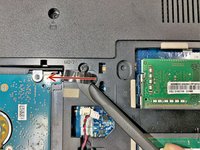
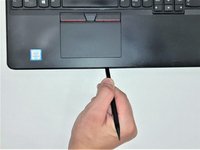
Insert the flat end of the halberd spudger underneath the battery to free the it from the adhesive.
-
Unplug the connecting CMOS wire from the motherboard.
-
-
-
-
-
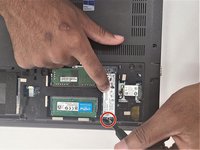
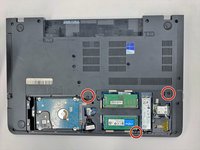
Remove the single 5 mm screw using a Phillips #00 screwdriver.
-
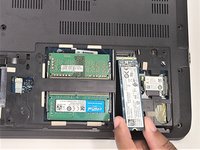
Remove the SSD from the laptop.
-
-
-
Using an opening tool, carefully remove the black and white coaxial cables that are connected to the Wi-Fi card.
-
Remove the single 4 mm screw from the Wi-Fi card using a Phillips #0 screwdriver.
-
Carefully grab the card and pull outward to remove it from the laptop.
-
-
-
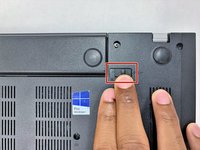
Using both hands, push out the two buttons beneath the outer edges of the battery compartment.
-
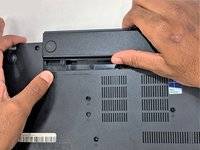
Pull out the battery from the laptop.
-
-
-
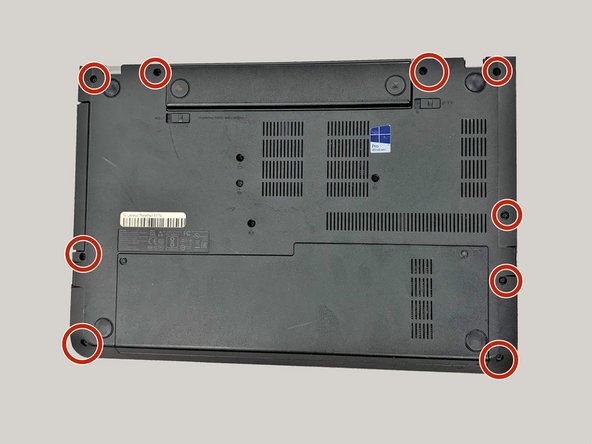
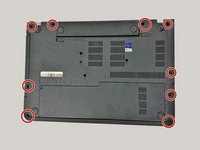
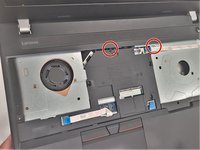
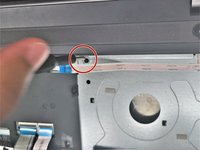
Remove the three 4 keyboard screws in the middle of the casing and all the outer casing screws.
-
-
-
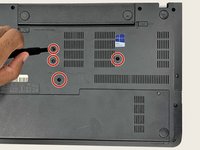
Use size 0 bit to remove three 3 screws on frame under disc drives and Flip over laptop to open it.
-
-
-
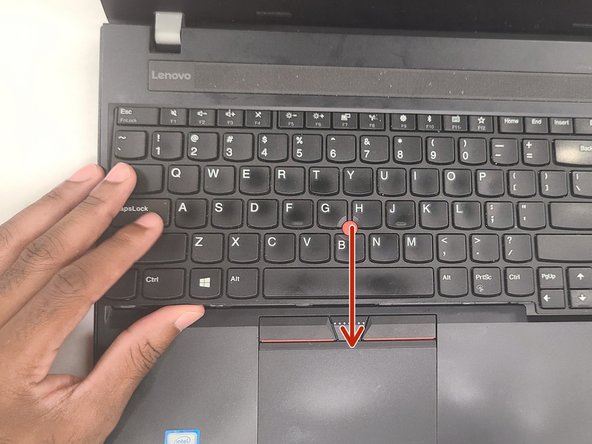
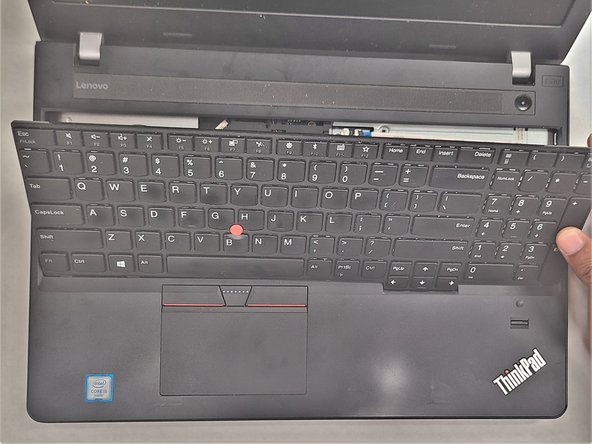
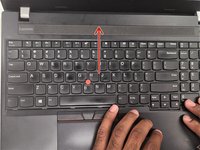
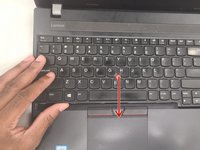
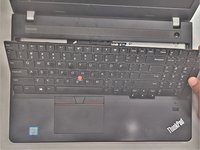
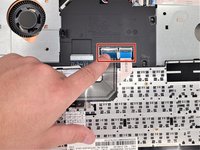
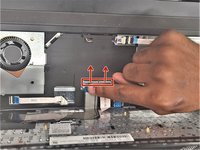
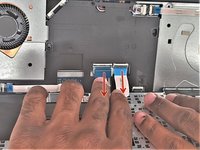
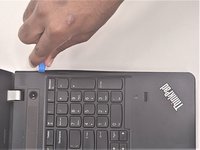
Gently press against the keyboard to slide it up and out. Then gently flip the keyboard over.
-
-
-
-
The mother boards should be able to be removed at this point and flipped over to get access to the CPU chip and the fan.
-
-
-
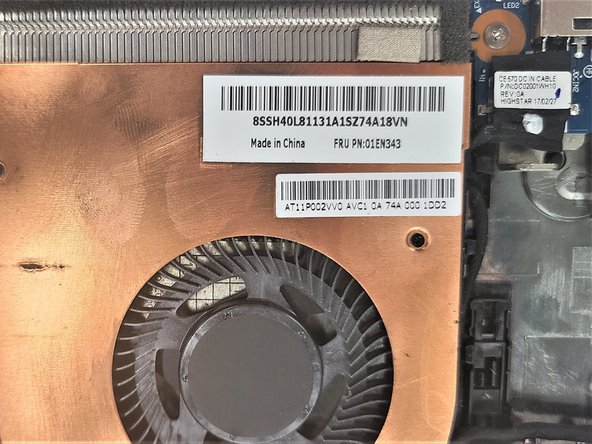
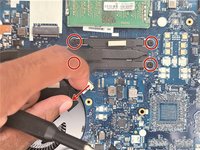
Disconnect Fan connector and remove the screws from the heatsink and replace the fan. (Fan part number)
-
-

















To reassemble your device, follow these instructions in reverse order.

Team

IUPUI, Team 1-2, Harley Summer 2023 Member of IUPUI, Team 1-2, Harley Summer 2023
IUPUI-HARLEY-SU23S1G2
3 Members
36 Guides authored
