
Lenovo ThinkPad E15 Gen 3 LCD Replacement

Abrammoreno05 and 2 other contributors
Last updated on Jun 25, 2026
Views: 275
View statistics:
- Past 24 Hours:
- 2
- Past 7 Days:
- 17
- Past 30 Days:
- 96
- All Time:
- 275
Comments: 0
No one has left comments on this guide. Will you be first?
Go to guide commentsCompleted: 0 1
No one has marked this guide "completed." Will you be the first?
1 person has marked this guide "completed." It's you — great job!
Favorites: 0 1
No one has favorited (and subscribed to) this guide. Will you be the first?
1 person has favorited (and subscribed to) this guide — and that's you!
Missing Steps
Oops! This guide is currently missing one or more important steps.
Introduction
Go to step 1 ↓To Replace the LCD Please Ensure that the Battery of the computer is disconnected. This will maintain the computers life and prevent any long-term damages.
Follow to Pre Requisite guides to disconnect the battery and proceed to the LCD guide to remove the screen.
What you need
Tools
-
-
-
Spudger4.9
-
-


-
-
Tool used on this step:Phillips #1 Screwdriver$5.49
-
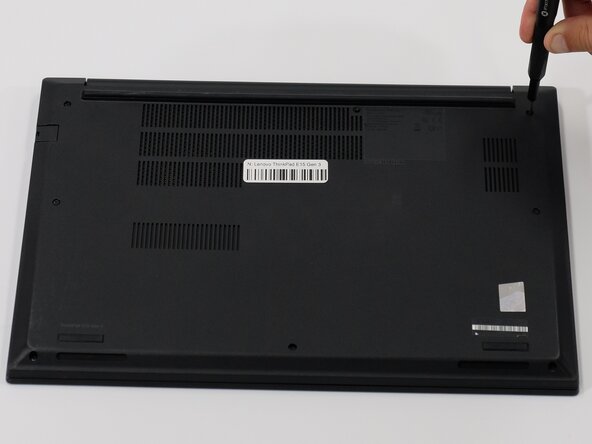
Loosen the eight PH1 screws on the back panel using the Phillips #1 screwdriver.
 Ask FixBot
-
-
Tool used on this step:iFixit Opening Tool$1.99
-
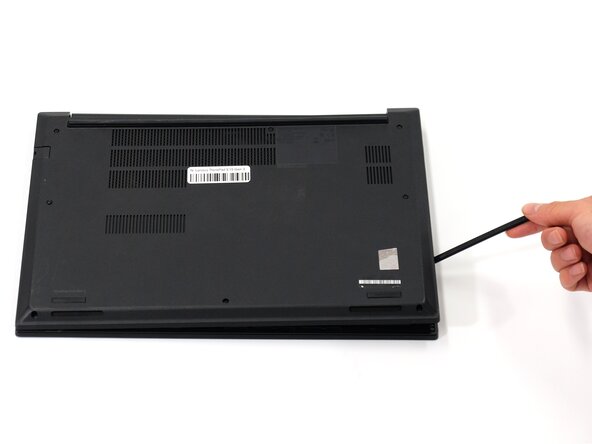
Remove back panel using a plastic opening tool or a spudger.
-
-
-
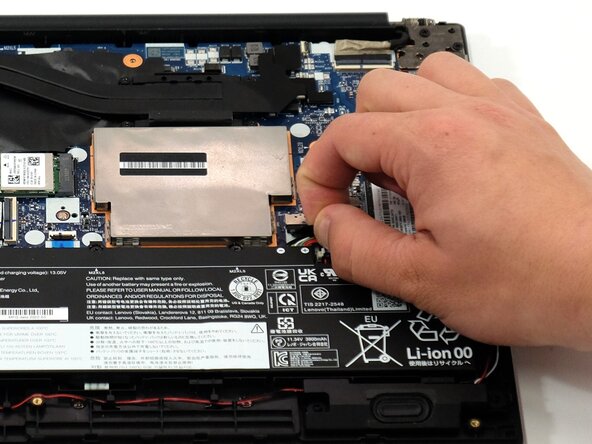
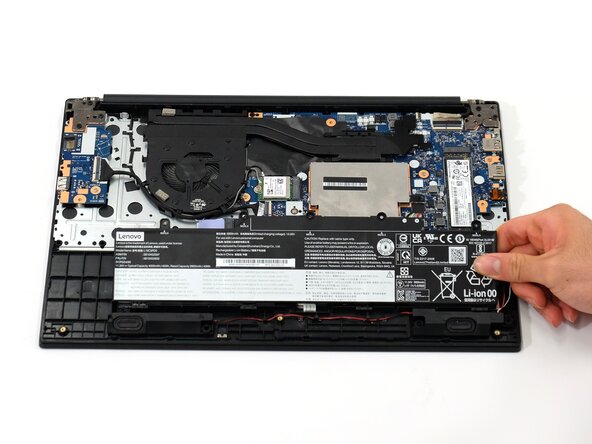
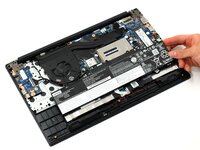
Gently disconnect the battery from the motherboard by pulling on the fabric tab attached to the connector.
-
-
-
-
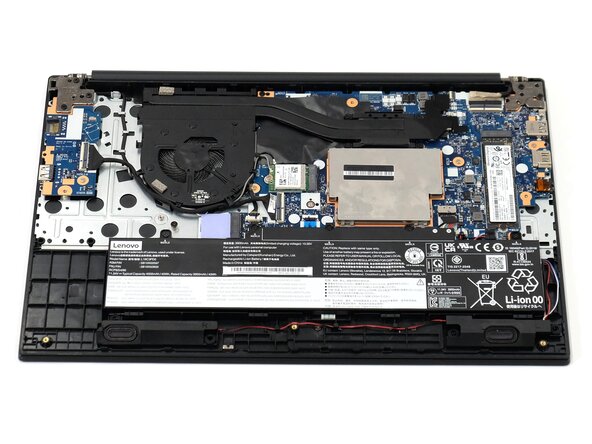
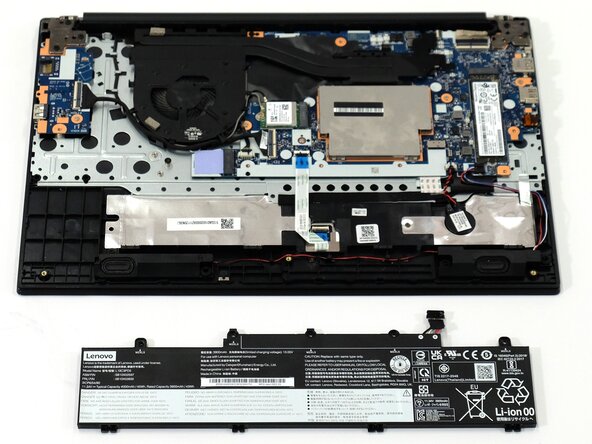
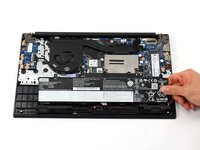
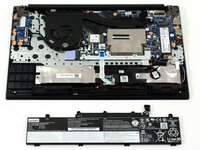
Remove the battery by gently lifting the top of the battery out from the frame and then pull towards the motherboard.
-
-
-
-
-
"Walk" the CMOS battery connector directly out of its socket.
-
Remove the CMOS battery.
-
-
-
-
Tool used on this step:Jimmy$7.95
-
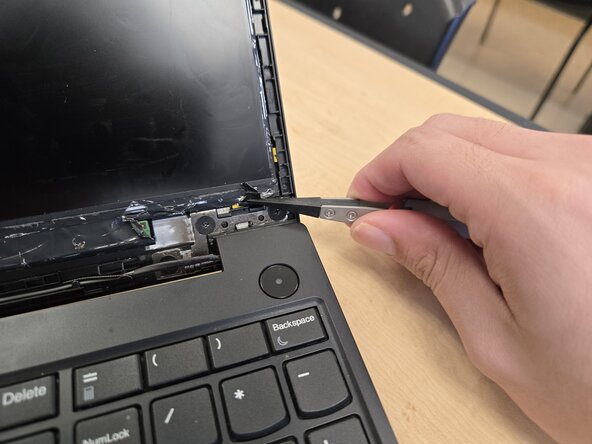
Slide a Jimmy right underneath the plastic cover of the screen.
-
Slide the Jimmy Across the cover in a clockwise motion.
-
Press the Laptop down and pull the plastic piece upwards until it un-clicks.
-
-
-
To remove the LCD connector panel, peel of the tape holding it down.
-
Flip up the gate and pull the connector panel away from the display.
-
Align the connector panel with the new LCD Display, pushing it into place.
-
Flip down the gate on the connector panel and reattach a new set of tape to keep it securely connected to the LCD Display.
-
-
-
The adhesive Strips you have removed should still be able to be placed into the 4 strip cut outs on the laptop.
-
Line up the new LCD Display with the adhesive strips and press it into place maintaining pressure to ensure security.
-
In the case the Strips do not stick anymore please ensure you are replacing them with the proper strips to ensure best performance and quality within your computer. ( 5T10N79887, Double Sided 3M Tape)
-
-





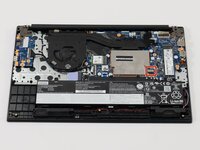
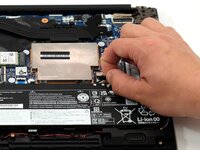





After Replacing the LCD
Repeat the Steps 1-2 To place the plastic cover back into place.

Team

Austin Community College, Team 2-2, Tijerina Spring 2026 Member of Austin Community College, Team 2-2, Tijerina Spring 2026
AUSTINCC-TIJERINA-S26S2G2
4 Members
36 Guides authored
