Introduction
If your Lenovo A285 ThinkPad is experiencing issues such as short-battery life the battery may need to be replaced. For more information on your device and reasons for short battery like refer to our troubleshooting Page. Then follow the simple guide below to help with the process of replacing the battery.
Before following this guide, make sure the device is fully powered off and is unplugged from all external power sources.
What you need
-
-
-
Flip your laptop over so the bottom panel is facing up.
-
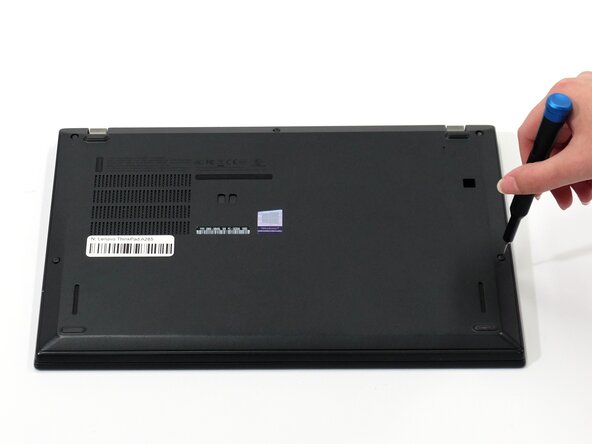
Use a Phillips #0 to loosen the five screws holding the back panel to the laptop.
-
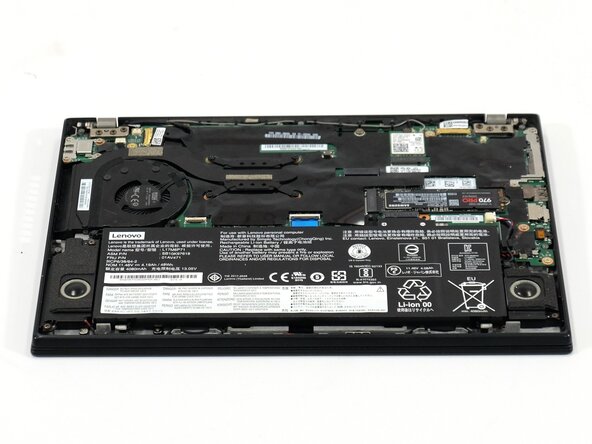
Lift the bottom of the panel to separate the back panel away from the device.
-
Remove the back panel.
 Ask FixBot
-
-
-
-
-
-
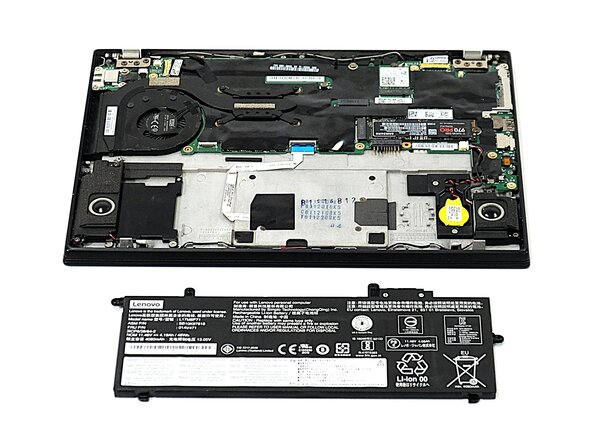
Use a Phillips #0 screwdriver to remove the four 5 mm screws connecting the battery to the device.
-
Slide the battery away from the connector on the motherboard to remove it.
-
-





To reassemble your device, follow these instructions in reverse order. For optimal performance, calibrate your newly installed battery after completing this guide.
Take your e-waste to an R2 or e-Stewards certified recycler.
Cancel: I did not complete this guide.
2 other people completed this guide.

Team

Linn Benton Community College, Team 1-4, Karnes Spring 2025 Member of Linn Benton Community College, Team 1-4, Karnes Spring 2025
LBCC-KARNES-S25S1G4
4 Members
72 Guides authored
