
Lenovo ThinkBook 14-IIL Fan Replacement

Evan Travis and 4 other contributors
Last updated on May 19, 2026
Views: 219
View statistics:
- Past 24 Hours:
- 1
- Past 7 Days:
- 12
- Past 30 Days:
- 70
- All Time:
- 219
Comments: 0
No one has left comments on this guide. Will you be first?
Go to guide commentsCompleted: 1 2
1 person has marked this guide "completed." Will you be next?
2 people have marked this guide "completed." Including you — great job!
Favorites: 0 1
No one has favorited (and subscribed to) this guide. Will you be the first?
1 person has favorited (and subscribed to) this guide — and that's you!
Introduction
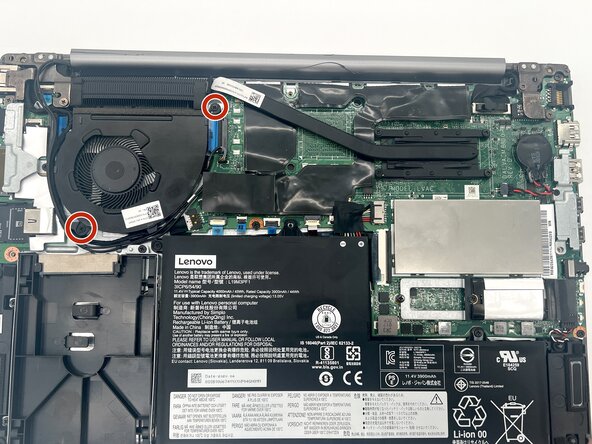
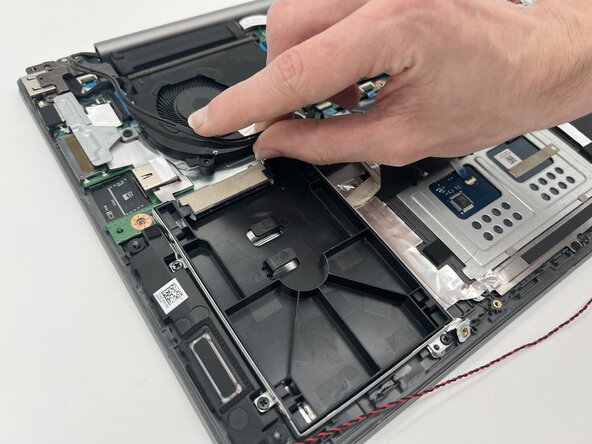
Go to step 1 ↓This is a guide for replacing the Lenovo ThinkBook 14-IIL cooling fan. The cooling fan is responsible for regulating temperature by dissipating heat generated inside the Lenovo ThinkBook 14-IIL.
What you need
Tools


-
-
-
Gently pry off the back of the laptop by inserting an opening pick into the crease on the sides and gently sliding while lifting the case up.
-
-
-

 Ask FixBot






To reassemble your device, follow these instructions in reverse order.
Cancel: I did not complete this guide.
One other person completed this guide.

Team

University of North Texas, Team 1-6, Kilpatrick Spring 2026 Member of University of North Texas, Team 1-6, Kilpatrick Spring 2026
UNT-KILPATRICK-S26S1G6
4 Members
72 Guides authored
