
Lenovo Tab S8 Battery Replacement

Temi Adegoke and 8 other contributors
Last updated on Mar 4, 2024
Views: 16K
View statistics:
- Past 24 Hours:
- 1
- Past 7 Days:
- 28
- Past 30 Days:
- 125
- All Time:
- 15,560
Comments: 2
1 comment on steps, 1 guide comment.
Go to guide commentsCompleted: 15 16
15 people have marked this guide "completed." Will you be next?
16 people have marked this guide "completed." Including you — great job!
Favorites: 0 1
No one has favorited (and subscribed to) this guide. Will you be the first?
1 person has favorited (and subscribed to) this guide — and that's you!
Introduction
Go to step 1 ↓Use this guide to replace your worn out or dead Lenovo Tab S8 Battery.
If your phone's battery no longer holds charge for as long as you would like or does not function properly, your battery is likely faulty and may need replacement. There are no special skills involved in the replacement of the battery.
Before using this guide, make sure to review the troubleshooting page to ensure that the battery doesn't have any other issues.
Make sure to power off your tablet completely and disconnect from any external power source before beginning the process.
What you need
Tools
-
-
-
Spudger4.9


-
-
-
Gently insert a spudger into one of the bottom corners between the screen and body case.
-
Slide the spudger along the inside of the crack in order to pry the case open.
 Ask FixBot
-
-
-
After removing the cover, remove the M1.6 x 2 mm screw from the battery cable with the JIS J000 screwdriver.
-
Remove the tape by gently scraping the edges up with the spudger.
-
-
-
Tool used on this step:Plastic Cards$2.99
-
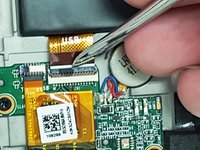
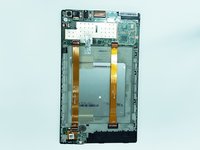
Gently lift the flaps on the four ZIF connectors to disconnect the cables.
-
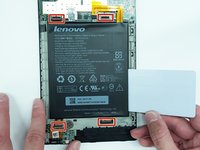
Use the plastic card to gently pry the battery from the device.
-
-


To reassemble your device, follow these instructions in reverse order.
Cancel: I did not complete this guide.
15 other people completed this guide.

Team

USF Tampa, Team 3-6, Eyestone Fall 2015 Member of USF Tampa, Team 3-6, Eyestone Fall 2015
USFT-EYESTONE-F15S3G6
3 Members
60 Guides authored
