Introduction
Keyboard may need replacing for several reasons ranging from spilling something on your keyboard to mulitple keys not working properly. You will need a new standard replacement keyboard for Lenovo S20-30 to continue the replacement. Keyboards costs around $22-$50. This guide shows step by step how to replace your Lenovo S20-30 keyboard. Make sure to carefully read the steps and keep track of parts dissassembled so they are not lost.
What you need
-
-
-
Flip the Lenovo S20-30 over so that the bottom panel is facing upward.
 Ask FixBot
-
-
-
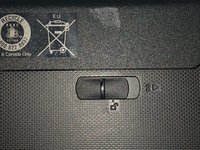
Slide the manual battery latch to the unlock position, so that the red is showing.
-
-
-
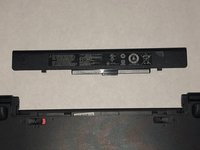
Slide and hold the spring-loaded battery latch on the other side (right) while sliding the battery out of the computer.
-
Grab new Lenovo S20-30 battery for replacement.
-
-
-
-
-
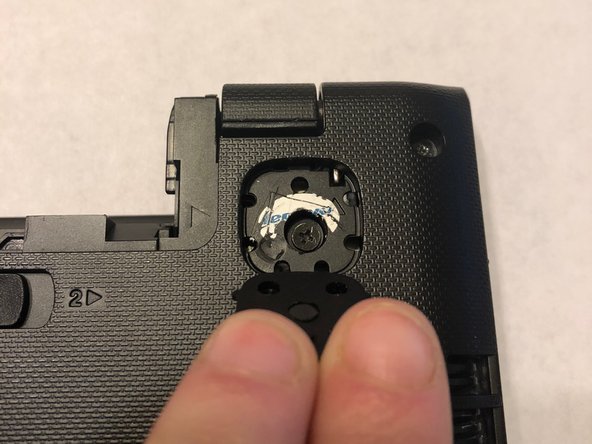
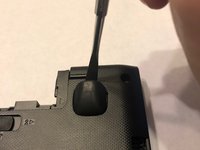
Remove the two front rubber feet using a long metal spudger.
-
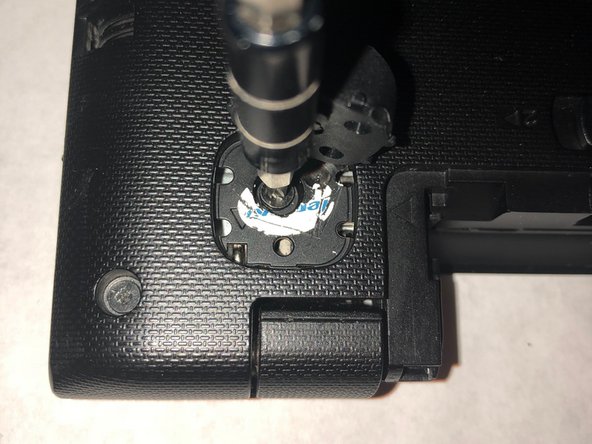
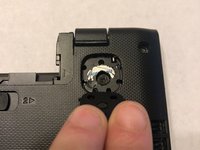
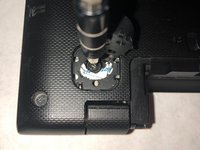
Use your Phillips #0 screwdriver to remove the two M2.5 x 5mm flat-head screws located underneath the pads.
-
-
-
-
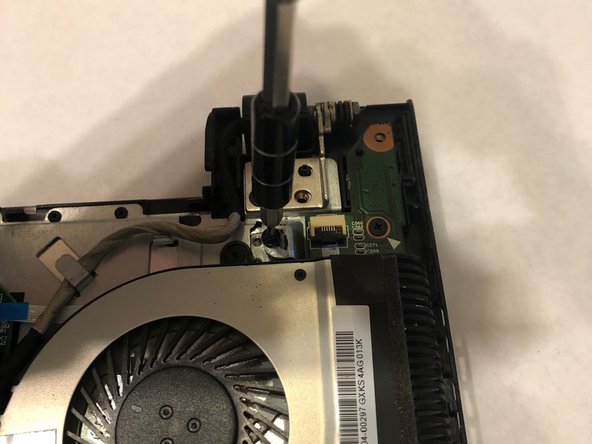
Use the Phillips #0 screwdriver to remove the nine M2 x 4mm flat head screws located on the outer edges on the back of the laptop.
-
-
-
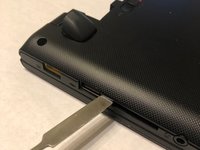
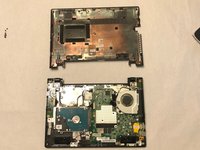
Use the long metal spudger to pry open the bottom half of the laptop.
-
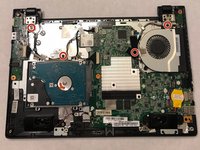
Gently lift the cover off to reveal the motherboard.
-
-
-
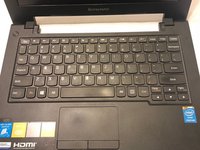
Flip over laptop and open the lid to have access to the keyboard.
-
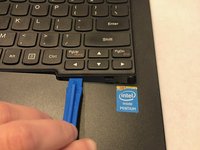
Use a plastic opening tool to pry apart the keyboard.
-
-
-
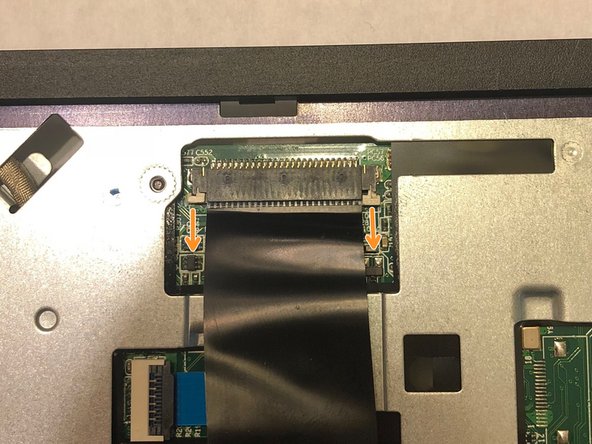
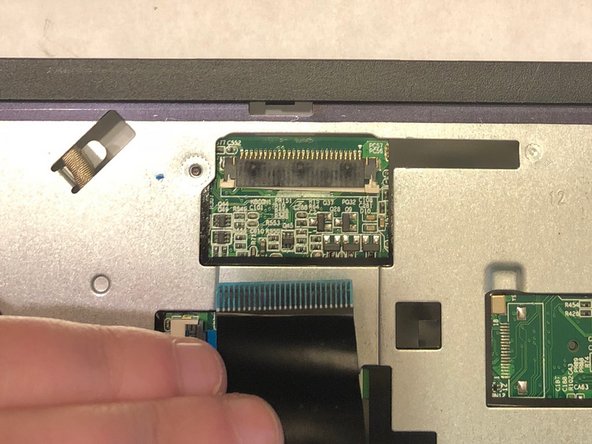
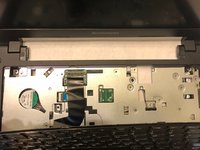
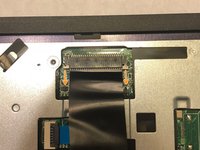
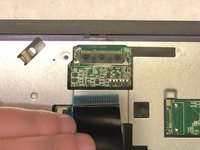
A connector is attached to the keyboard.
-
Remove it by gently pulling it outward.
-
-










To reassemble your device, follow these instructions in reverse order.
Cancel: I did not complete this guide.
3 other people completed this guide.

Team

McKendree University, Team S1-G4, Quinn Fall 2018 Member of McKendree University, Team S1-G4, Quinn Fall 2018
MCKU-QUINN-F18S1G4
2 Members
36 Guides authored
