Free Shipping on Domestic Orders $75+

Lenovo Ideatab S6000 Screen Replacement

What you need

    1. Lenovo Ideatab S6000 Screen Replacement, Screen: step 1, image 1 of 1
      Tool used on this step:
      Tweezers
      $4.99
      Buy
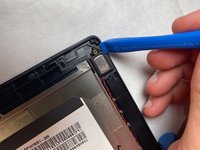
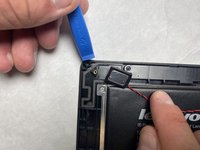
      • Remove the speaker screens by working them loose with a plastic opening tool. You may need to first loosen them with tweezers or a spudger.

      • These screens are held in place by glue that is hard to remove. Please take your time to ensure that that this step is done correctly.

      Ask FixBot

      Add Comment

    2. Lenovo Ideatab S6000 Screen Replacement: step 2, image 1 of 1
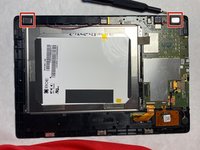
      • Remove the screws from both of the spots that were covered with a Phillips #000 screwdriver.

      Ask FixBot

      Add Comment

    3. Lenovo Ideatab S6000 Screen Replacement: step 3, image 1 of 1
      • Go all around the casing, prying the screen away from the backing with the spudger.

      • It will make a popping sound each time one of the lock tabs is disconnected.

      • Take your time as you move all around the device when prying the backing off.

      • Do not use a metal tool for this.

      Ask FixBot

      Add Comment

    4. Lenovo Ideatab S6000 Screen Replacement: step 4, image 1 of 2 Lenovo Ideatab S6000 Screen Replacement: step 4, image 2 of 2
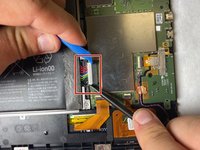
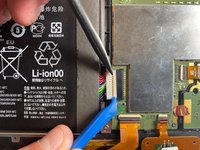
      • Using either the plastic opening tool or your fingers, gently pull on both sides of the plug to release it.

      Ask FixBot

      Add Comment

    5. Lenovo Ideatab S6000 Screen Replacement: step 5, image 1 of 1
      • Remove the battery by grabbing the tab shown and pulling up.

      • The battery is held to the device by adhesive. Pull the battery up from the tab and it will lift out with a bit of effort.

      Ask FixBot

      Add Comment

    6. Lenovo Ideatab S6000 Screen Replacement: step 6, image 1 of 3 Lenovo Ideatab S6000 Screen Replacement: step 6, image 2 of 3 Lenovo Ideatab S6000 Screen Replacement: step 6, image 3 of 3
      • Use an opening tool to pry the speakers out of the tablet.

      • The speakers are connected to the tablet by glue and require a lot of prying to remove.

      Ask FixBot

      Add Comment

    7. Lenovo Ideatab S6000 Screen Replacement: step 7, image 1 of 1
      • Use the plastic opening tool to pry up the vibration motor.

      Ask FixBot

      Add Comment

    8. Lenovo Ideatab S6000 Screen Replacement: step 8, image 1 of 1
      • Remove the 3.2mm screws using a Phillips #000 screwdriver.

      Ask FixBot

      Add Comment

    9. Lenovo Ideatab S6000 Screen Replacement: step 9, image 1 of 2 Lenovo Ideatab S6000 Screen Replacement: step 9, image 2 of 2
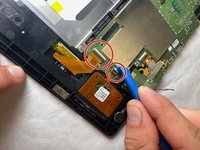
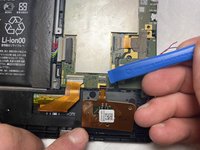
      • Flip up the black tab on each connector.

      • Pull the ribbon cables out using a plastic opening tool.

      Ask FixBot

      Add Comment

    10. Lenovo Ideatab S6000 Screen Replacement: step 10, image 1 of 1
      • Remove the piece of tape by pulling up with your fingers.

      Ask FixBot

      Add Comment

    11. Lenovo Ideatab S6000 Screen Replacement: step 11, image 1 of 2 Lenovo Ideatab S6000 Screen Replacement: step 11, image 2 of 2
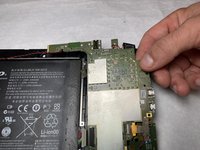
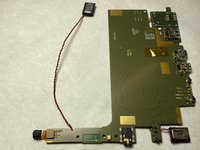
      • Gently pull up on motherboard with fingers and remove.

      Ask FixBot

      Add Comment

    12. Lenovo Ideatab S6000 Screen Replacement: step 12, image 1 of 1
      • Gently pry the rear camera out of the tablet with the plastic opening tool.

      Ask FixBot

      Add Comment

    13. Lenovo Ideatab S6000 Screen Replacement: step 13, image 1 of 2 Lenovo Ideatab S6000 Screen Replacement: step 13, image 2 of 2
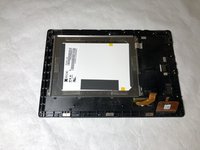
      • You are left with the bare screen at this point. This is what will need to be replaced.

      Ask FixBot

      Add Comment

Conclusion

To reassemble your device, follow these instructions in reverse order.

Cancel: I did not complete this guide.

One other person completed this guide.

Dalton Sholders

Member since: 11/07/19

469 Reputation

2 Guides authored

Team

IUPUI, Team S3-G5, Harley Fall 2019 Member of IUPUI, Team S3-G5, Harley Fall 2019

IUPUI-HARLEY-F19S3G5

3 Members

24 Guides authored

0 Guide Comments

Add Comment

View Statistics:

Past 24 Hours: 0

Past 7 Days: 9

Past 30 Days: 41

All Time: 1,333