
Lenovo Ideapad Flex 15 RAM Replacement

Brent and 4 other contributors
Last updated on Mar 28, 2020
Views: 3.7K
View statistics:
- Past 24 Hours:
- 4
- Past 7 Days:
- 24
- Past 30 Days:
- 112
- All Time:
- 3,746
Comments: 0
No one has left comments on this guide. Will you be first?
Go to guide commentsCompleted: 3 4
3 people have marked this guide "completed." Will you be next?
4 people have marked this guide "completed." Including you — great job!
Favorites: 1 2
1 person has favorited (and subscribed to) this guide. Will you be next?
2 people have favorited (and subscribed to) this guide — including you!
Introduction
Go to step 1 ↓To install new RAM, or replace the current RAM, this guide will walk you through the process.
What you need
-
-
-
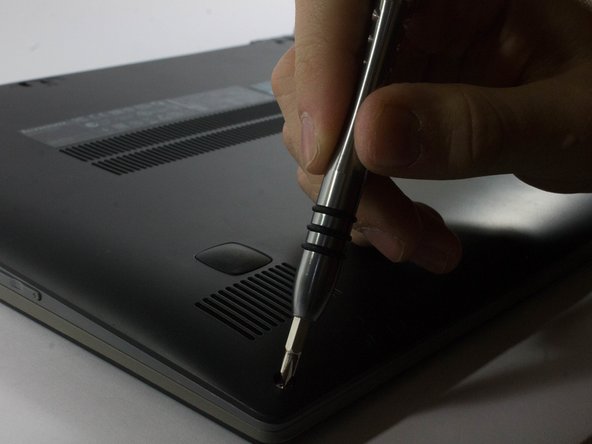
Start by removing the feet near the LCD hinge of the laptop to reveal two screws.
-
Using a Phillips #1 screwdriver, remove the top five (30 mm) screws underneath the battery.
 Ask FixBot
-
-
-
Once both feet are removed, two (40 mm) screws will reveal themselves. Unscrew these.
-
-
-
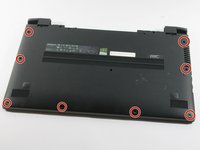
Working your way around the outer edges of the Flex 15, remove the 8 (30 mm) outer screws.
-
-
-
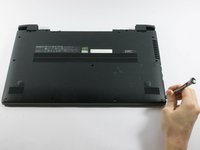
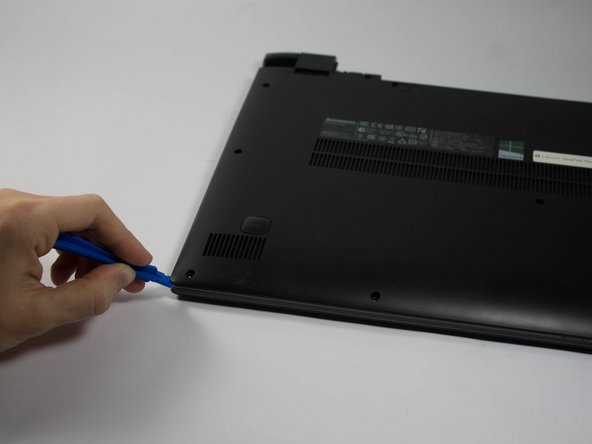
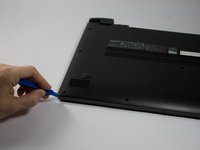
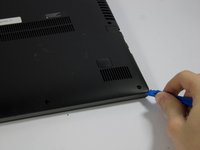
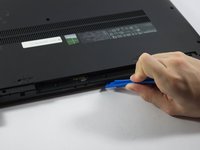
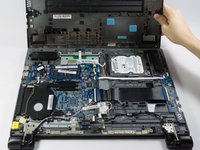
Using a plastic opening tool, make your way around the edge of the laptop.
-
There is a visible line between the bottom shell of the laptop and the laptop body itself.
-
-
-
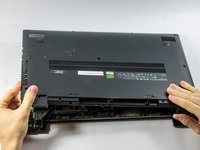
Make sure to pry evenly around this edge and only remove the bottom of the laptop when it is fully loose.
-
-
-
-
-
-
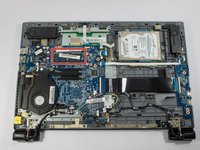
Once open, locate the RAM stick below the fan on the bottom right corner of the Flex 15.
-
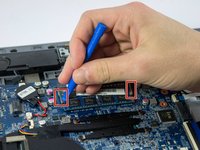
At the same time, using two hands, pull both clips away from the RAM module.
-
-
-
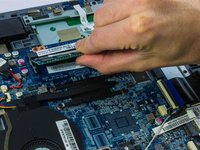
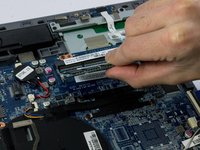
The RAM stick should start to tilt upwards. Once you see this, pull the stick diagonally towards the top of the laptop.
-
Be careful and do not apply extra pressure on the RAM.
-
If you feel that it will snap, pull the clips apart farther to loosen the RAM connection. Then try again.
-
-













To reassemble your device, follow these instructions in reverse order.
Cancel: I did not complete this guide.
3 other people completed this guide.

Team

UMass Dartmouth, Team 6-6, Bhusal Spring 2016 Member of UMass Dartmouth, Team 6-6, Bhusal Spring 2016
UMASSD-BHUSAL-S16S6G6
3 Members
72 Guides authored
