
Lenovo Ideapad 320-15IAP Memory RAM Replacement

Franco Criscola and 4 other contributors
Last updated on Mar 19, 2024
Views: 8.7K
View statistics:
- Past 24 Hours:
- 4
- Past 7 Days:
- 50
- Past 30 Days:
- 161
- All Time:
- 8,712
Comments: 0
No one has left comments on this guide. Will you be first?
Go to guide commentsCompleted: 3 4
3 people have marked this guide "completed." Will you be next?
4 people have marked this guide "completed." Including you — great job!
Favorites: 0 1
No one has favorited (and subscribed to) this guide. Will you be the first?
1 person has favorited (and subscribed to) this guide — and that's you!
Introduction
Go to step 1 ↓This guide is meant to help you to replace the RAM in a Lenovo Ideapad 320-15IAP. Initial disassembly is very simple as only the back case of the laptop needs to be removed. The RAM cover should then be directly visible and replacement is simple from there. RAM might need replacement if apps or programs take too long to start, or if you experience frequent crashes. You also may want to upgrade your RAM if your computer starts to feel a little sluggish, as an upgrade will increase the performance of your computer to allow it to function faster during more compute intensive tasks such as gaming, video editing, or 3D modeling.
What you need
Parts

Tools


-
-
-
Unscrew thirteen 6.5mm screws from the back panel with the Phillips #0 screwdriver.
-
Pull the CD tray out with an opening tool once all of the screws are removed.
-
Use the opening tool to pull the case off the laptop by prying up the back panel along the edges of the computer. It helps to start from the "DVD drive" slot.
 Ask FixBot
-
-
-
Remove the silver RAM cover by lifting it directly up.
-
When reinserting, the bump on the side of the RAM cover should be facing left.
-
-
-
-
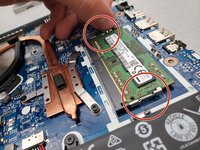
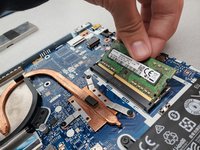
Gently pull the metal holders on each side of the memory card away from each other and the card should pop up to rest at an angle to the motherboard.
-
Pull the memory card straight out of its socket with respect to the angle it now rests.
-
-


To reassemble your device, follow these instructions in reverse order.
Cancel: I did not complete this guide.
3 other people completed this guide.

Team

Embry-Riddle Aeronautical University, Team S17-G11, Lamothe Spring 2020 Member of Embry-Riddle Aeronautical University, Team S17-G11, Lamothe Spring 2020
ERAU-LAMOTHE-S20S17G11
4 Members
72 Guides authored
