Free Shipping on Domestic Orders $75+

Lenovo Ideapad 320-14ISK RAM Replacement

What you need

    1. Lenovo Ideapad 320-14ISK RAM Replacement, Prepare the equipment: step 1, image 1 of 3 Lenovo Ideapad 320-14ISK RAM Replacement, Prepare the equipment: step 1, image 2 of 3 Lenovo Ideapad 320-14ISK RAM Replacement, Prepare the equipment: step 1, image 3 of 3
      • Disconnect the charger and turn off the equipment.

      Ask FixBot

      Add Comment

    2. Lenovo Ideapad 320-14ISK RAM Replacement, Remove optical drive: step 2, image 1 of 3 Lenovo Ideapad 320-14ISK RAM Replacement, Remove optical drive: step 2, image 2 of 3 Lenovo Ideapad 320-14ISK RAM Replacement, Remove optical drive: step 2, image 3 of 3
      • Turn the device over.

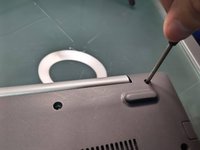
      • With a Phillips screwdriver, remove the screw pointed out in the image.

      • Slide the optical drive outward until it is removed completely.

      • Set aside.

      Ask FixBot

      Add Comment

    3. Lenovo Ideapad 320-14ISK RAM Replacement, Opening the laptop: step 3, image 1 of 3 Lenovo Ideapad 320-14ISK RAM Replacement, Opening the laptop: step 3, image 2 of 3 Lenovo Ideapad 320-14ISK RAM Replacement, Opening the laptop: step 3, image 3 of 3
      • Remove the 12 remaining screws. Set them aside orderly.

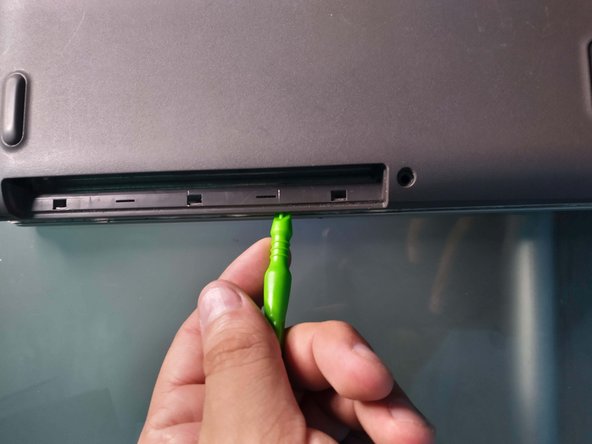
      • With a plastic spudger, release the tabs that are found below the optical drive.

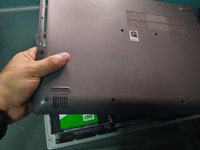
      • Continues releasing all of the tabs at the edges until the base of the laptop breaks loose.

      • Set the base aside.

      Ask FixBot

      Add Comment

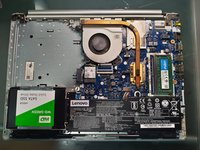
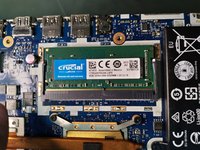
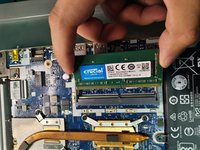
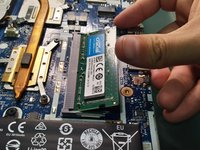
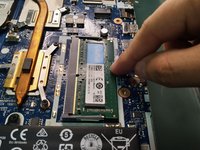
    4. Lenovo Ideapad 320-14ISK RAM Replacement, Remove the existent RAM: step 4, image 1 of 3 Lenovo Ideapad 320-14ISK RAM Replacement, Remove the existent RAM: step 4, image 2 of 3 Lenovo Ideapad 320-14ISK RAM Replacement, Remove the existent RAM: step 4, image 3 of 3
      • You may skip this step if there is no RAM installed previously.

      • Locate and open the tabs on the sides of the RAM. This will cause the RAM to become loose and take a diagonal position.

      • Remove the RAM in the same diagonal direction.

      Ask FixBot

      Add Comment

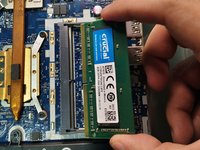
    5. Lenovo Ideapad 320-14ISK RAM Replacement, Install new RAM.: step 5, image 1 of 3 Lenovo Ideapad 320-14ISK RAM Replacement, Install new RAM.: step 5, image 2 of 3 Lenovo Ideapad 320-14ISK RAM Replacement, Install new RAM.: step 5, image 3 of 3
      • Insert translation here

      • Insert translation here

      • Insert translation here

      • Insert translation here

      Ask FixBot

      Add Comment

Conclusion

Congratulations! You installed your new RAM memory. Now, reassemble the laptop by following steps 1, 2 and 3 in reverse and enjoy your upgraded laptop.

Cancel: I did not complete this guide.

Special thanks to these translators:

es en

100%

These translators are helping us fix the world! Want to contribute?
Start translating ›

Franco Iván Bello Rojas

Member since: 02/28/22

1,031 Reputation

6 Guides authored

0 Guide Comments

Add Comment

View Statistics:

Past 24 Hours: 1

Past 7 Days: 13

Past 30 Days: 52

All Time: 2,962