Free Shipping on Domestic Orders $75+

Lenovo IdeaPad Z570 Keyboard Replacement

What you need

    1. Lenovo IdeaPad Z570 Keyboard Replacement, Battery: step 1, image 1 of 1
      • Place the laptop face down with the battery facing away from you

      Ask FixBot

      Add Comment

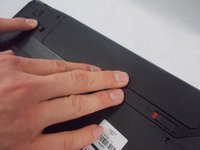
    2. Lenovo IdeaPad Z570 Keyboard Replacement: step 2, image 1 of 1
      • Flip the right switch right-bound

      Ask FixBot

      Add Comment

    3. Lenovo IdeaPad Z570 Keyboard Replacement: step 3, image 1 of 1
      • Hold the left switch.

      Ask FixBot

      Add Comment

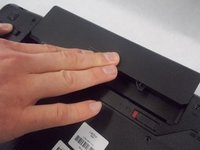
    4. Lenovo IdeaPad Z570 Keyboard Replacement: step 4, image 1 of 2 Lenovo IdeaPad Z570 Keyboard Replacement: step 4, image 2 of 2
      • Push the battery forward lightly to remove it while holding the left switch.

      Ask FixBot

      Add Comment

    1. Lenovo IdeaPad Z570 Keyboard Replacement, Disc Drive: step 5, image 1 of 1
      • Place the laptop face down with the battery slot facing away from you.

      Ask FixBot

      Add Comment

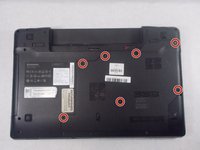
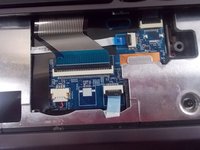
    2. Lenovo IdeaPad Z570 Keyboard Replacement: step 6, image 1 of 2 Lenovo IdeaPad Z570 Keyboard Replacement: step 6, image 2 of 2
      • Loosen all seven 3mm screws from the back panel using a Phillips #0 screwdriver.

      • These screws cannot be removed from the device.

      • Remove the back panel from the device.

      Ask FixBot
      Add Comment

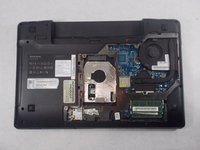
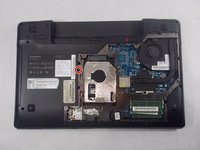
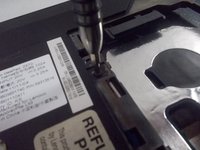
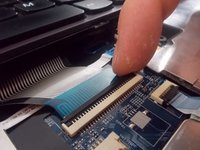
    3. Lenovo IdeaPad Z570 Keyboard Replacement: step 7, image 1 of 2 Lenovo IdeaPad Z570 Keyboard Replacement: step 7, image 2 of 2
      • Remove the 3 mm Phillips #0 screw located on the left hand side that holds the disc drive in place.

      Ask FixBot
      Add Comment

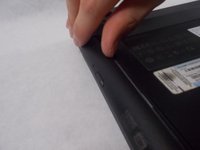
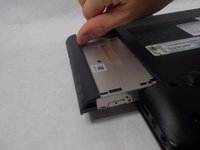
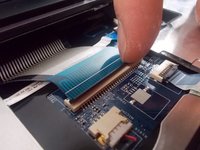
    4. Lenovo IdeaPad Z570 Keyboard Replacement: step 8, image 1 of 2 Lenovo IdeaPad Z570 Keyboard Replacement: step 8, image 2 of 2
      • Gently remove the disc drive from the left hand side of the laptop.

      Ask FixBot
      Add Comment

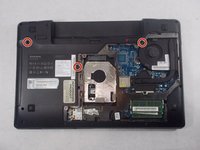
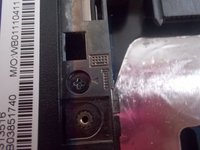
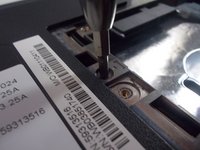
    1. Lenovo IdeaPad Z570 Keyboard Replacement, Keyboard: step 9, image 1 of 3 Lenovo IdeaPad Z570 Keyboard Replacement, Keyboard: step 9, image 2 of 3 Lenovo IdeaPad Z570 Keyboard Replacement, Keyboard: step 9, image 3 of 3
      • Remove the three 12mm screws found near these symbols with a Phillips #0 screwdriver.

      Ask FixBot

      Add Comment

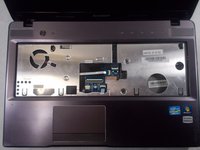
    2. Lenovo IdeaPad Z570 Keyboard Replacement: step 10, image 1 of 1
      • Orient the laptop at a 90 degree angle with the keyboard being vertical and the screen horizontal to the surface you are working on.

      Ask FixBot

      Add Comment

    3. Lenovo IdeaPad Z570 Keyboard Replacement: step 11, image 1 of 2 Lenovo IdeaPad Z570 Keyboard Replacement: step 11, image 2 of 2
      • Pry the keyboard off staring from the corner where the “esc”” key is located using an opening tool.

      • Now orient the laptop in the standard position and take off the keyboard.

      Ask FixBot

      Add Comment

    4. Lenovo IdeaPad Z570 Keyboard Replacement: step 12, image 1 of 3 Lenovo IdeaPad Z570 Keyboard Replacement: step 12, image 2 of 3 Lenovo IdeaPad Z570 Keyboard Replacement: step 12, image 3 of 3
      • At the terminal block, flip the black switch on the terminal up.

      Ask FixBot

      Add Comment

    5. Lenovo IdeaPad Z570 Keyboard Replacement: step 13, image 1 of 2 Lenovo IdeaPad Z570 Keyboard Replacement: step 13, image 2 of 2
      • Pull the keyboard out from the terminal block.

      Ask FixBot

      Add Comment

Conclusion

To reassemble your device, follow these instructions in reverse order.

Cancel: I did not complete this guide.

3 other people completed this guide.

Mya DeSantos

Member since: 03/18/19

330 Reputation

2 Guides authored

Team

0 Guide Comments

Add Comment

View Statistics:

Past 24 Hours: 2

Past 7 Days: 6

Past 30 Days: 26

All Time: 1,599