Free Shipping on Domestic Orders $75+

Lenovo IdeaPad Y500 Keyboard Replacement

What you need

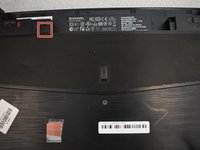
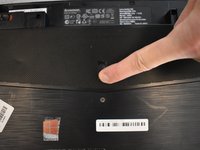
    1. Lenovo IdeaPad Y500 Keyboard Replacement, Battery: step 1, image 1 of 3 Lenovo IdeaPad Y500 Keyboard Replacement, Battery: step 1, image 2 of 3 Lenovo IdeaPad Y500 Keyboard Replacement, Battery: step 1, image 3 of 3
      • Slide the lock on the right side until you hear a click. Once you hear a click , you should see the color red.

      Ask FixBot

      Add Comment

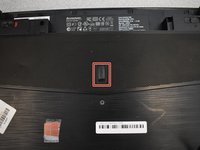
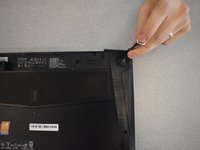
    2. Lenovo IdeaPad Y500 Keyboard Replacement: step 2, image 1 of 1
      • Unlike the first lock, this lock is spring loaded and must be held in place when used.

      • Slide the lock to the left (in the direction of the arrow below the lock) and hold in place.

      Ask FixBot

      Add Comment

    3. Lenovo IdeaPad Y500 Keyboard Replacement: step 3, image 1 of 1
      • Gently pull battery away from the computer while holding open the lock.

      Ask FixBot

      Add Comment

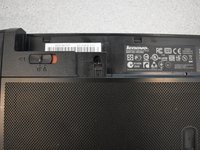
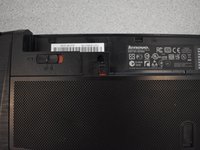
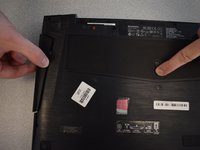
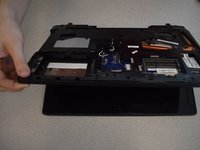
    1. Lenovo IdeaPad Y500 Keyboard Replacement, Keyboard: step 4, image 1 of 3 Lenovo IdeaPad Y500 Keyboard Replacement, Keyboard: step 4, image 2 of 3 Lenovo IdeaPad Y500 Keyboard Replacement, Keyboard: step 4, image 3 of 3
      • Unlock the battery latch by pulling it up.

      • It should reveal red underneath when it's unlocked.

      Ask FixBot

      Add Comment

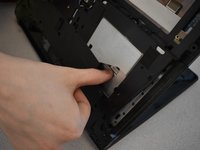
    2. Lenovo IdeaPad Y500 Keyboard Replacement: step 5, image 1 of 3 Lenovo IdeaPad Y500 Keyboard Replacement: step 5, image 2 of 3 Lenovo IdeaPad Y500 Keyboard Replacement: step 5, image 3 of 3
      • Push the latch down and then hold in position.

      • Pull the optical drive out.

      Ask FixBot

      Add Comment

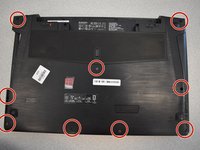
    3. Lenovo IdeaPad Y500 Keyboard Replacement: step 6, image 1 of 3 Lenovo IdeaPad Y500 Keyboard Replacement: step 6, image 2 of 3 Lenovo IdeaPad Y500 Keyboard Replacement: step 6, image 3 of 3
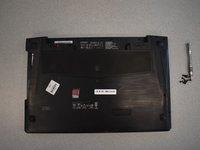
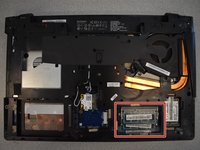
      • Remove nine screws with a Phillips #1 screwdriver.

      Ask FixBot

      Add Comment

    4. Lenovo IdeaPad Y500 Keyboard Replacement: step 7, image 1 of 3 Lenovo IdeaPad Y500 Keyboard Replacement: step 7, image 2 of 3 Lenovo IdeaPad Y500 Keyboard Replacement: step 7, image 3 of 3
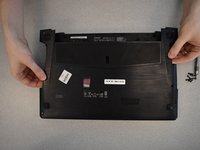
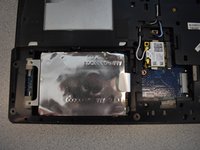
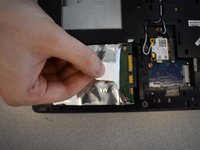
      • Pull up on the loosened cover to remove.

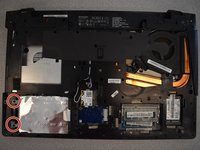
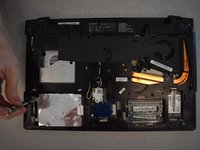
      • Remove two screws with a Phillips #1 screwdriver.

      Ask FixBot

      Add Comment

    5. Lenovo IdeaPad Y500 Keyboard Replacement: step 8, image 1 of 3 Lenovo IdeaPad Y500 Keyboard Replacement: step 8, image 2 of 3 Lenovo IdeaPad Y500 Keyboard Replacement: step 8, image 3 of 3
      • Pull the tab straight to the left until part releases.

      • Lift up the part to remove completely.

      Ask FixBot

      Add Comment

    6. Lenovo IdeaPad Y500 Keyboard Replacement: step 9, image 1 of 3 Lenovo IdeaPad Y500 Keyboard Replacement: step 9, image 2 of 3 Lenovo IdeaPad Y500 Keyboard Replacement: step 9, image 3 of 3
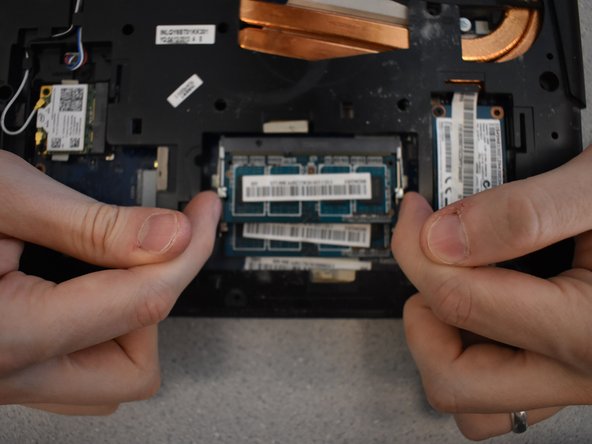
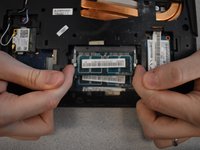
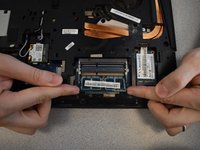
      • To release the DIMM, pull the tabs on either side away from each other simultaneously.

      • The DIMM will pop out on its own.

      Ask FixBot

      Add Comment

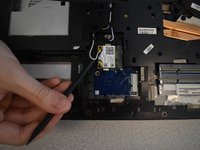
    7. Lenovo IdeaPad Y500 Keyboard Replacement: step 10, image 1 of 3 Lenovo IdeaPad Y500 Keyboard Replacement: step 10, image 2 of 3 Lenovo IdeaPad Y500 Keyboard Replacement: step 10, image 3 of 3
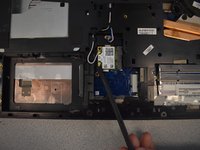
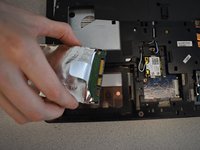
      • To disconnect the Wi-Fi cables, use a spudger to gently push up under them.

      • Wi-Fi cables are delicate.

      Ask FixBot

      Add Comment

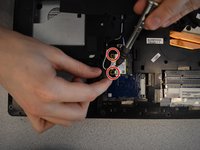
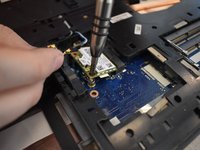
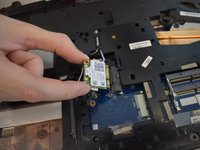
    8. Lenovo IdeaPad Y500 Keyboard Replacement: step 11, image 1 of 3 Lenovo IdeaPad Y500 Keyboard Replacement: step 11, image 2 of 3 Lenovo IdeaPad Y500 Keyboard Replacement: step 11, image 3 of 3
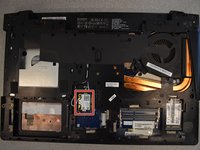
      • Using a Phillips #1 screwdriver, remove the two screws.

      • Once screws are out, the card will just pop out.

      Ask FixBot

      Add Comment

    9. Lenovo IdeaPad Y500 Keyboard Replacement: step 12, image 1 of 1
      • Remove three screws using a Phillips #1 screwdriver.

      Ask FixBot

      Add Comment

    10. Lenovo IdeaPad Y500 Keyboard Replacement: step 13, image 1 of 3 Lenovo IdeaPad Y500 Keyboard Replacement: step 13, image 2 of 3 Lenovo IdeaPad Y500 Keyboard Replacement: step 13, image 3 of 3
      • With the laptop upside down, open slightly.

      • To remove the keyboard, push the back of the keyboard forward with your thumb while pulling away from the laptop on the other side.

      • You will not be able to pull the keyboard completely away. The cables are still connected to the laptop.

      Ask FixBot

      Add Comment

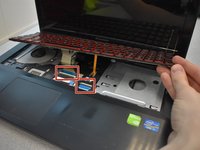
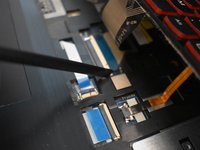
    11. Lenovo IdeaPad Y500 Keyboard Replacement: step 14, image 1 of 3 Lenovo IdeaPad Y500 Keyboard Replacement: step 14, image 2 of 3 Lenovo IdeaPad Y500 Keyboard Replacement: step 14, image 3 of 3
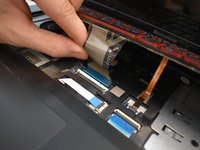
      • To release the cables, use the spudger to push both ends on the side of the cable.

      • Gently pull the cables up to disconnect.

      Ask FixBot

      Add Comment

    12. Lenovo IdeaPad Y500 Keyboard Replacement: step 15, image 1 of 2 Lenovo IdeaPad Y500 Keyboard Replacement: step 15, image 2 of 2
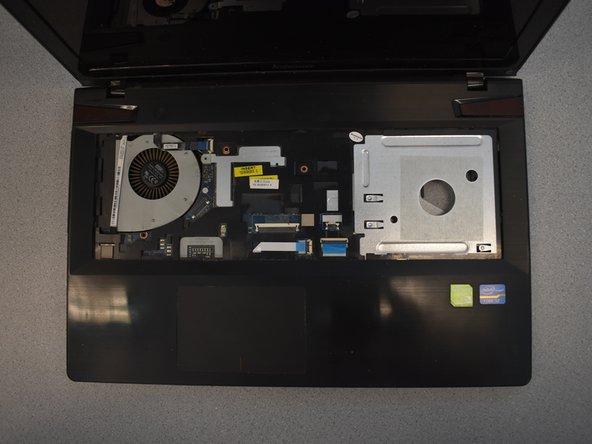
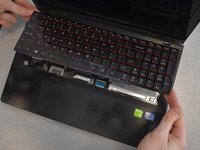
      • Pull the keyboard up and away from the laptop to remove it.

      Ask FixBot

      Add Comment

Conclusion

To reassemble your device, follow these instructions in reverse order.

Cancel: I did not complete this guide.

3 other people completed this guide.

Isabella Morvel

Member since: 04/22/19

250 Reputation

1 Guide authored

Team

UW Tacoma, Team S1-G2, Cardinal Spring 2019 Member of UW Tacoma, Team S1-G2, Cardinal Spring 2019

UWT-CARDINAL-S19S1G2

4 Members

60 Guides authored

1 Guide Comment

Not sure if removing all components was really necessary just to replace the keyboard but I still did it and succeeded in replacing the keyboard. Thank you for great and detailed instructions.

Grzegorz Krugły - Reply Share
Add Comment

View Statistics:

Past 24 Hours: 1

Past 7 Days: 2

Past 30 Days: 19

All Time: 2,392