Free Shipping on Domestic Orders $75+

Lenovo IdeaPad Y410p Keyboard Replacement

What you need

    1. Lenovo IdeaPad Y410p Keyboard Replacement, Battery: step 1, image 1 of 1
      • Turn off your laptop before starting.

      • Flip the laptop over so the model stickers are facing up.

      Ask FixBot

      Add Comment

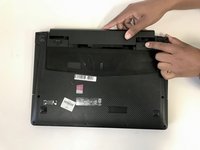
    2. Lenovo IdeaPad Y410p Keyboard Replacement: step 2, image 1 of 2 Lenovo IdeaPad Y410p Keyboard Replacement: step 2, image 2 of 2
      • Slide the left battery lock to the unlock position and release.

      • Slide the right battery lock to the unlock positon and hold it in place.

      Ask FixBot

      Add Comment

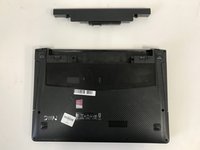
    3. Lenovo IdeaPad Y410p Keyboard Replacement: step 3, image 1 of 2 Lenovo IdeaPad Y410p Keyboard Replacement: step 3, image 2 of 2
      • While holding the right battery lock in the unlock position, slide the battery carefully out of the laptop and set it aside.

      Ask FixBot

      Add Comment

    1. Lenovo IdeaPad Y410p Keyboard Replacement, Keyboard: step 4, image 1 of 2 Lenovo IdeaPad Y410p Keyboard Replacement, Keyboard: step 4, image 2 of 2
      • Power off your laptop.

      • Use a metal spudger to loosen the frame of the keyboard by running it under the edges of the keyboard as shown.

      • After loosening the keyboard frame, you should be able to gently lift up the keyboard.

      Ask FixBot

      Add Comment

    2. Lenovo IdeaPad Y410p Keyboard Replacement: step 5, image 1 of 3 Lenovo IdeaPad Y410p Keyboard Replacement: step 5, image 2 of 3 Lenovo IdeaPad Y410p Keyboard Replacement: step 5, image 3 of 3
      • Be careful when lifting the keyboard so that you do not damage the ribbon cable connector.

      • Detach the ribbon cables from the latches shown.

      Ask FixBot

      Add Comment

Conclusion

To reassemble your device, follow these instructions in reverse order.

Cancel: I did not complete this guide.

2 other people completed this guide.

2 Guide Comments

Terrible guide - completely fails to point out the two screws that hold the keyboard down underneath the bottom casing. Bent my keyboard thanks to this.

Dragon - Reply Share

Awful guide. Wish I'd seen the other comment before I also ruined my keyboard. Thought it popped out, but there's 2 screws under the bottom case that hold it (remove!) … bent the keyboard frame and ripped the screw tabs off. Was just trying to clean it. Now it needs total replacement.

How is this article reportable?

Nateb - Reply Share

Add Comment

View Statistics:

Past 24 Hours: 3

Past 7 Days: 6

Past 30 Days: 30

All Time: 1,450