Introduction
This guide will show you how to remove the random access memory (RAM) in the Lenovo Ideapad U530 Touch.
RAM is a computer's short-term memory, which it uses to handle all active tasks and apps. None of your programs, files, games, or streams would work without RAM.
Ensure the device is unplugged and powered off; if possible, remove the battery before beginning disassembly.
What you need
-
-
-
Remove the back panel by removing all screws. Use a PH000 screwdriver head.
-
Make sure to also remove the hinge screws.
 Ask FixBot
-
-
-
Locate and assess the battery. Pictured in the upper right area of the computer.
-
-
-
-
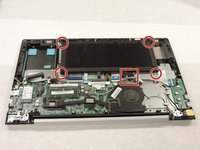
Locate and remove all screws attaching the battery to the hull of the computer. It is recommended that you use a JIS #1 screwdriver head for this task.
-
Be careful to keep track of all removed screws.
-
-
-
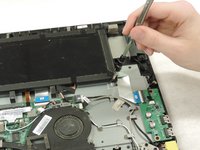
Detach the connection from the battery to the motherboard. This is the only connection that needs to be disconnected for the battery.
-
To remove the connection, please pull firmly, as it well secured.
-
-
-
-
-
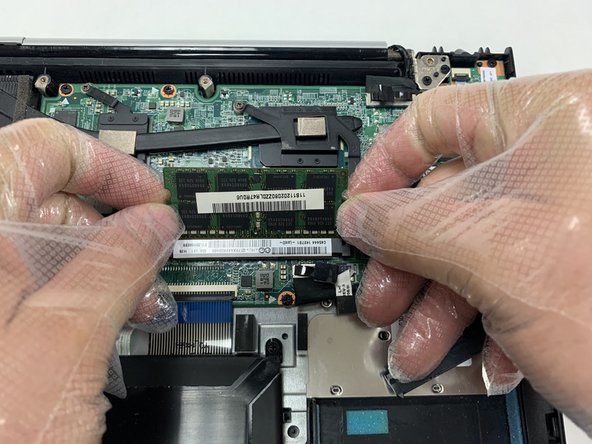
Carefully pull on the tabs on each side of the RAM to release it from its slot
-
Carefully pull the old RAM out of the laptop.
-
-






To reassemble your device, follow these instructions in reverse order.

Team

The Citadel Military College of South Carolina, Team 2-9, Eggleston Fall 2021 Member of The Citadel Military College of South Carolina, Team 2-9, Eggleston Fall 2021
CMCSC-EGGLESTON-F21S2G9
3 Members
36 Guides authored
