Free Shipping on Domestic Orders $75+

Lenovo IdeaPad U310 Keyboard Replacement

What you need

  1. Lenovo IdeaPad U310 Keyboard  Replacement, Battery: step 1, image 1 of 1
    • Flip the device over so the bottom panel is facing up.

    • Remove the rubber feet by pinching and pulling in an upward motion.

    • The rubber feet are missing from this photo, but will be located within the red markups.

    Ask FixBot

    Add Comment

  2. Lenovo IdeaPad U310 Keyboard  Replacement: step 2, image 1 of 1
    • Remove the 4 screws securing the bottom panel to the device.

    • The screws are missing from this device and are not pictured. They will be located under the rubber feet within the red markups.

    Ask FixBot

    Add Comment

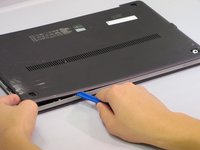
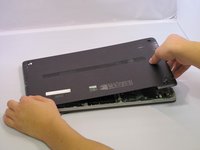
  3. Lenovo IdeaPad U310 Keyboard  Replacement: step 3, image 1 of 2 Lenovo IdeaPad U310 Keyboard  Replacement: step 3, image 2 of 2
    • Place the plastic opening tool between the bottom panel and device.

    • Pry around the device's outer edge until the bottom panel is no longer attached.

    • Lift the bottom panel up and away from device.

    Ask FixBot

    Add Comment

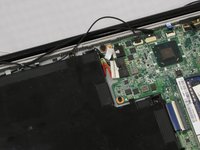
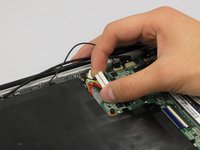
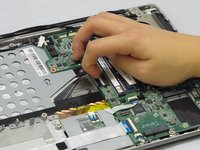
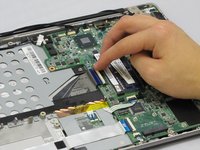
  4. Lenovo IdeaPad U310 Keyboard  Replacement: step 4, image 1 of 2 Lenovo IdeaPad U310 Keyboard  Replacement: step 4, image 2 of 2
    • Unplug the Battery from the circuit board by carefully prying the connector from its housing.

    Ask FixBot

    Add Comment

  5. Lenovo IdeaPad U310 Keyboard  Replacement: step 5, image 1 of 2 Lenovo IdeaPad U310 Keyboard  Replacement: step 5, image 2 of 2
    • Remove the 5.6 mm Screw with the PH1 screwdriver.

    • Remove the 4.6 mm screws with the PH1 screwdriver.

    Ask FixBot

    Add Comment

  6. Lenovo IdeaPad U310 Keyboard  Replacement: step 6, image 1 of 2 Lenovo IdeaPad U310 Keyboard  Replacement: step 6, image 2 of 2
    • Lift the strip tape away from the battery, being careful not to completely remove it.

    Ask FixBot

    Add Comment

  7. Lenovo IdeaPad U310 Keyboard  Replacement: step 7, image 1 of 1
    • Remove the battery by lifting up and away from device.

    Ask FixBot

    Add Comment

  8. Lenovo IdeaPad U310 Keyboard  Replacement, Keyboard: step 8, image 1 of 2 Lenovo IdeaPad U310 Keyboard  Replacement, Keyboard: step 8, image 2 of 2
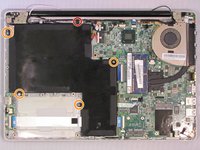
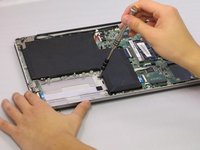
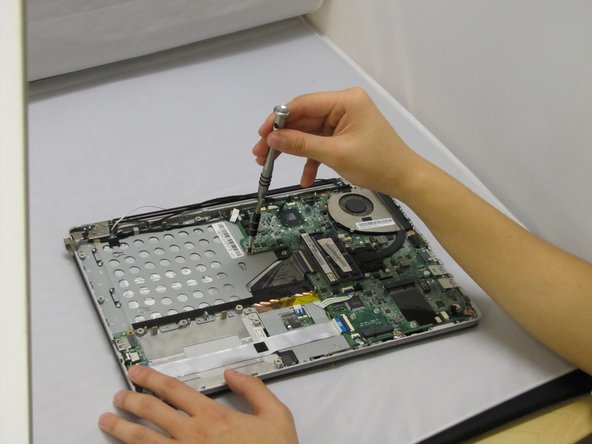
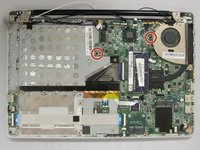
    • Remove the two 4.6 mm screws using PH1.

    • One is located next to the fan, the other at the corner of the battery.

    Ask FixBot

    Add Comment

  9. Lenovo IdeaPad U310 Keyboard  Replacement: step 9, image 1 of 2 Lenovo IdeaPad U310 Keyboard  Replacement: step 9, image 2 of 2
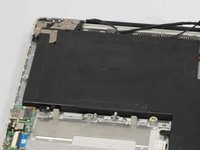
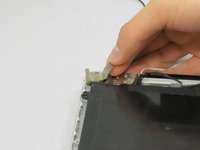
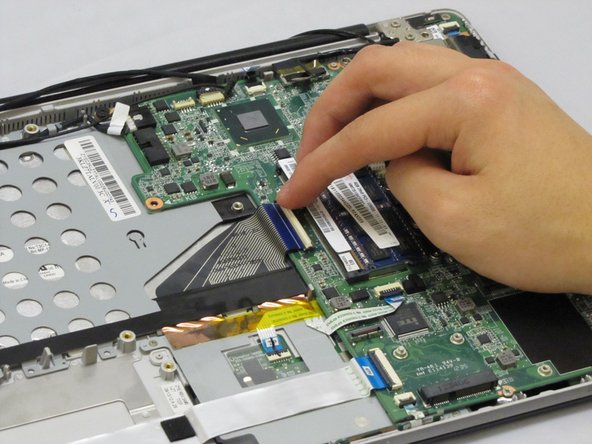
    • Pry up the hinge that houses the keyboard's ribbon cable.

    Ask FixBot

    Add Comment

  10. Lenovo IdeaPad U310 Keyboard  Replacement: step 10, image 1 of 1
    • Remove the ribbon from its housing.

    Ask FixBot

    Add Comment

  11. Lenovo IdeaPad U310 Keyboard  Replacement: step 11, image 1 of 1
    • Turn laptop upside down so the keyboard is facing up.

    • Place prying tool between the keyboard and the housing.

    • Move the prying tool around the keyboard's edge, releasing the tabs securing the keyboard.

    • There are larger tabs that cannot be pried at the bottom of the keyboard.

    Ask FixBot

    Add Comment

  12. Lenovo IdeaPad U310 Keyboard  Replacement: step 12, image 1 of 1
    • Life the keyboard up and away from the device.

    Ask FixBot

    Add Comment

Conclusion

To reassemble your device, follow these instructions in reverse order.

Cancel: I did not complete this guide.

2 other people completed this guide.

1 Guide Comment

Honestly, the best instructions for any task i ever made ⭐⭐⭐⭐⭐. Thank you

zakimsaleh - Reply Share

Add Comment

View Statistics:

Past 24 Hours: 4

Past 7 Days: 5

Past 30 Days: 28

All Time: 4,026