Introduction
Replacing the keyboard on your laptop can be necessary if your keyboard is no longer responding. You will need a nylon or metal spudger. Make sure that the power is off before continuing.
What you need
-
-
-
Rotate the laptop so the back side is facing you.
-
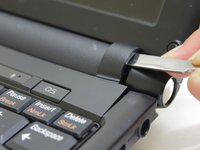
From this side, you should be able to see both of the gaps where the two plastic materials meet.
 Ask FixBot
-
-
-
Wedge the nylon or metal spudger inside the gap and pry open the two plastic parts.
-
-
-
-
Open the laptop.
-
Place the nylon or metal spudger under the top half that is loose and pull up to pry it open.
-
-
-
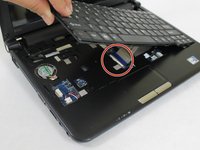
Pull up on the loose component to remove.
-
As you lift the keyboard, you should be able to see a strip connected to the laptop.
-
-
-
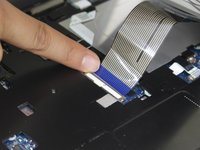
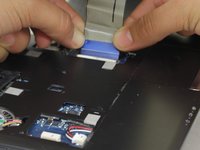
Remove the strip by pulling both sides of the blue strip out.
-
Lift and remove the keyboard from the laptop.
-
-









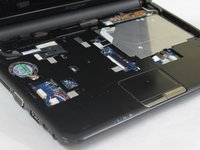
To reassemble your device, follow these instructions in reverse order.
Cancel: I did not complete this guide.
2 other people completed this guide.

Team

Sam Houston State, Team 1-7, Blackburne Fall 2015 Member of Sam Houston State, Team 1-7, Blackburne Fall 2015
SHSU-BLACKBURNE-F15S1G7
4 Members
60 Guides authored
1 Guide Comment
Thanks! Just be careful when inserting the keyboard strips back into it's socket: that socket has retainer that needs to be released before inserting the strip. It is highlighted with different color, maybe brown. To release the strip pull the retainer in the same direction as when pulling out the keyboard strip, but do it before pulling that strip, so the strip will be released easily and can be inserted back when needed. Then push the retainer back...
