
Lenovo IdeaPad S10-2 Key Replacement

Anthony and 3 other contributors
Last updated on Jan 14, 2026
Views: 1.4K
View statistics:
- Past 24 Hours:
- 4
- Past 7 Days:
- 23
- Past 30 Days:
- 110
- All Time:
- 1,433
Comments: 0
No one has left comments on this guide. Will you be first?
Go to guide commentsCompleted: 0 1
No one has marked this guide "completed." Will you be the first?
1 person has marked this guide "completed." It's you — great job!
Favorites: 0 1
No one has favorited (and subscribed to) this guide. Will you be the first?
1 person has favorited (and subscribed to) this guide — and that's you!
Introduction
Go to step 1 ↓This guide will walk you through replacing the space bar. The space bar in particular works with hinges unlike some of the other keys.
What you need
Tools
-
Spudger4.9

-
-
-
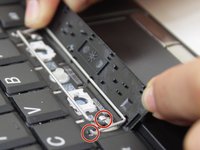
Pull back the key to remove and separate the key from the metal bars underneath.
-
-
-
-
Ensure the bars are in correctly before continuing. The end of the top bar should be in the hooks and the end of the bottom bar should go through the loops.
-

 Ask FixBot




Team

Sam Houston State, Team 1-7, Blackburne Fall 2015 Member of Sam Houston State, Team 1-7, Blackburne Fall 2015
SHSU-BLACKBURNE-F15S1G7
4 Members
60 Guides authored
