Introduction
Replacing the keyboard on the Lenovo IdeaPad P400 Touch is relatively easy. The keyboard may need to be replaced on your laptop if none of the steps in the troubleshooting guide resolved issues with your ability to input text into the computer. There is little that you will have to do that involves any risk to yourself or the device. On this model of laptop, you must remove the keyboard before being able to open the laptop case, so as a result, opening the laptop itself is unnecessary. You will only need a Phillips #1 screwdriver and plastic spudger to complete this repair.
What you need
-
-
-
Remove the two 14mm Phillips #1 screws that attach the keyboard to the underside of the laptop.
 Ask FixBot
-
-
-
-
Using your hands, lift the top corner of the keyboard, and keep lifting until the keyboard pops out. You will hear clicks as you do this.
-
-
-
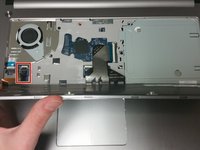
Lift the top of the keyboard and flip the keyboard face down so that you can access the connectors underneath it.
-
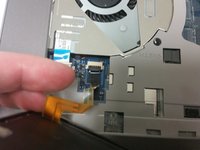
Using your fingers, unplug the large connector that connects the keyboard to the center of the laptop by sliding the end of the strip out of the socket.
-
-
-
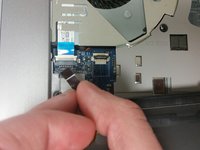
Using your fingers, unplug the second, smaller connector, located at the lower left hand side of the keyboard by sliding the strip out of the socket.
-
-



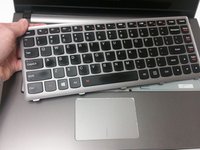

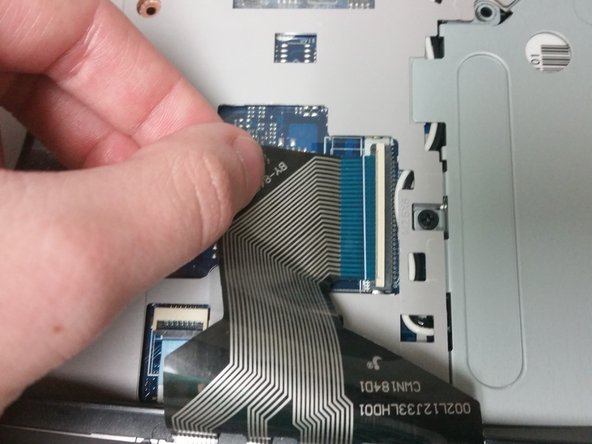
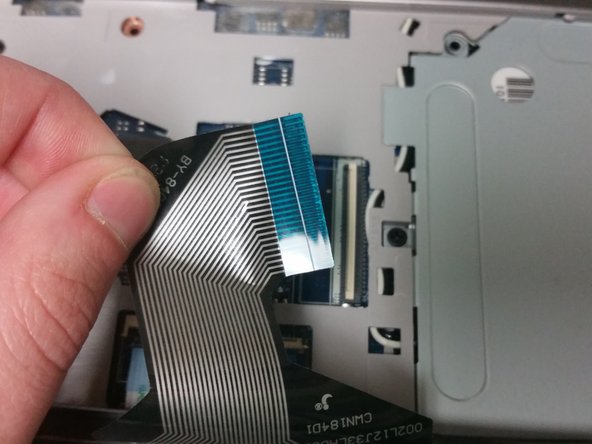
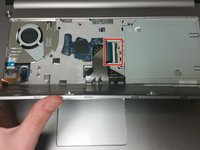
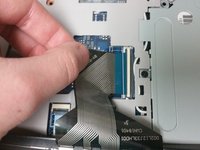
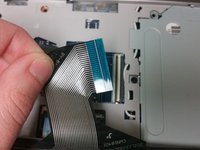

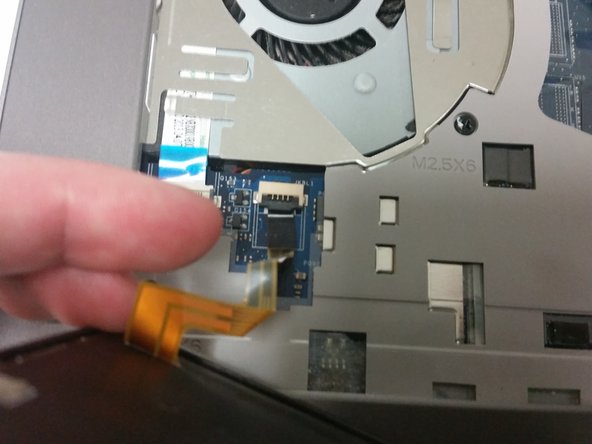
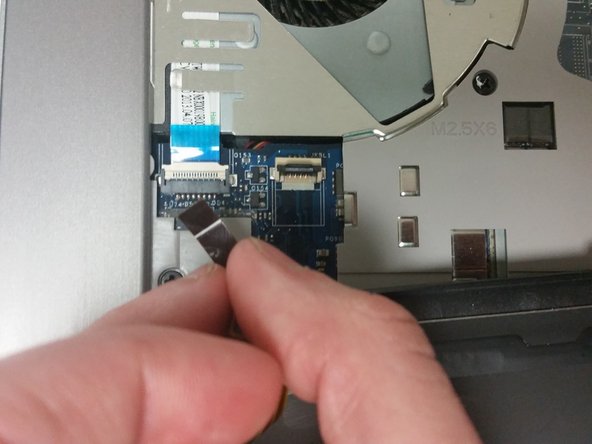
The keyboard can now be replaced if needed. To reassemble your device, follow these instructions in reverse order.

Team

University of North Texas, Team S1-G1, Boettger Fall 2017 Member of University of North Texas, Team S1-G1, Boettger Fall 2017
UNT-BOETTGER-F17S1G1
2 Members
60 Guides authored
