Free Shipping on Domestic Orders $75+

Lenovo IdeaPad N586 Fan Replacement

What you need

    1. Lenovo IdeaPad N586 Fan Replacement, Battery: step 1, image 1 of 2 Lenovo IdeaPad N586 Fan Replacement, Battery: step 1, image 2 of 2
      • To unlock the battery, flip the laptop over so that the bottom is facing upward. Then unlock the left clip by pushing the clip to the left.

      Ask FixBot

      Add Comment

    2. Lenovo IdeaPad N586 Fan Replacement: step 2, image 1 of 2 Lenovo IdeaPad N586 Fan Replacement: step 2, image 2 of 2
      • Now push the right clip to the right and hold it while using your other hand to pull the battery out.

      Ask FixBot

      Add Comment

    1. Lenovo IdeaPad N586 Fan Replacement, Hard Drive: step 3, image 1 of 1
      • Now remove the last two screws highlighted

      Ask FixBot

      Add Comment

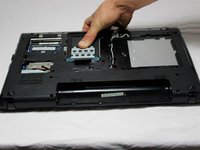
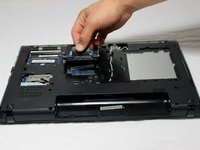
    2. Lenovo IdeaPad N586 Fan Replacement: step 4, image 1 of 2 Lenovo IdeaPad N586 Fan Replacement: step 4, image 2 of 2
      • Push hard drive away from the center of the chassis.

      • Lift the hard drive out of the chassis using the tab located on the drive.

      Ask FixBot

      Add Comment

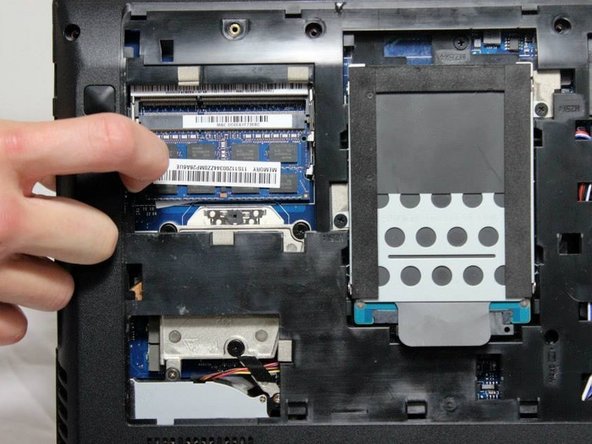
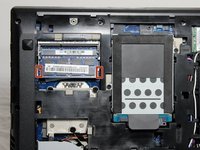
    1. Lenovo IdeaPad N586 Fan Replacement, Memory: step 5, image 1 of 2 Lenovo IdeaPad N586 Fan Replacement, Memory: step 5, image 2 of 2
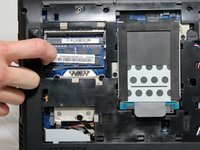
      • Now push the little clips out away from the memory to unlock the memory.

      Ask FixBot

      Add Comment

    2. Lenovo IdeaPad N586 Fan Replacement: step 6, image 1 of 1
      • After unlocking the memory from it's position, pull the memory out.

      Ask FixBot

      Add Comment

    1. Lenovo IdeaPad N586 Fan Replacement, Keyboard: step 7, image 1 of 1
      • Remove three screws on bottom of case. They have a little keyboard image next to them. If you don't do this first, the keyboard will not come off. Place the plastic spudger right under the edge of the keyboard and lift up the keyboard.

      Ask FixBot

      Add Comment

    2. Lenovo IdeaPad N586 Fan Replacement: step 8, image 1 of 1
      • Slowly and gently lift the keyboard up to separate from the chassis.

      Ask FixBot

      Add Comment

    3. Lenovo IdeaPad N586 Fan Replacement: step 9, image 1 of 1
      • Gently lift the keyboard off the chassis.

      • Carefully disconnect the keyboard from the laptop by unhooking the keyboard ribbon.

      Ask FixBot

      Add Comment

    4. Lenovo IdeaPad N586 Fan Replacement: step 10, image 1 of 1
      • Now remove the keyboard from the computer.

      Ask FixBot

      Add Comment

    1. Lenovo IdeaPad N586 Fan Replacement, Fan: step 11, image 1 of 2 Lenovo IdeaPad N586 Fan Replacement, Fan: step 11, image 2 of 2
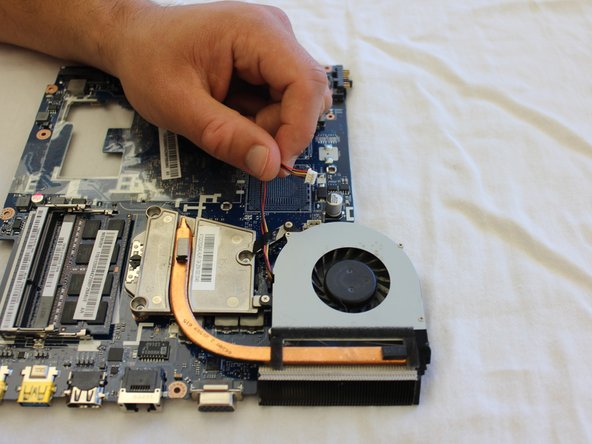
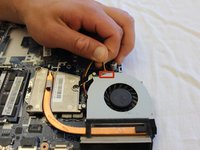
      • Pull the plug shown.

      Ask FixBot

      Add Comment

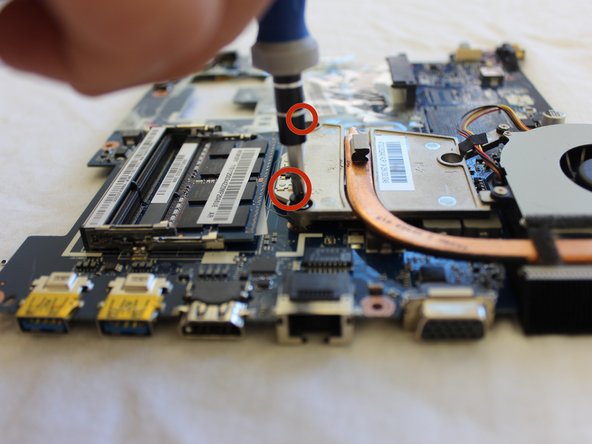
    2. Lenovo IdeaPad N586 Fan Replacement: step 12, image 1 of 2 Lenovo IdeaPad N586 Fan Replacement: step 12, image 2 of 2
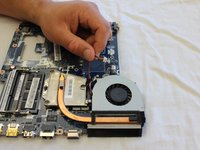
      • Lift up fan.

      • Remove two highlighted screws.

      Ask FixBot

      Add Comment

    3. Lenovo IdeaPad N586 Fan Replacement: step 13, image 1 of 1
      • This is the fan separated from the motherboard.

      Ask FixBot

      Add Comment

Conclusion

To reassemble your device, follow these instructions in reverse order.

Cancel: I did not complete this guide.

2 other people completed this guide.

Patrick

Member since: 04/08/14

480 Reputation

3 Guides authored

Team

Cal Poly, Team 8-7, Regan Spring 2014 Member of Cal Poly, Team 8-7, Regan Spring 2014

CPSU-REGAN-S14S8G7

5 Members

101 Guides authored

1 Guide Comment

These instructions are incomplete. There are no steps to getting from removing the keyboard to getting to the fan. There may be more missing.

Clint Hatchett - Reply Share

Add Comment

View Statistics:

Past 24 Hours: 1

Past 7 Days: 5

Past 30 Days: 28

All Time: 1,240