Free Shipping on Domestic Orders $75+

Lenovo IdeaPad N580 RAM Replacement

What you need

  1. Lenovo IdeaPad N580 RAM Replacement, Battery: step 1, image 1 of 1
    • Turn over the device so that the bottom is facing up. Make sure the hinged side is facing you.

    Ask FixBot

    Add Comment

  2. Lenovo IdeaPad N580 RAM Replacement: step 2, image 1 of 1
    • Move the right switch towards the right until it clicks in place. You should then see the color red reveal from where the switch was originally.

    Ask FixBot

    Add Comment

  3. Lenovo IdeaPad N580 RAM Replacement: step 3, image 1 of 1
    • Now take your left hand and slide the left switch to the left.

    • This switch will not click in place like the other switch, so make sure to keep your left hand on the switch.

    Ask FixBot

    Add Comment

  4. Lenovo IdeaPad N580 RAM Replacement: step 4, image 1 of 1
    • Take your free hand and place it on the battery. Gently slide it away from its slot.

    Ask FixBot

    Add Comment

  5. Lenovo IdeaPad N580 RAM Replacement, RAM: step 5, image 1 of 1
    • Rotate the laptop so that now the hinge is facing away from you.

    • Remove the two 2.5 x 4.0 mm Phillips #0 screws from the underside of the laptop.

    Ask FixBot

    Add Comment

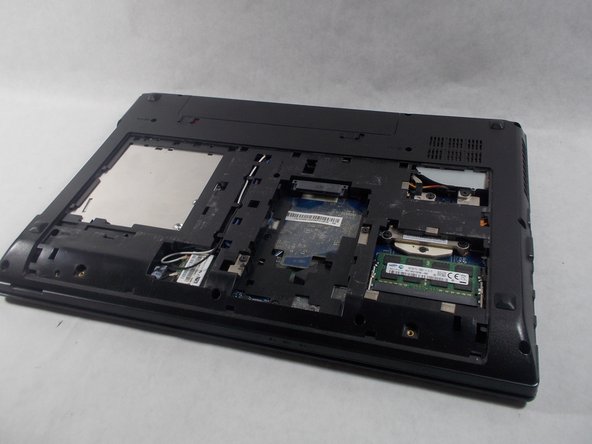
  6. Lenovo IdeaPad N580 RAM Replacement: step 6, image 1 of 2 Lenovo IdeaPad N580 RAM Replacement: step 6, image 2 of 2
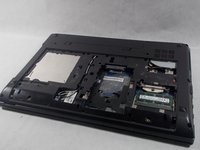
    • Slide the bottom panel towards you until it stops, and then carefully lift it off.

    Ask FixBot

    Add Comment

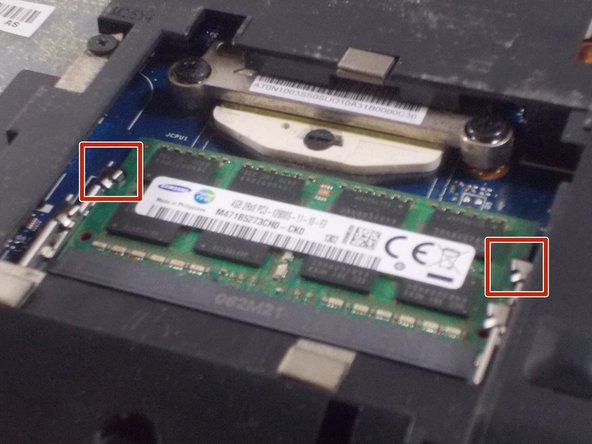
  7. Lenovo IdeaPad N580 RAM Replacement: step 7, image 1 of 3 Lenovo IdeaPad N580 RAM Replacement: step 7, image 2 of 3 Lenovo IdeaPad N580 RAM Replacement: step 7, image 3 of 3
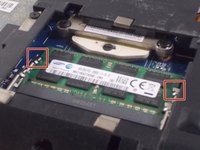
    • The RAM sticks can be found at the bottom right of the laptop.

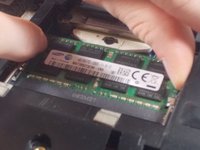
    • Carefully press the two silver buttons on either side of the stick outwards. This will cause the RAM to “pop” up.

    • This device is capable of holding two RAM sticks, so there are two different sets of silver buttons; a top set and a bottom set. When removing the RAM stick, make sure to press either the two bottom buttons or the two top buttons.

    Ask FixBot

    Add Comment

  8. Lenovo IdeaPad N580 RAM Replacement: step 8, image 1 of 1
    • Carefully slide the RAM straight out of its socket.

    Ask FixBot

    Add Comment

Conclusion

To reassemble your device, follow these instructions in reverse order.

Cancel: I did not complete this guide.

One other person completed this guide.

Alex Amorim

Member since: 03/19/18

931 Reputation

5 Guides authored

Team

0 Guide Comments

Add Comment

View Statistics:

Past 24 Hours: 0

Past 7 Days: 5

Past 30 Days: 33

All Time: 759