
Lenovo G780 RAM Replacement

Robert Bishop and 2 other contributors
Last updated on Aug 1, 2017
Views: 1.6K
View statistics:
- Past 24 Hours:
- 3
- Past 7 Days:
- 26
- Past 30 Days:
- 112
- All Time:
- 1,601
Comments: 0
No one has left comments on this guide. Will you be first?
Go to guide commentsCompleted: 0 1
No one has marked this guide "completed." Will you be the first?
1 person has marked this guide "completed." It's you — great job!
Favorites: 0 1
No one has favorited (and subscribed to) this guide. Will you be the first?
1 person has favorited (and subscribed to) this guide — and that's you!
Introduction
Go to step 1 ↓If you wish to upgrade or replace RAM on the Lenovo G780, follow this guide.
What you need
Tools

-
-
-
Turn off the computer.
-
Slide the battery-lock switch on the bottom of the laptop to the unlocked position.
 Ask FixBot
-
-
-
Hold the battery release switch in the unlocked position and remove the battery.
-
-
-
-
-
Using a #0 Phillips screwdriver, remove the six 9mm panel screws from the bottom of the device.
-
-
-
-
-
-
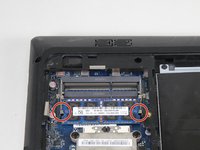
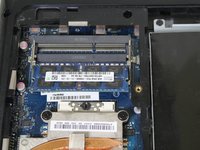
Push the two locks outwards to release the RAM.
-
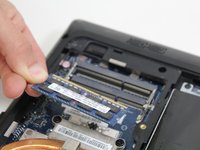
Carefully pull the RAM module from its socket.
-
-


To reassemble your device, follow these instructions in reverse order.

Team

Carson-Newman University, Team S1-G3, Sobiech Spring 2017 Member of Carson-Newman University, Team S1-G3, Sobiech Spring 2017
CNU-SOBIECH-S17S1G3
4 Members
60 Guides authored
