Free Shipping on Domestic Orders $75+

Lenovo G70-80 RAM Replacement

What you need

    1. Lenovo G70-80 RAM Replacement, Battery: step 1, image 1 of 1
      • Turn off the computer.

      • Set the computer upside down with the back facing up.

      Ask FixBot

      Add Comment

    2. Lenovo G70-80 RAM Replacement: step 2, image 1 of 2 Lenovo G70-80 RAM Replacement: step 2, image 2 of 2
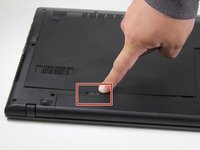
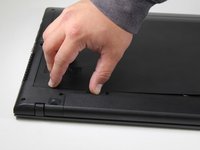
      • Located directly below the bottom plate will be two switches near where the battery is located.

      • With the battery facing you, slide the battery switch on the right side of the laptop towards the right.

      • To ensure the switch on the right is unlocked, look for a red indicator next to the switch.

      Ask FixBot

      Add Comment

    3. Lenovo G70-80 RAM Replacement: step 3, image 1 of 2 Lenovo G70-80 RAM Replacement: step 3, image 2 of 2
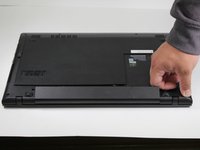
      • Slide the left battery release switch to the left.

      • While holding the switch to the left, lift the battery to remove it from the computer.

      Ask FixBot

      Add Comment

    4. Lenovo G70-80 RAM Replacement: step 4, image 1 of 2 Lenovo G70-80 RAM Replacement: step 4, image 2 of 2
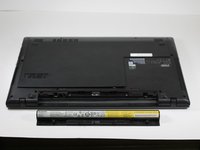
      • Remove the battery.

      Ask FixBot

      Add Comment

    1. Lenovo G70-80 RAM Replacement, RAM: step 5, image 1 of 3 Lenovo G70-80 RAM Replacement, RAM: step 5, image 2 of 3 Lenovo G70-80 RAM Replacement, RAM: step 5, image 3 of 3
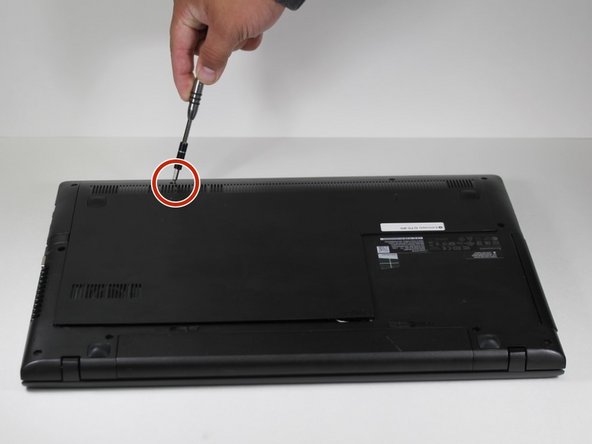
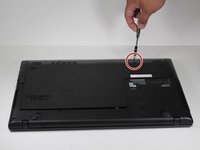
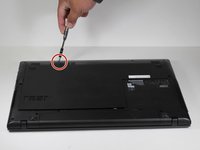
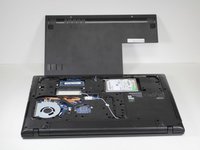
      • Remove the placeholder screws and pull off the backplate.

      Ask FixBot

      Add Comment

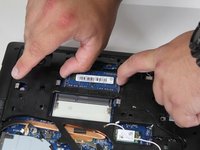
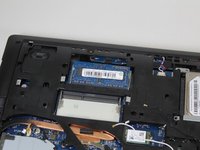
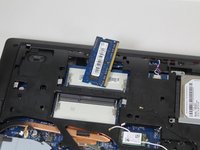
    2. Lenovo G70-80 RAM Replacement: step 6, image 1 of 3 Lenovo G70-80 RAM Replacement: step 6, image 2 of 3 Lenovo G70-80 RAM Replacement: step 6, image 3 of 3
      • Carefully pull the two metal retaining clips away from the sides of the RAM module.

      • As the clips release, the RAM module should pop up at an angle.

      • Remove the RAM from the device.

      Ask FixBot

      Add Comment

Conclusion

To reassemble your device, follow these instructions in reverse order.

Cancel: I did not complete this guide.

One other person completed this guide.

0 Guide Comments

Add Comment

View Statistics:

Past 24 Hours: 3

Past 7 Days: 29

Past 30 Days: 116

All Time: 1,712