Introduction
Having trouble with your hard drive? Here's some steps to replace the hard drive on the Lenovo G70-80.
What you need
-
-
Remove the two placeholder screws, and then proceed to pull off the back of the laptop.
-
-
-
-
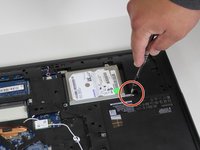
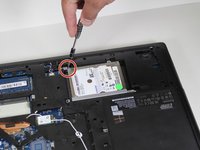
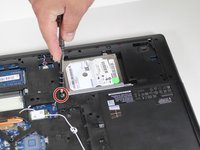
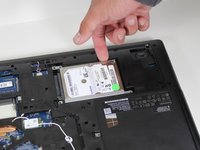
Using your Phillips Screwdriver, remove the four screws around the hard drive.
-
-
-
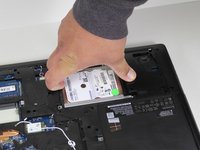
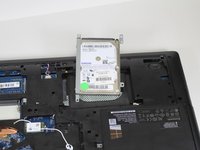
Shift the hard drive to the right and you will feel it click. That means it has been unlocked and can be removed.
-

 Ask FixBot




To reassemble your device, follow these instructions in reverse order.
Cancel: I did not complete this guide.
3 other people completed this guide.

Team

Carson-Newman University, Team S1-G2, Sobiech Spring 2017 Member of Carson-Newman University, Team S1-G2, Sobiech Spring 2017
CNU-SOBIECH-S17S1G2
3 Members
5 Guides authored
