Introduction
Batteries lose their ability to hold their charge over long periods of use. This results in the user needing to replace the battery to maintain sufficient battery life. This guide requires no tools.
What you need
-
-
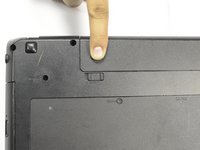
Make sure your laptop is oriented backside facing upward as seen in the image.
-
Locate the battery lock switch.
 Ask FixBot
-
-
-
-
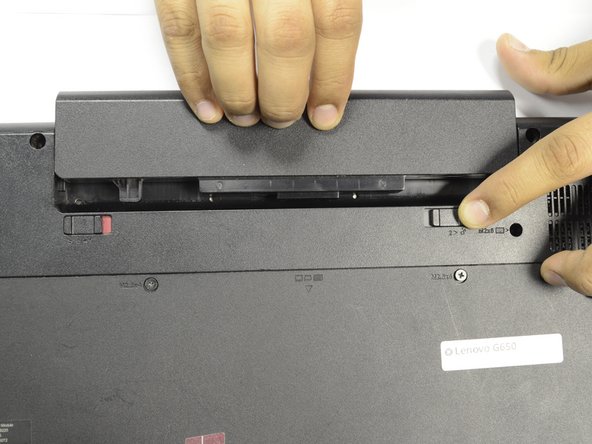
Hold the release switch down.
-
At the same time, push the battery upwards to remove the battery.
-




To reassemble your device, follow these instructions in reverse order.
Cancel: I did not complete this guide.
2 other people completed this guide.

Team

Purdue University Northwest, Team S1-G3, Hingst Fall 2018 Member of Purdue University Northwest, Team S1-G3, Hingst Fall 2018
PNW-HINGST-F18S1G3
4 Members
3 Guides authored
