
Lenovo G500S Touch RAM Replacement

Christopher Foster and 2 other contributors
Last updated on Jan 14, 2020
Views: 1.1K
View statistics:
- Past 24 Hours:
- 2
- Past 7 Days:
- 15
- Past 30 Days:
- 63
- All Time:
- 1,131
Comments: 0
No one has left comments on this guide. Will you be first?
Go to guide commentsCompleted: 1 2
1 person has marked this guide "completed." Will you be next?
2 people have marked this guide "completed." Including you — great job!
Favorites: 0 1
No one has favorited (and subscribed to) this guide. Will you be the first?
1 person has favorited (and subscribed to) this guide — and that's you!
Introduction
Go to step 1 ↓Every laptop comes with two sticks of Random Access Memory (RAM). Oftentimes, many users look to upgrade their RAM if they notice their computers acting slower than normal. The RAM is a component that is likely to fail, and some of those symptoms include: slow loading times, blue screen of death (BSoD), blank screen, etc.
If you’re looking to replace the RAM in your device, follow the steps outlined in this guide.
What you need
Tools

-
-
-
Flip your device over so that the back is facing you.
-
Using your fingers, push the tabs in opposite directions to eject the battery.
-
Remove the battery from the device.
 Ask FixBot
-
-
-
-
-
Remove the three 4mm screws on the back cover using the Phillips #00 screwdriver.
-
Remove the back cover from the device.
-
-
-
-
-
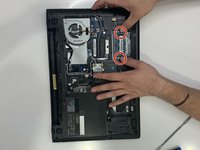
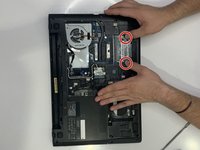
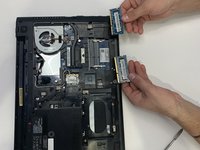
Push the silver hinges outwards to eject the RAM sticks.
-
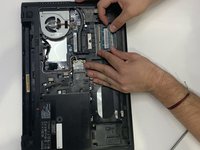
Slide the ram out diagonally toward you and remove it from the device.
-
-
-
-
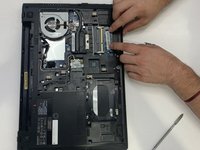
Repeat the same instructions from the previous step to remove any extra RAM sticks.
-
-




To reassemble your device, follow these instructions in reverse order.
Cancel: I did not complete this guide.
One other person completed this guide.

