Introduction
A computer has RAM (random access memory) as a place to hold the information it is computing. This is important because it takes longer to pull the information from the hard drive. Upgrading to a higher RAM capacity will increase computing speeds because it won't have to take information from the hard drive as often.
What you need
-
-
-
Push the left switch (labeled 1) to the left to show red underneath. This will unlock battery.
-
Push the right switch (labeled 2) to the right. This will eject battery.
 Ask FixBot
-
-
-
-
-
Remove the three 6mm Phillips #0 screws holding the back access panel on.
-
-
-
-
Slide the cover toward you to unlatch it.
-
The edge of the panel will slide away from the laptop so it can be lifted.
-
-
-
-
-
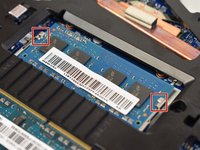
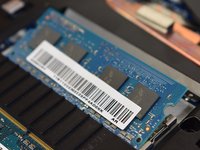
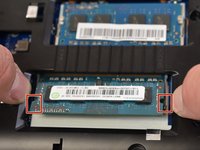
Start by removing top RAM stick held in by two spring clips on either side.
-
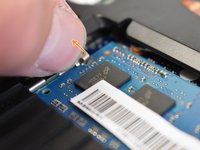
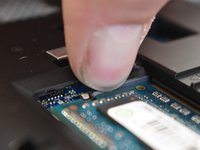
Press both spring clips away from RAM stick simultaneously.
-
-
-
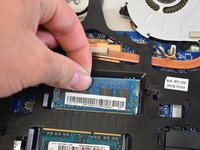
Lower RAM stick is removed the same way as the first. Pull two spring clips on either side away from RAM stick to release it.
-






To reassemble your device, follow these instructions in reverse order.
Cancel: I did not complete this guide.
8 other people completed this guide.

Team

Central Washington University, Team S1-G7, Pengilly Fall 2018 Member of Central Washington University, Team S1-G7, Pengilly Fall 2018
CWU-PENGILLY-F18S1G7
3 Members
72 Guides authored
