Free Shipping on Domestic Orders $75+

Lenovo G40-30 Hard Drive Replacement

What you need

  1. Lenovo G40-30 Hard Drive Replacement, Battery: step 1, image 1 of 3 Lenovo G40-30 Hard Drive Replacement, Battery: step 1, image 2 of 3 Lenovo G40-30 Hard Drive Replacement, Battery: step 1, image 3 of 3
    • At the top of the laptop you will see two switches, like in image one and two.

    • Pull the switches outwards with your thumb, towards the unlocked lock.

    Ask FixBot
  2. Lenovo G40-30 Hard Drive Replacement: step 2, image 1 of 3 Lenovo G40-30 Hard Drive Replacement: step 2, image 2 of 3 Lenovo G40-30 Hard Drive Replacement: step 2, image 3 of 3
    • Once both switches are pulled, the battery should pop out.

    Ask FixBot
  3. Lenovo G40-30 Hard Drive Replacement: step 3, image 1 of 1
    • Now you are ready to insert your new battery.

    Ask FixBot
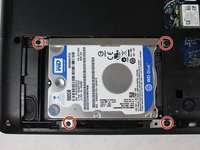
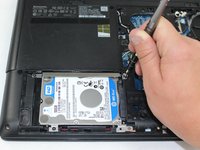
  4. Lenovo G40-30 Hard Drive Replacement, Hard Drive: step 4, image 1 of 2 Lenovo G40-30 Hard Drive Replacement, Hard Drive: step 4, image 2 of 2
    • Unscrew four 4mm JIS #0 screws.

    Ask FixBot
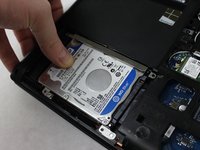
  5. Lenovo G40-30 Hard Drive Replacement: step 5, image 1 of 3 Lenovo G40-30 Hard Drive Replacement: step 5, image 2 of 3 Lenovo G40-30 Hard Drive Replacement: step 5, image 3 of 3
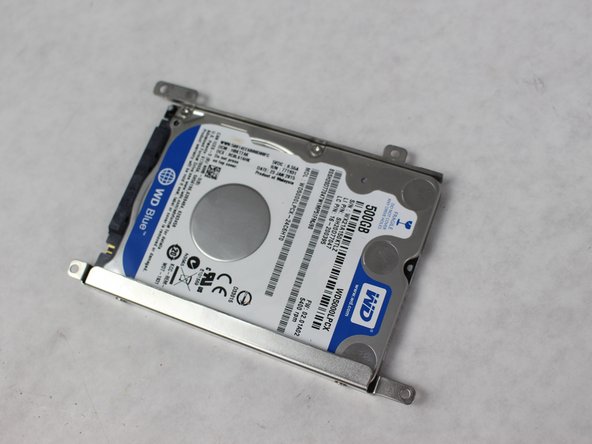
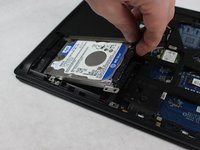
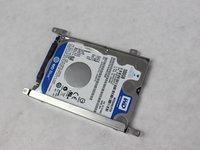
    • After you have the screws out apply pressure with your thumb and slide the hard drive to the left.

    • When the hard drive is completely left gently pull up on the right corner.

    Ask FixBot
Conclusion

To reassemble your device, follow these instructions in reverse order.

2 other people completed this guide.

0 Guide Comments

Add Comment

View Statistics:

Past 24 Hours: 0

Past 7 Days: 5

Past 30 Days: 48

All Time: 2,948