
Lenovo Flex 3-1580 RAM Replacement

Florence Hall and 3 other contributors
Last updated on May 20, 2025
Views: 361
View statistics:
- Past 24 Hours:
- 0
- Past 7 Days:
- 11
- Past 30 Days:
- 59
- All Time:
- 361
Comments: 0
No one has left comments on this guide. Will you be first?
Go to guide commentsCompleted: 0 1
No one has marked this guide "completed." Will you be the first?
1 person has marked this guide "completed." It's you — great job!
Favorites: 0 1
No one has favorited (and subscribed to) this guide. Will you be the first?
1 person has favorited (and subscribed to) this guide — and that's you!
Introduction
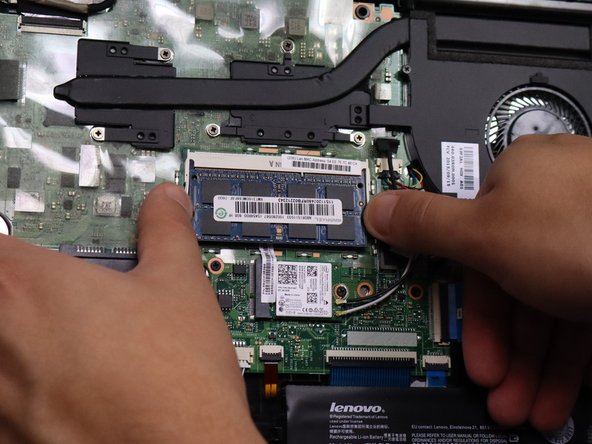
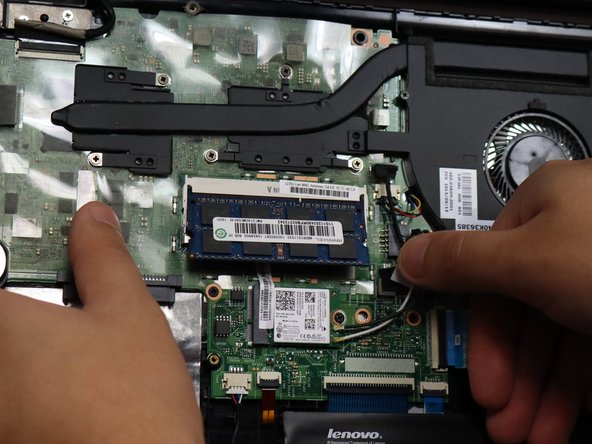
Go to step 1 ↓This guide was created to help walk you through the process of replacing the memory in a Lenovo Flex 3-1580. Replacing the memory with a higher capacity can have faster performance and allow you to use more programs or stronger programs that require more memory. Before replacing the memory, be sure to double check this guide for any possible symptoms that may be causing this.
Warning: Disconnecting the battery, unplugging the charger if still plugged in, adding an anti-static wristband can help ensure there is no power surge damage to the laptop's motherboard. For a further explanation how to use this wristband please refer to this guide.
The DIMM installed in the Lenovo Flex series has had no recall notices.
What you need
Tools
-
Spudger4.9
-


-
-
-
Remove eleven 6.0 mm screws from the bottom cover using a JIS #1 screwdriver.
 Ask FixBot
-
-
-
Loosen the backing cover by sliding a spudger along the edges.
-
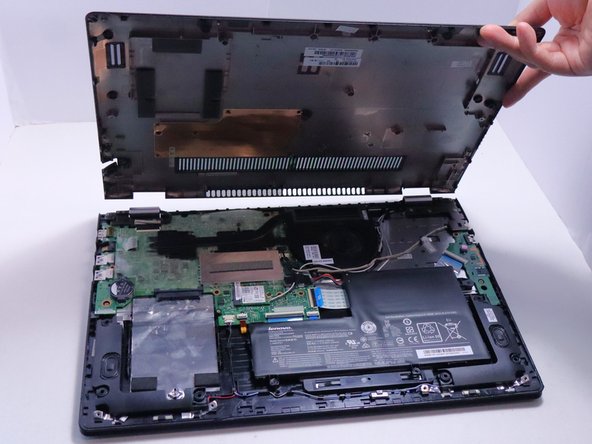
Remove the bottom cover from the laptop.
-
-
-
-
-
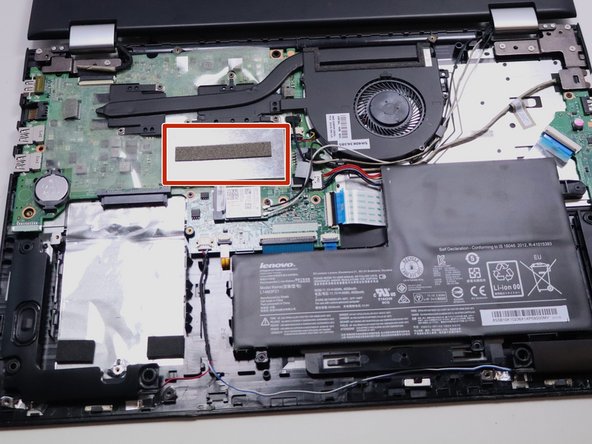
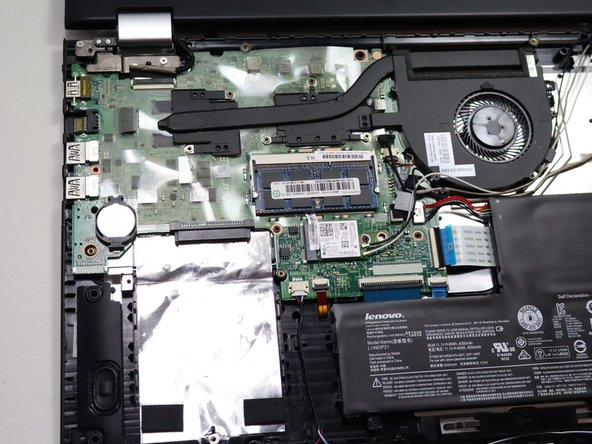
Remove the EMI (Electromagnetic Interference) shielding bracket by lifting it from each side gently.
-
-
-





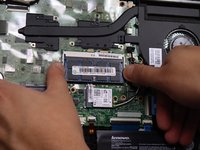
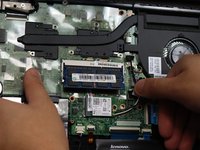

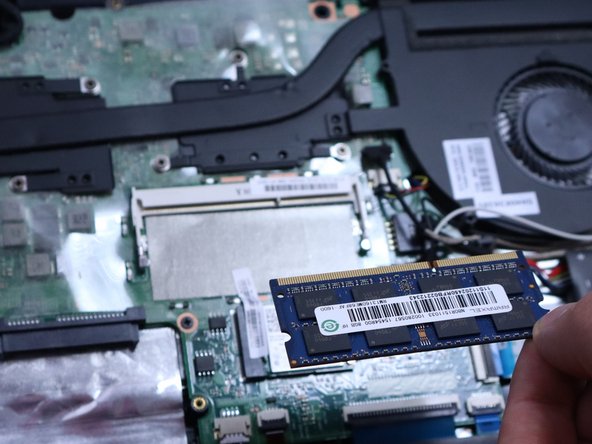
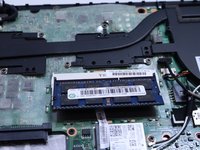
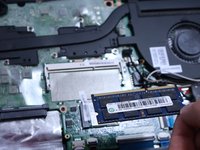
To reassemble your device, follow these instructions in reverse order.

Team

Austin Community College, Team 7-1, Watkins Spring 2025 Member of Austin Community College, Team 7-1, Watkins Spring 2025
AUSTINCC-WATKINS-S25S7G1
4 Members
72 Guides authored
