Free Shipping on Domestic Orders $75+

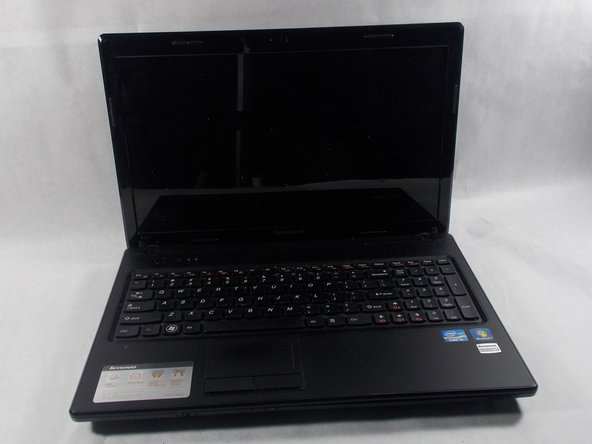
Lenovo Essential G570 Keyboard Replacement

What you need

  1. Lenovo Essential G570 Keyboard Replacement, Battery: step 1, image 1 of 1
    • Turn off the laptop.

    • Disconnect the charging cable.

    • Failure to unplug the cable could result in electric shock.

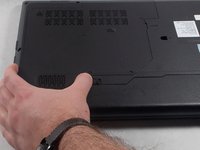
    • Turn the computer upside down.

    Ask FixBot

    Add Comment

  2. Lenovo Essential G570 Keyboard Replacement: step 2, image 1 of 2 Lenovo Essential G570 Keyboard Replacement: step 2, image 2 of 2
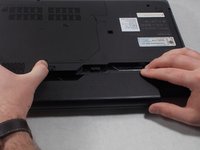
    • Locate the two switches that lock the battery.

    • Push the right switch outwards to unlock the battery.

    Ask FixBot

    Add Comment

  3. Lenovo Essential G570 Keyboard Replacement: step 3, image 1 of 2 Lenovo Essential G570 Keyboard Replacement: step 3, image 2 of 2
    • Push and hold the left switch outwards to unlock the battery.

    • Pull the battery away from the computer.

    Ask FixBot

    Add Comment

  4. Lenovo Essential G570 Keyboard Replacement, Back Panel: step 4, image 1 of 1
    • Turn the laptop over so that the bottom side is facing up.

    Ask FixBot

    Add Comment

  5. Lenovo Essential G570 Keyboard Replacement: step 5, image 1 of 1
    • Unscrew the five 5mm Phillips #0 screws that hold the cover in place.

    • The screws do not come out fully from the back plate. They stay attached to the plate itself.

    Ask FixBot

    Add Comment

  6. Lenovo Essential G570 Keyboard Replacement: step 6, image 1 of 3 Lenovo Essential G570 Keyboard Replacement: step 6, image 2 of 3 Lenovo Essential G570 Keyboard Replacement: step 6, image 3 of 3
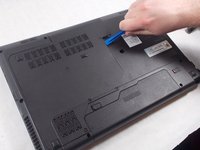
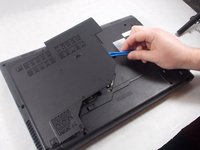
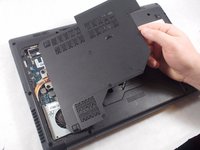
    • With the screws removed, insert the plastic opening tool into the groove located on the right side.

    • Begin to pry up, and the plate should lift up from the body of the laptop.

    • While lifting up, take the piece in one hand and pull up and to the right to fully remove the back plate.

    Ask FixBot

    Add Comment

  7. Lenovo Essential G570 Keyboard Replacement, Keyboard: step 7, image 1 of 1
    • Remove the two 9mm Phillips #0 screws.

    • Remove the single 5mm Phillips #0 screw.

    • All 3 screws are located next to keyboard icons.

    Ask FixBot

    Add Comment

  8. Lenovo Essential G570 Keyboard Replacement: step 8, image 1 of 2 Lenovo Essential G570 Keyboard Replacement: step 8, image 2 of 2
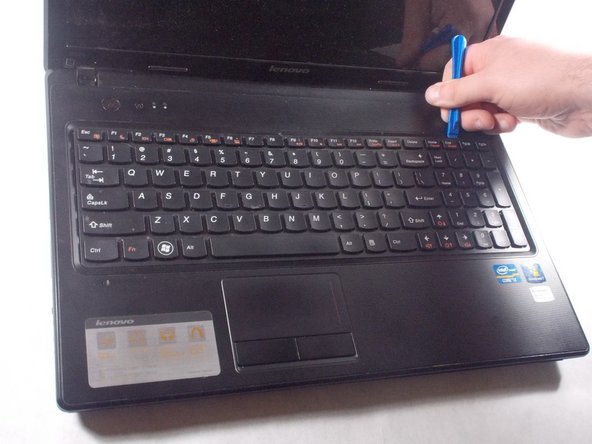
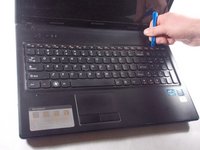
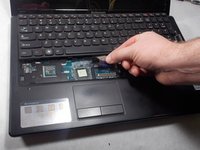
    • Flip the computer over and open it.

    • Using the plastic opening tool, pry open the top of the keyboard.

    Ask FixBot

    Add Comment

  9. Lenovo Essential G570 Keyboard Replacement: step 9, image 1 of 1
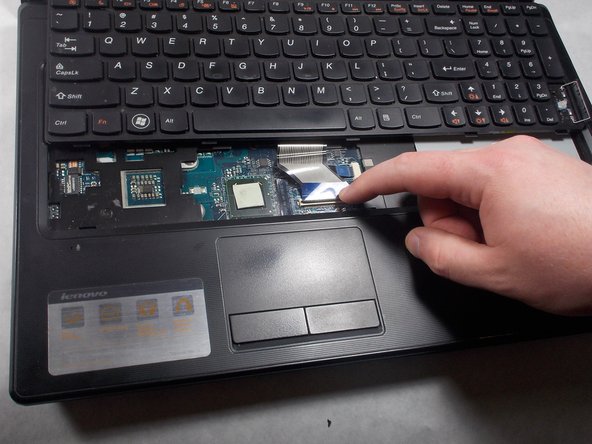
    • Remove the keyboard by gently pulling the top of the keyboard loose, and then lifting the keyboard out.

    • Be careful lifting the keyboard up because there is a delicate ribbon cable connected to the bottom.

    Ask FixBot

    Add Comment

  10. Lenovo Essential G570 Keyboard Replacement: step 10, image 1 of 3 Lenovo Essential G570 Keyboard Replacement: step 10, image 2 of 3 Lenovo Essential G570 Keyboard Replacement: step 10, image 3 of 3
    • While lifting the keyboard, push the black latch on the keyboard cable ZIF connector forward to unlock it.

    • Carefully pull away the ribbon cable to detach it from the motherboard.

    • Be careful when unlatching the lock on the keyboard cable ZIF connector. It is extremely delicate and can easily break.

    Ask FixBot

    Add Comment

Conclusion

To reassemble your device, follow these instructions in reverse order.

Cancel: I did not complete this guide.

4 other people completed this guide.

Nina Francisco

Member since: 03/01/18

412 Reputation

2 Guides authored

Team

0 Guide Comments

Add Comment

View Statistics:

Past 24 Hours: 0

Past 7 Days: 5

Past 30 Days: 43

All Time: 3,123