
Lenovo B575-1450 Back Panel Removal

Carlo Calvillo and 2 other contributors
Last updated on Dec 22, 2016
Views: 1.7K
View statistics:
- Past 24 Hours:
- 2
- Past 7 Days:
- 28
- Past 30 Days:
- 95
- All Time:
- 1,736
Comments: 0
No one has left comments on this guide. Will you be first?
Go to guide commentsCompleted: 2 3
2 people have marked this guide "completed." Will you be next?
3 people have marked this guide "completed." Including you — great job!
Favorites: 0 1
No one has favorited (and subscribed to) this guide. Will you be the first?
1 person has favorited (and subscribed to) this guide — and that's you!
Introduction
Go to step 1 ↓The back panel of the Lenovo B575-1450 allows you access to other internal components that can be replace in this laptop.
What you need
Tools


-
-
-
Turn off the computer.
-
Disconnect the charger from the computer.
-
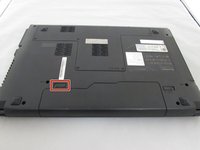
Flip the computer upside down.
 Ask FixBot
-
-
-
-
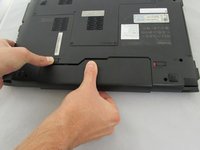
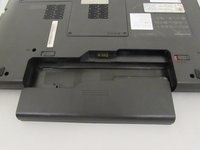
While holding the battery, use your other hand to push the left clip to the left and pull the battery out.
-
-
-
-
-
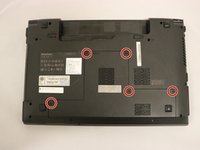
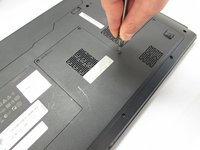
Using the Phillips #00 Screwdriver, Loosen the five 5.4 mm screws around the back panel from the laptop.
-
-
-
Pull the panel outward from the rest of the laptop. The inside of the laptop will be exposed. From here you can access the CD-ROM drive, hard drive, and Keyboard.
-
-






To reassemble your device, follow these instructions in reverse order.
Cancel: I did not complete this guide.
2 other people completed this guide.

Team

Eastern Washington University, Team 1-4, Crane Fall 2016 Member of Eastern Washington University, Team 1-4, Crane Fall 2016
EWU-CRANE-F16S1G4
4 Members
72 Guides authored
