Free Shipping on Domestic Orders $75+

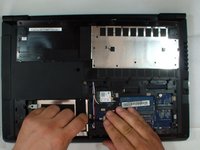
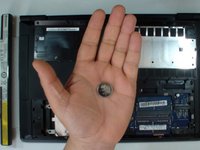
Lenovo B50 HDD, RAM, WiFi, CMOS Battery Replacement

What you need

Video Overview

    1. Lenovo B50 HDD, RAM, WiFi, CMOS Battery Replacement, Battery: step 1, image 1 of 1
      • Switch off the laptop, disconnect the AC adapter, and remove the battery.

      Ask FixBot

      Add Comment

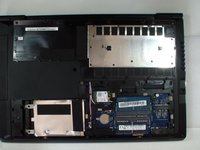
    2. Lenovo B50 HDD, RAM, WiFi, CMOS Battery Replacement, Memory / HDD cover: step 2, image 1 of 2 Lenovo B50 HDD, RAM, WiFi, CMOS Battery Replacement, Memory / HDD cover: step 2, image 2 of 2
      • Remove the screws securing the Memory / HDD cover.

      • Slide the cover down and remove it.

      Ask FixBot

      Add Comment

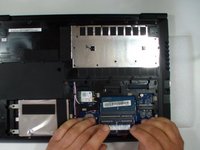
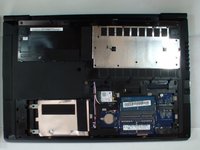
    3. Lenovo B50 HDD, RAM, WiFi, CMOS Battery Replacement, Memory Modules: step 3, image 1 of 2 Lenovo B50 HDD, RAM, WiFi, CMOS Battery Replacement, Memory Modules: step 3, image 2 of 2
      • To pop up the memory module you’ll have to spread latches on both sides of the slot.

      • MEMORY

      • Speed 1600 MHz / PC3L-12800

      • Technology DDR3L SDRAM SODIMM

      • Max Supported Size 16 GB

      • Form Factor SO-DIMM 204-pin

      • Slots Qty 2

      • Empty Slots 1

      Ask FixBot

      Add Comment

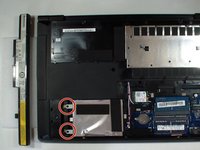
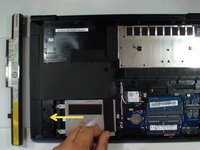
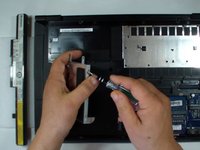
    4. Lenovo B50 HDD, RAM, WiFi, CMOS Battery Replacement, Hard Disk Drive (HDD): step 4, image 1 of 3 Lenovo B50 HDD, RAM, WiFi, CMOS Battery Replacement, Hard Disk Drive (HDD): step 4, image 2 of 3 Lenovo B50 HDD, RAM, WiFi, CMOS Battery Replacement, Hard Disk Drive (HDD): step 4, image 3 of 3
      • Remove two screws securing the hard drive mounting bracked.

      • Slide the HDD to the left to disconnect it from the motherboard and remove it from the device.

      • Remove two screws on each side of the HDD to remove the mounting bracket.

      • Now you have to transfer the mounting bracket to the new HDD or SSD.

      Ask FixBot

      Add Comment

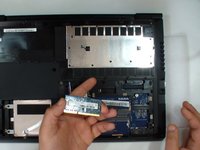
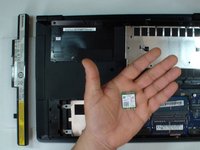
    5. Lenovo B50 HDD, RAM, WiFi, CMOS Battery Replacement, Wireless / Bluetooth Card: step 5, image 1 of 2 Lenovo B50 HDD, RAM, WiFi, CMOS Battery Replacement, Wireless / Bluetooth Card: step 5, image 2 of 2
      • Remove the screw and disconnect the two coaxial antenna cables from the WiFi card.

      • Pop it up and remove it from the slot.

      • Wireless N M.2, or Next Generation Form Factor (NGFF) Card.

      Ask FixBot

      Add Comment

    6. Lenovo B50 HDD, RAM, WiFi, CMOS Battery Replacement, CMOS Battery: step 6, image 1 of 3 Lenovo B50 HDD, RAM, WiFi, CMOS Battery Replacement, CMOS Battery: step 6, image 2 of 3 Lenovo B50 HDD, RAM, WiFi, CMOS Battery Replacement, CMOS Battery: step 6, image 3 of 3
      • Complementary Metal-Oxide-Semiconductor (CMOS) aka Real-Time Clock (RTC)

      • CR2032

      Ask FixBot

      Add Comment

    7. Lenovo B50 HDD, RAM, WiFi, CMOS Battery Replacement: step 7, image 1 of 1
      • That's all.

      Ask FixBot

      Add Comment

Conclusion

To reassemble your device, follow these instructions in reverse order.

Cancel: I did not complete this guide.

3 other people completed this guide.
ZFix

Member since: 12/09/13

197,480 Reputation

330 Guides authored

Team

Master Techs Member of Master Techs

Community

334 Members

7,165 Guides authored

0 Guide Comments

Add Comment

View Statistics:

Past 24 Hours: 1

Past 7 Days: 15

Past 30 Days: 67

All Time: 8,735