Introduction
Use this guide if the screen on your Lenovo 100e Chromebook Gen 4 is malfunctioning or broken. The LCD screen is responsible for outputting all visual elements on your Chromebook. If your Chromebook produces sounds through the speaker but the screen remains black, or if the laptop powers on and off but the screen remains black, or if the touch capability of the screen isn't working, or if there is any visible damage to the screen, the screen may need replacing.
Check our troubleshooting guide for possible solutions before deciding to replace.
This guide requires handling the internal parts of the Chromebook, so usage of an anti-static mat and anti-static wrist strap is recommended.
Unplug all cables and ensure the laptop is powered off before beginning.
What you need
-
-
-
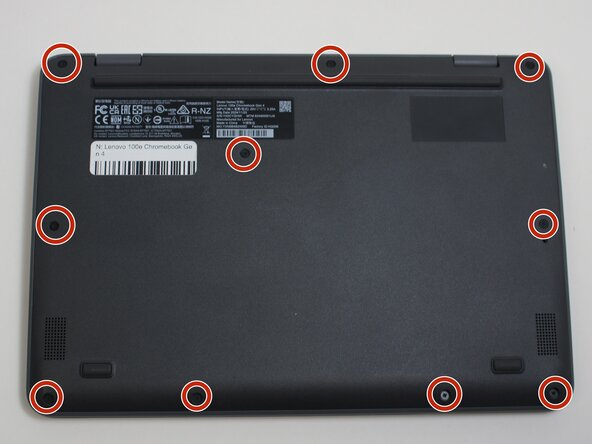
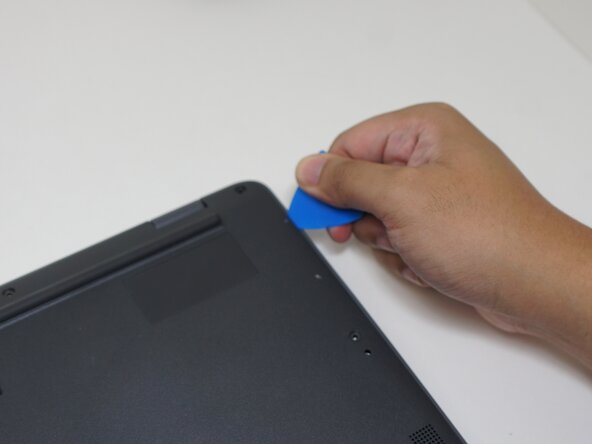
Use an opening pick to wedge the upper right corner of the bottom cover.
-
Use a spudger to pry open the rest of the cover.
-
-
-
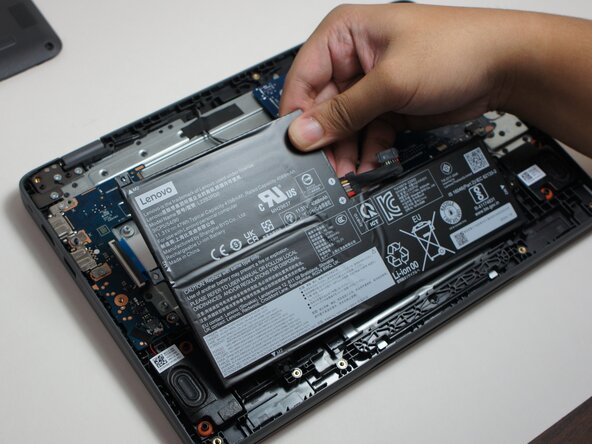
Remove the battery by putting your finger under the battery and pulling towards you.
-
-
-
-
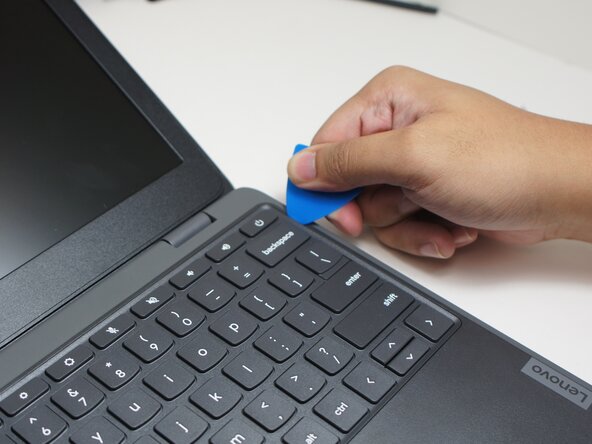
Use an opening pick to wedge under the keyboard and create an opening.
-
Use a spudger to pry under and all around the keyboard.
-
After prying, lift up the keyboard.
-
-
-
Use tweezers to peel off the tape on the keyboard cable.
-
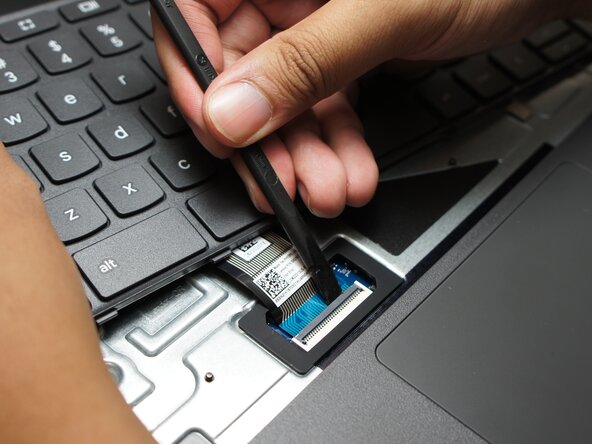
Use a spudger to unlatch the keyboard cable.
-
Disconnect the keyboard cable by lifting it up and out.
-
-
-
-
-
Disconnect the antenna cables with a pair of tweezers by pulling up on the wire near the connector.
-
-
-
-
Remove the Wireless LAN Card by squeezing both sides with your fingers, then pull out.
-
-
-
-
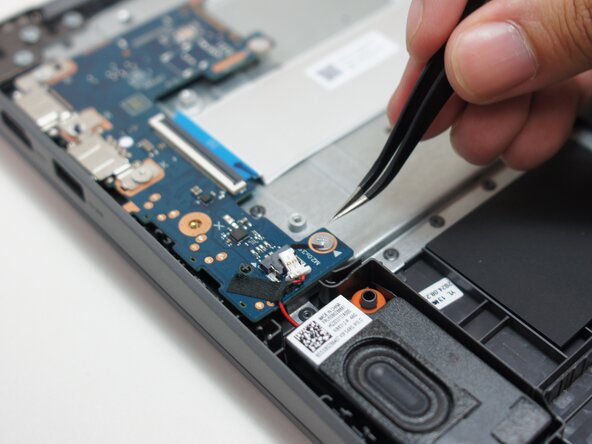
Use a pair of tweezers to pull out the right speaker cable from the main board.
-
-
-
-
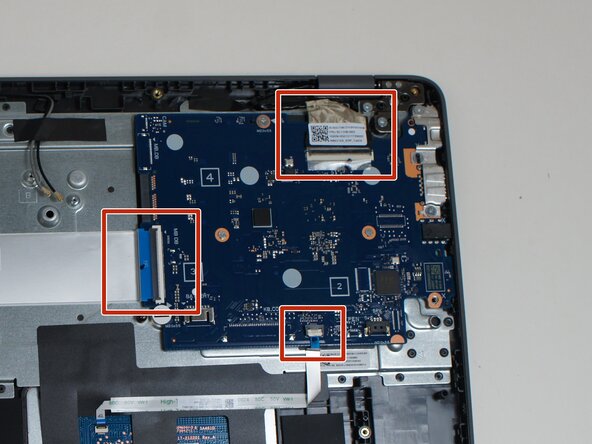
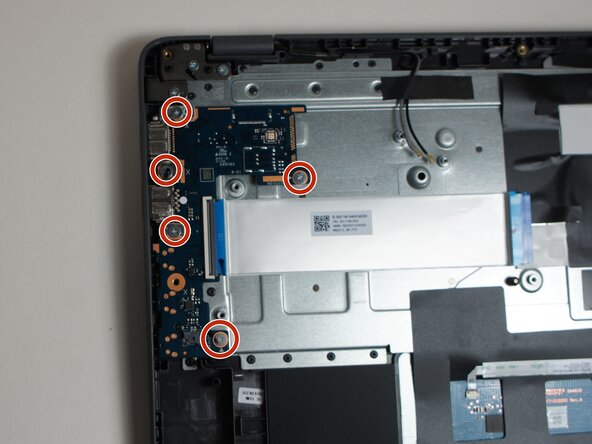
Disconnect all the cables from the main board.
-
All cables rely on a clasp to keep them in place.
-
Flip the clasp up with the plastic spudger before lightly pulling back on each wire to free it.
-
-
-
-
Unlatch the cable clasp with a spudger.
-
Remove the cable by pulling it out of the connector, using a pair of tweezers. You can use your fingers as well.
-
-
-
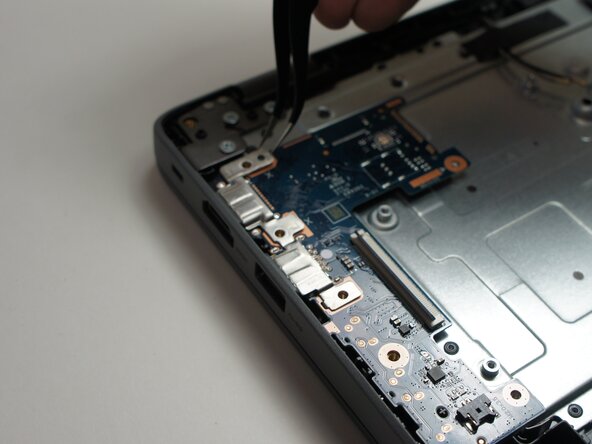
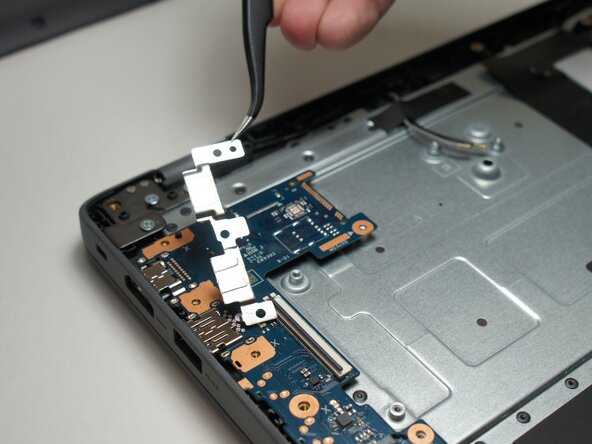
Use a pair of tweezers to remove the bracket by lifting it out of the Chromebook.
-
-
-
-
-
Lift the keyboard as if you are opening the laptop.
-
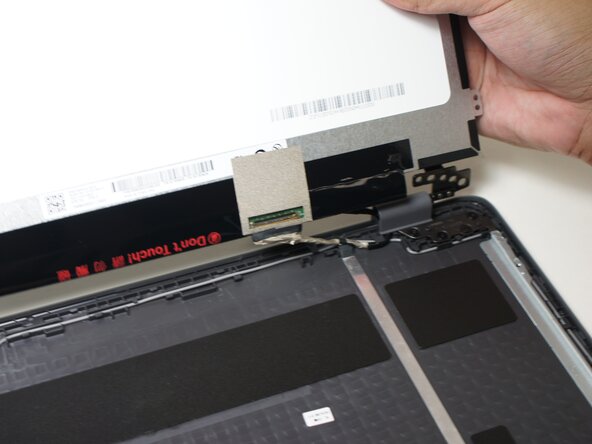
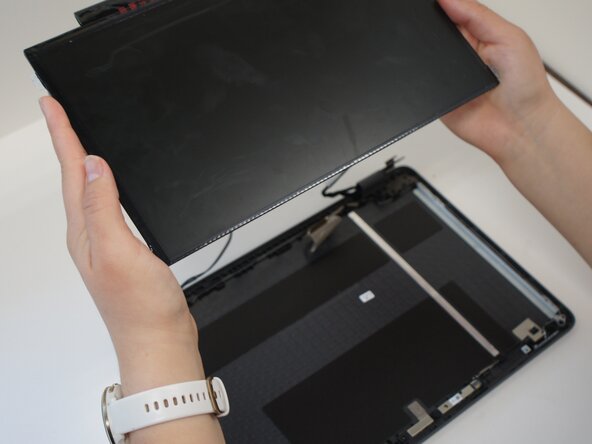
Separate the LCD assembly from the keyboard bezel.
-
-
-
Use a pair of tweezers to unlatch the clasp covering the EDP cable.
-
Use the tweezers to remove the EDP cable by pulling it out.
-

 Ask FixBot




















To reassemble your device, follow these instructions in reverse order.

Team

Austin Community College, Team 9-2, Watkins Spring 2026 Member of Austin Community College, Team 9-2, Watkins Spring 2026
AUSTINCC-WATKINS-S26S9G2
3 Members
84 Guides authored
