Introduction
Use this guide if you are experiencing problems with the Lenovo 100e Chromebook Gen 4's keyboard. The keyboard is responsible for text input and other various functions for navigating the operating system. If your keyboard isn't working, or produces the wrong input, or the keys are damaged, then the keyboard may need replacing.
Check our keyboard troubleshooting page for possible solutions before deciding to replace.
This guide requires you to work with the Chromebook's internal components, so usage of an anti-static mat and anti-static wrist strap is recommended.
Unplug all cables and power off the Chromebook before proceeding with this guide.
What you need
-
-
-
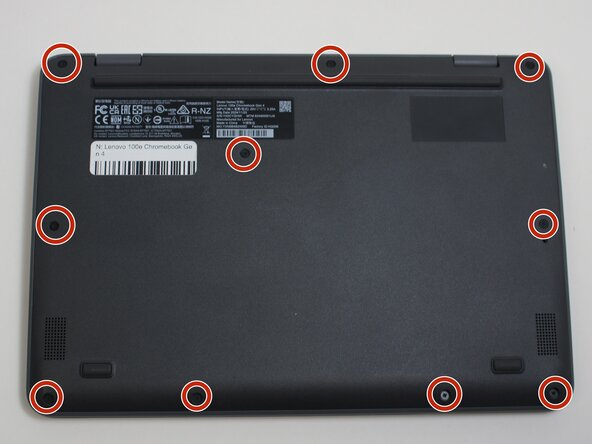
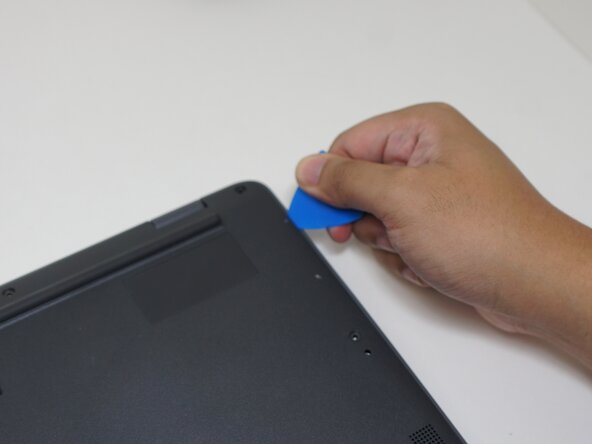
Use an opening pick to wedge the upper right corner of the bottom cover.
-
Use a spudger to pry open the rest of the cover.
-
-
-
-
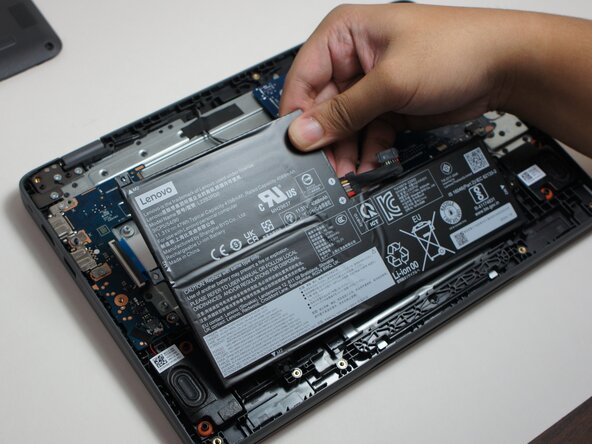
Remove the battery by putting your finger under the battery and pulling towards you.
-
-
-
-
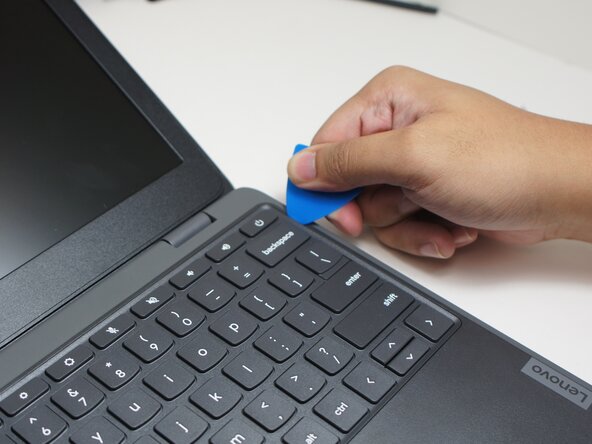
Use an opening pick to wedge under the keyboard and create an opening.
-
Use a spudger to pry under and all around the keyboard.
-
After prying, lift up the keyboard.
-
-
-
Use tweezers to peel off the tape on the keyboard cable.
-
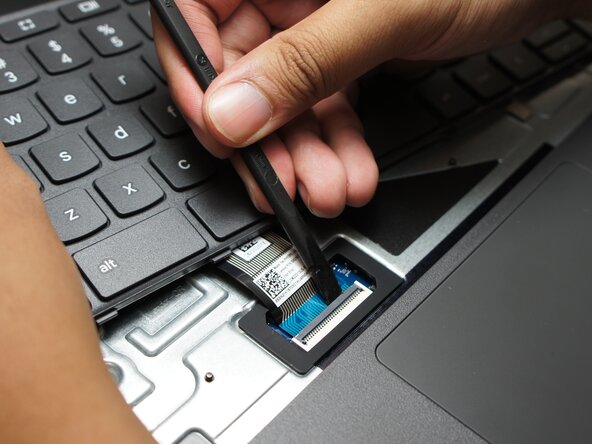
Use a spudger to unlatch the keyboard cable.
-
Disconnect the keyboard cable by lifting it up and out.
-
-

 Ask FixBot











To reassemble your device, follow these instructions in reverse order.

Team

Austin Community College, Team 9-2, Watkins Spring 2026 Member of Austin Community College, Team 9-2, Watkins Spring 2026
AUSTINCC-WATKINS-S26S9G2
3 Members
84 Guides authored
