Free Shipping on Domestic Orders $75+

LeapFrog LeapPad Ultra Repair Back Camera Replacement

What you need

  1. LeapFrog LeapPad Ultra Repair Back Camera Replacement, Battery: step 1, image 1 of 1
    • Remove the barcode covering the two screws on the lower back of the Leap Pad.

    Ask FixBot

    Add Comment

  2. LeapFrog LeapPad Ultra Repair Back Camera Replacement: step 2, image 1 of 1
    • Remove the two 5 mm screws that were covered by the sticker.

    Ask FixBot

    Add Comment

  3. LeapFrog LeapPad Ultra Repair Back Camera Replacement: step 3, image 1 of 1
    • Using a plastic opening tool, pry off the outer protective child proof casing, starting from the bottom.

    Ask FixBot

    Add Comment

  4. LeapFrog LeapPad Ultra Repair Back Camera Replacement: step 4, image 1 of 1
    • Remove the 7 mm screw to the right of the cartridge dock, two 8 mm screws in the top left, and the nine 8 mm screws holding the the green shell.

    Ask FixBot

    Add Comment

  5. LeapFrog LeapPad Ultra Repair Back Camera Replacement: step 5, image 1 of 1
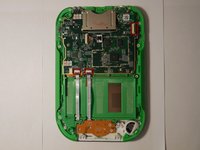
    • Remove the hard plastic casing, exposing the motherboard and battery.

    Ask FixBot

    Add Comment

  6. LeapFrog LeapPad Ultra Repair Back Camera Replacement: step 6, image 1 of 2 LeapFrog LeapPad Ultra Repair Back Camera Replacement: step 6, image 2 of 2
    Tool used on this step:
    Tweezers
    $4.99
    Buy
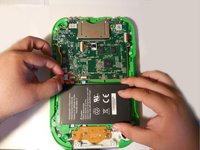
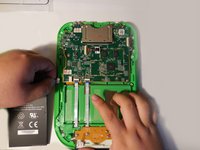
    • Disconnect the battery using tweezers or your fingernails.

    • The battery is glued down, if available put some isopropyl alcohol around the edges of the battery to soften the glue.

    • Gently pry of the battery lose using a spudger or another thin prying tool.

    • Be careful, damaging/puncturing the battery may cause an explosion.

    Ask FixBot

    Add Comment

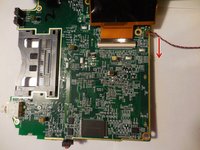
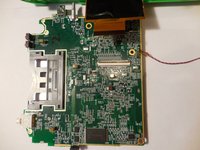
  7. LeapFrog LeapPad Ultra Repair Back Camera Replacement, Motherboard: step 7, image 1 of 3 LeapFrog LeapPad Ultra Repair Back Camera Replacement, Motherboard: step 7, image 2 of 3 LeapFrog LeapPad Ultra Repair Back Camera Replacement, Motherboard: step 7, image 3 of 3
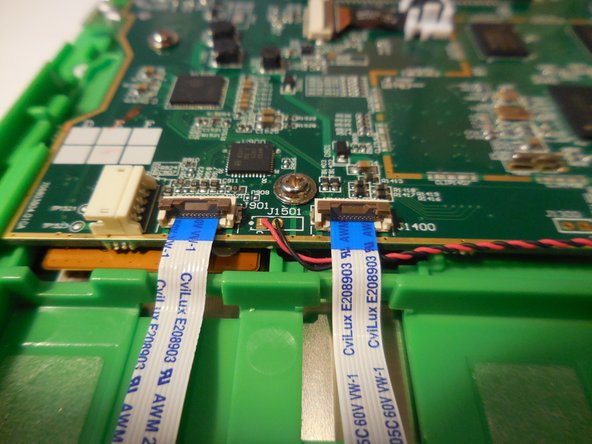
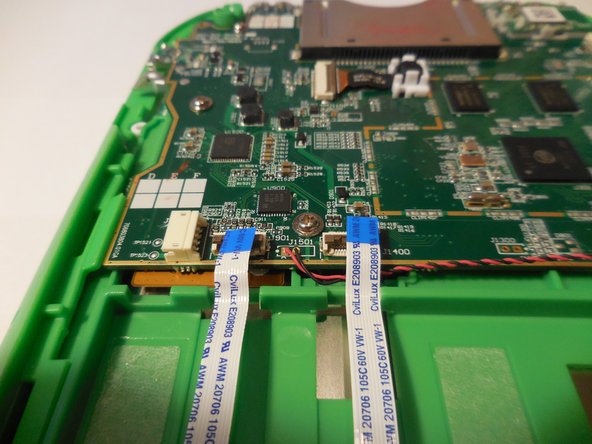
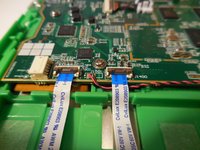
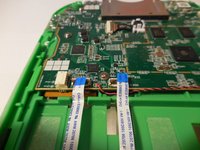
    • Disconnect the three wires that will be visible on top of the motherboard. The wires need to be disconnected by pulling them up vertically.

    Ask FixBot

    Add Comment

  8. LeapFrog LeapPad Ultra Repair Back Camera Replacement: step 8, image 1 of 1
    • Unscrew the five screws holding the motherboard into the housing.

    Ask FixBot

    Add Comment

  9. LeapFrog LeapPad Ultra Repair Back Camera Replacement: step 9, image 1 of 3 LeapFrog LeapPad Ultra Repair Back Camera Replacement: step 9, image 2 of 3 LeapFrog LeapPad Ultra Repair Back Camera Replacement: step 9, image 3 of 3
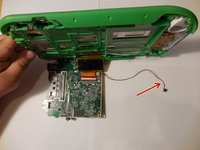
    • Lift the motherboard up exposing the fourth and final wire. Once you lift up the motherboard you will need to pull down on the wire to disconnect.

    Ask FixBot

    Add Comment

  10. LeapFrog LeapPad Ultra Repair Back Camera Replacement: step 10, image 1 of 1
    • Remove and replace motherboard.

    Ask FixBot

    Add Comment

  11. LeapFrog LeapPad Ultra Repair Back Camera Replacement, Back Camera: step 11, image 1 of 1
    Tool used on this step:
    Tweezers
    $4.99
    Buy
    • Disconnect the ribbon cable attached to the camera itself by using tweezers.

    Ask FixBot

    Add Comment

  12. LeapFrog LeapPad Ultra Repair Back Camera Replacement: step 12, image 1 of 1
    • On the reverse side of the motherboard, there will be two clips that will need to be pushed together to remove.

    Ask FixBot

    Add Comment

Conclusion

To reassemble your device, follow these instructions in reverse order.

Cancel: I did not complete this guide.

Rocky Hirsch

Member since: 08/27/15

902 Reputation

3 Guides authored

Team

USF Tampa, Team 4-99, Meier Fall 2015 Member of USF Tampa, Team 4-99, Meier Fall 2015

USFT-MEIER-F15S4G99

4 Members

10 Guides authored

0 Guide Comments

Add Comment

View Statistics:

Past 24 Hours: 0

Past 7 Days: 1

Past 30 Days: 29

All Time: 766