Free Shipping on Domestic Orders $75+

LeapFrog LeapPad 32400 Back Panel Replacement

What you need

  1. LeapFrog LeapPad 32400 Back Panel Replacement, Battery: step 1, image 1 of 2 LeapFrog LeapPad 32400 Back Panel Replacement, Battery: step 1, image 2 of 2
    • Turn the tablet so the back is facing up.

    • Remove the battery covers by sliding the covers towards the sides and away from the center of the device.

    Ask FixBot

    Add Comment

  2. LeapFrog LeapPad 32400 Back Panel Replacement: step 2, image 1 of 1
    • Take out the AA batteries from both battery compartments of the device.

    • Replace batteries as needed.

    Ask FixBot

    Add Comment

  3. LeapFrog LeapPad 32400 Back Panel Replacement, Back Panel: step 3, image 1 of 1
    • Remove three 7 mm screws using a Phillips #1 screwdriver.

    • Remove the single 6 mm screw using a Phillips #1 screwdriver.

    • Remove the single 10 mm screw using a Phillips #1 screwdriver.

    Ask FixBot

    Add Comment

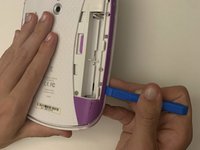
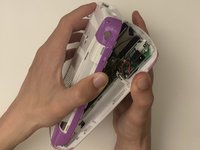
  4. LeapFrog LeapPad 32400 Back Panel Replacement: step 4, image 1 of 3 LeapFrog LeapPad 32400 Back Panel Replacement: step 4, image 2 of 3 LeapFrog LeapPad 32400 Back Panel Replacement: step 4, image 3 of 3
    • Use a small plastic opening tool to separate the colored front cover from the white rear cover of the device.

    • With one hand on the front cover and one hand on the rear cover, start from the bottom of the device and pull the pieces apart.

    • Once only the top edge remains connected, pull the rear cover backwards away from the front cover and upwards towards the top of the device. This should release the last remaining tabs holding the pieces front and rear cover together.

    • The most stubborn tabs holding the front and rear together are along the top edge of the tablet around the game cartridge slot. This will most likely be the last area that separates, and it may require a moderate amount of force.

    Ask FixBot

    Add Comment

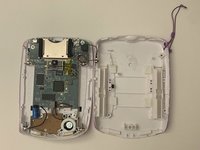
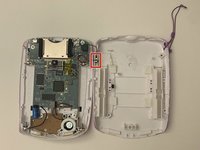
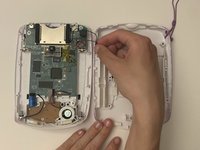
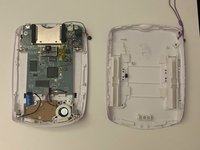
  5. LeapFrog LeapPad 32400 Back Panel Replacement: step 5, image 1 of 3 LeapFrog LeapPad 32400 Back Panel Replacement: step 5, image 2 of 3 LeapFrog LeapPad 32400 Back Panel Replacement: step 5, image 3 of 3
    • Separate the motherboard from the back side of the device by detaching the black and red wire connection from the back cover.

    • The two pieces that hold the pen in place will become loose. Remove and set aside for reassembly.

    Ask FixBot

    Add Comment

Conclusion

To reassemble your device, follow these instructions in reverse order.

Cancel: I did not complete this guide.

Kristen Gismondi

Member since: 11/12/14

107,502 Reputation

270 Guides authored

Team

iFixit Member of iFixit

Staff

122 Members

26,591 Guides authored

0 Guide Comments

Add Comment

View Statistics:

Past 24 Hours: 0

Past 7 Days: 3

Past 30 Days: 25

All Time: 278