
LG V10 Battery Replacement

Nikolai Lesh and
Last updated on Dec 26, 2017
Views: 4K
View statistics:
- Past 24 Hours:
- 6
- Past 7 Days:
- 17
- Past 30 Days:
- 107
- All Time:
- 4,027
Comments: 0
No one has left comments on this guide. Will you be first?
Go to guide commentsCompleted: 3 4
3 people have marked this guide "completed." Will you be next?
4 people have marked this guide "completed." Including you — great job!
Favorites: 0 1
No one has favorited (and subscribed to) this guide. Will you be the first?
1 person has favorited (and subscribed to) this guide — and that's you!
Community-Contributed Guide
An awesome member of our community made this guide. It was not created by iFixit staff.
What you need

Introduction
Go to step 1 ↓Before replacing the battery, turn off the LG V10. If your LG V10 is being charged for a couple hours but quickly drains even when it’s not being used, for example the battery percentage goes from 100% to 95% within ten minutes of being unplugged, then the battery’s life has been depleted and may need to be replaced.
-
-
-
Wedge the flat end of the plastic spudger, or the tip of your finger, in between the back cover and the LG V10’s charging port.
-
Carefully lift up on the spudger or with your finger so that the back cover pops up. The rest of the back cover should easily come off by sliding a finger or spudger under the back cover and around the sides.
 Ask FixBot
-
-
-
-
There’s an impression next to the battery for the user to use their finger to pry the battery out; pry the battery out using your finger or the flat end of the spudger.
-
-


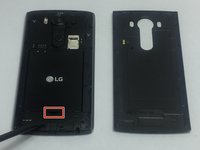

After replacing the old battery with a new one, reattach the back cover and press down on all sides to make sure it's properly reattached.
Cancel: I did not complete this guide.
3 other people completed this guide.


