Free Shipping on Domestic Orders $75+

LG Notebook LGC40 A410 Battery Replacement

    1. LG Notebook LGC40 A410 Battery Replacement, Locate the keys to unlock and release the battery: step 1, image 1 of 1
      • Put the notebook upside down, preferably on top of a soft surface so any movement doesn't scratch the top cover.

      • Locate the keys to unlock and release the battery

      Ask FixBot

      Add Comment

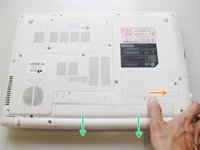
    2. LG Notebook LGC40 A410 Battery Replacement, Unlock the battery: step 2, image 1 of 1
      • Slide the unlock key in the indicated direction to unlock the battery

      Ask FixBot

      Add Comment

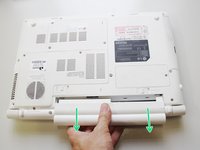
    3. LG Notebook LGC40 A410 Battery Replacement, Release and remove the battery: step 3, image 1 of 2 LG Notebook LGC40 A410 Battery Replacement, Release and remove the battery: step 3, image 2 of 2
      • Slide and hold the release key in the indicated direction

      • Pull out the battery

      Ask FixBot

      Add Comment

Conclusion

To reassemble your device, follow these instructions in reverse order.

Cancel: I did not complete this guide.

One other person completed this guide.

Claudio Felix

Member since: 01/01/16

893 Reputation

7 Guides authored

0 Guide Comments

Add Comment

View Statistics:

Past 24 Hours: 0

Past 7 Days: 4

Past 30 Days: 26

All Time: 2,141