
Kodak EasyShare C713 Buttons Replacement

Taggart Ashby and 3 other contributors
Last updated on Jan 28, 2014
Views: 3.6K
View statistics:
- Past 24 Hours:
- 1
- Past 7 Days:
- 13
- Past 30 Days:
- 92
- All Time:
- 3,638
Comments: 2
2 comments on steps.
Completed: 1 2
1 person has marked this guide "completed." Will you be next?
2 people have marked this guide "completed." Including you — great job!
Favorites: 1 2
1 person has favorited (and subscribed to) this guide. Will you be next?
2 people have favorited (and subscribed to) this guide — including you!
Featured Guide
This guide has been found to be exceptionally cool by the iFixit staff.
Introduction
Go to step 1 ↓Replacing the camera buttons.
What you need
Tools

-
-
-
Use your finger tip to slide battery cover door away from the center of the camera.
-
The battery door should spring open.
-
If this does not happen, gently open the door lifting from the outer bottom side of the camera.
 Ask FixBot
-
-
-
-
-
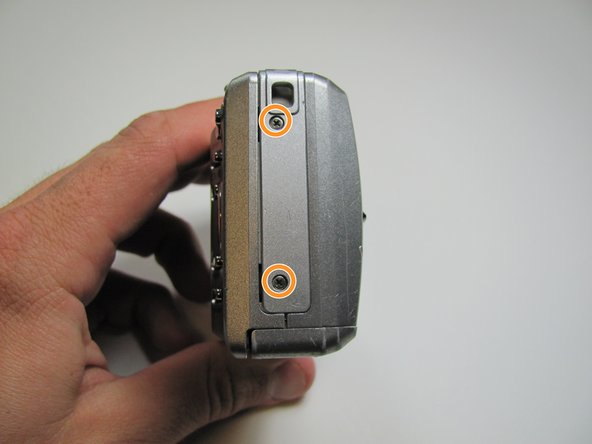
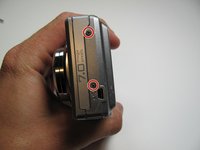
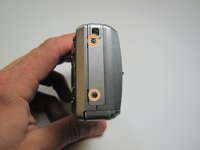
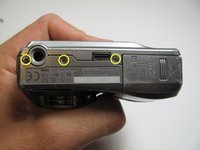
Remove the seven screws from the outer case with a Phillips #00.
-
All screws are 4.45mm.
-
There are 2 screws on the port side.
-
There are 2 screws on starboard side.
-
There are 3 screws on the bottom.
-
-
-
-
-
-
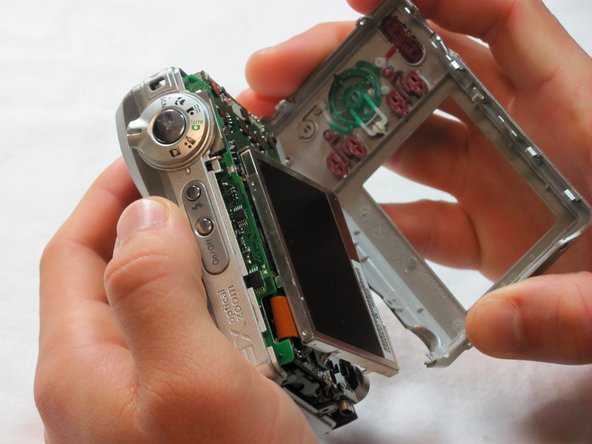
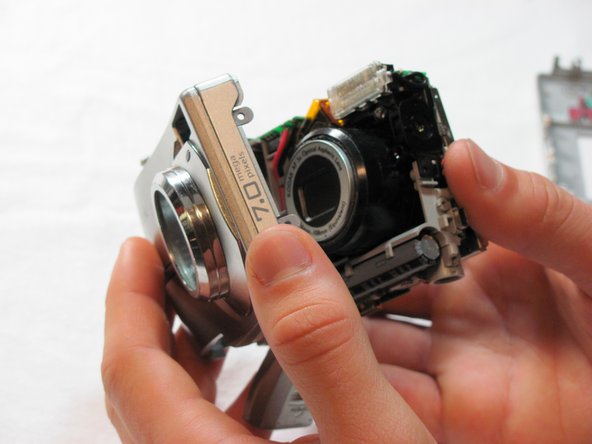
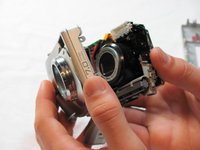
Remove the necessary broken buttons.
-
They come out easily so just use your fingers.
-
-





To reassemble your device, follow these instructions in reverse order.
Cancel: I did not complete this guide.
One other person completed this guide.

Team

Cal Poly, Team 26-19, Regan Spring 2010 Member of Cal Poly, Team 26-19, Regan Spring 2010
CPSU-REGAN-S10S26G19
4 Members
84 Guides authored
