
Kobo Libra Colour (N428B) Power Button Replacement

Spencer Day and one other contributor
Last updated on Jan 8, 2026
Views: 550
View statistics:
- Past 24 Hours:
- 3
- Past 7 Days:
- 19
- Past 30 Days:
- 89
- All Time:
- 550
Comments: 2
2 comments on steps.
Completed: 0 1
No one has marked this guide "completed." Will you be the first?
1 person has marked this guide "completed." It's you — great job!
Favorites: 0 1
No one has favorited (and subscribed to) this guide. Will you be the first?
1 person has favorited (and subscribed to) this guide — and that's you!
Introduction
Go to step 1 ↓Use this guide to replace the power button board and the interconnect cable in your Kobo Libra Colour (model N428B) eReader.
Important: There are two Libra Colour versions: N428 and N428B. Check your eReader's model number (printed on the edge of the device with the USB‑C port) before starting this guide. This guide is for the N428B model.
If your power button isn't working, but all other functions are working properly, you may need to replace the power button
Following this guide will remove your eReader's IP (Ingress Protection) rating, making it susceptible to water damage.
Kobo supports their eReaders with a warranty. If your device is still under warranty, Kobo may be able to help. Before starting a repair, review your warranty information or check support documentation.
What you need


-
-
-
Unplug all cables and fully shut down your eReader.
-
Your screen should be black and say Powered off.
 Ask FixBot
-
-
-
-
-
Flip your eReader over so the screen is facing down.
-
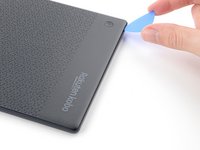
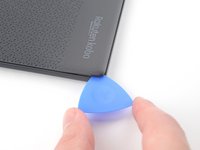
Angle an opening pick straight down, and insert its tip under the top right corner of the back cover, near the power button.
-
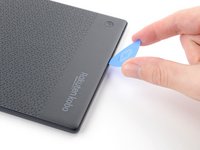
Push downward and pry up with the pick until you feel it slide between one of the clips and the frame.
-
-
-
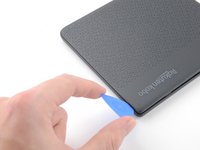
Slide the pick toward the bottom right corner to release the clips along the right edge.
-
-
-
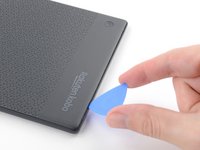
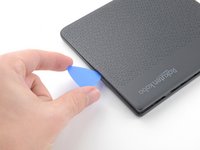
Angle the pick flat under the back cover and rotate it around the bottom right corner to release its clips.
-
-
-
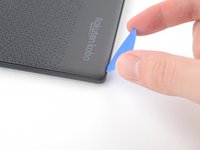
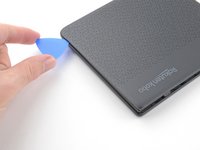
Slide the pick toward the bottom left corner to release the clips along the bottom edge.
-
-
-
Grip the right edge of the back cover and lift it away from the eReader to release the remaining clips.
-
Remove the back cover.
-
-
-
-
-
The coating is brittle and can flake into many small pieces. Heating the coating helps, but working with it is still a time-consuming process.
-
Depending on your repair, you might have to remove the coating from ZIF connectors and their cables.
-
-
-
Use a spudger to pry up and disconnect the battery press connector.
-
-
-
-
-
Heat an iOpener and lay it on the power button ZIF connector (near the top right corner of the motherboard) for 90 seconds to soften the coating.
-
-
-
Use the tip of a spudger and pointed tweezers to scrape and remove the coating from the ZIF connector's locking tab and cable.
-
-
-
-
Use the tip of a spudger to lift up the locking tab on the power button ZIF connector.
-
Use angled tweezers to push the cable fully out of its socket, pushing on the small "arms" near the head of the cable.
-
-
-
-
-
Lay a heated iOpener on the power button and its cable for 90 seconds to soften the adhesive.
-
-
-
Carefully slide an opening pick under the cable and power button to separate the adhesive.
-
-
-
Remove the power button.
-
Use a spudger to remove any remnants of the power button adhesive from the frame.
-
Use high‑concentration (>90%) isopropyl alcohol and a lint‑free cloth (or coffee filters) to clean up any adhesive residue.
-
If your power button comes with adhesive pre‑installed, remove the liners. If it doesn't, apply thin, double‑sided tape to the frame where the old adhesive was.
-
Align the power button's cutouts with their pegs on the frame and push the button into place to secure it.
-
Don't secure the cable with adhesive just yet. Wait until after you've reconnected the cable to ensure it will reach the socket.
-
-








To reassemble your device, follow these instructions in reverse order.
Remember: after repairs, your eReader is no longer IPX8 waterproof.
Compare your new replacement part to the original part—you may need to transfer remaining components or remove adhesive backings from the new part before you install it.
Make sure each of your device's main functions still work, e.g., LED backlight, touch, page-turn buttons, Wi-Fi, etc.
Take your e-waste to an R2 or e-Stewards certified recycler.
Repair didn’t go as planned? Try some basic troubleshooting, or ask our Answers Community for help.

